
Add-ons: sell optional extras alongside packages
Add-ons are optional extras a guest can buy with a package: a birthday cake, shoe rental, a coaching session, an extra 30 minutes. You build each add-on once, set its price, then assign it to the packages it belongs to. Once a package has an add-on, guests see an add-ons step after they pick a time and before checkout.
Add-ons are reusable. Build Shoe rental once and assign it to every bowling package. Tax and fees are set per package, so the same add-on can be taxed differently in different packages.
Create an add-on
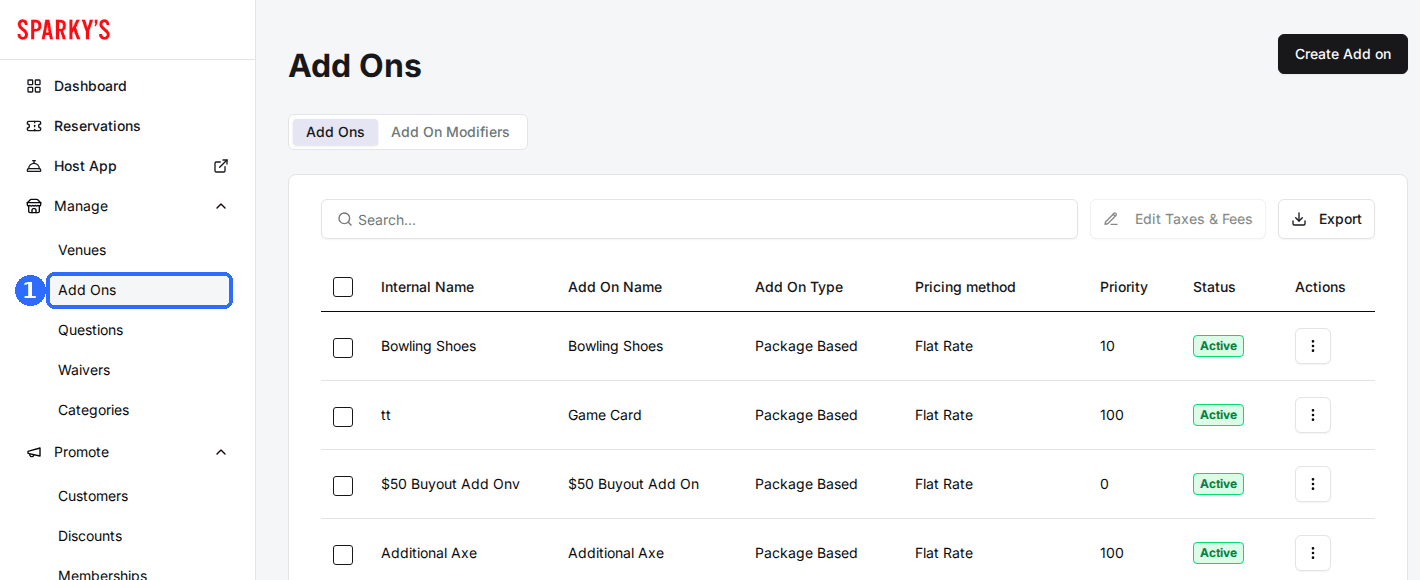
Navigate to Add Ons
The Add Ons tab lists every add-on with its type, pricing method, priority and status.
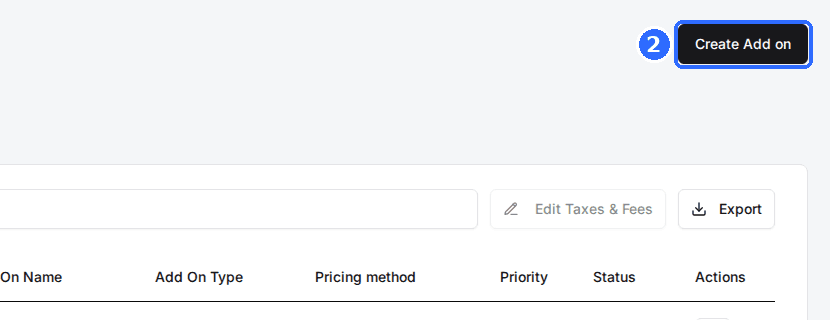
Click Create Add on
Create Add on is in the top-right corner. The Create Add on window opens.
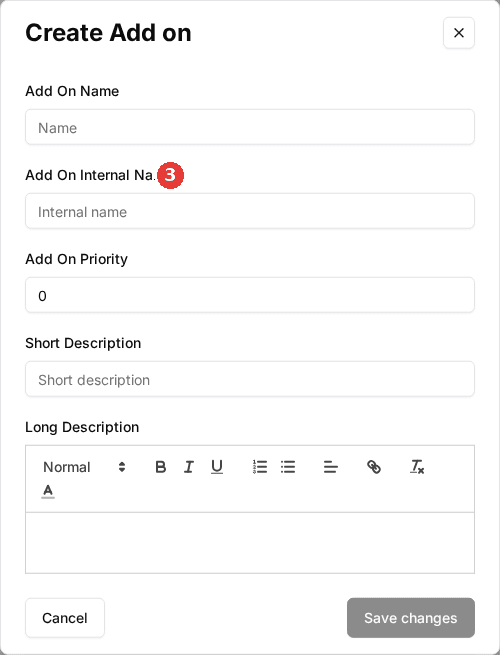
Enter the add-on details
Enter the Add On Name guests see, an Add On Internal Name for your team, the Add On Priority, a Short Description (up to 140 characters) and an optional Long Description. The internal name and short description are required.
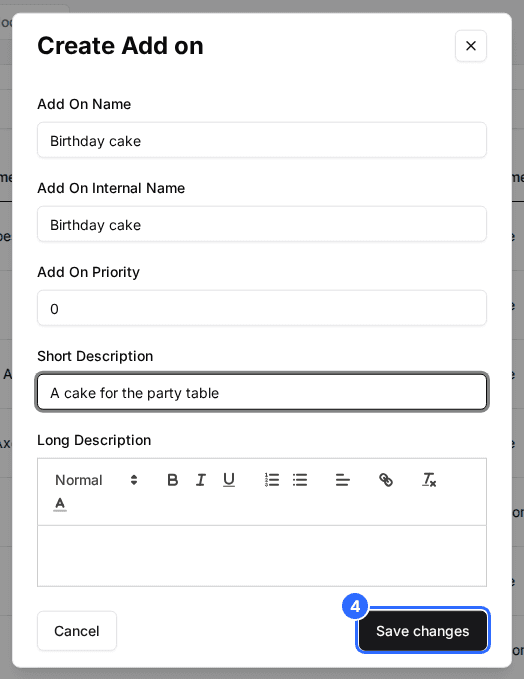
Save the add-on
Click Save changes. Rex opens the add-on's page, which has a General tab and an Assign tab.
Fill in the add-on details
On the General tab, click Edit on the Add On Info card to change what guests see.
| Field | Description |
|---|---|
| Add On Name | The name guests see at checkout, such as Birthday cake. |
| Add On Internal Name | The name your team sees in reports and admin lists. |
| Add On Priority | The order add-ons appear in for guests. Higher numbers show first. |
| Add On Short Description | One line on the add-on card, up to 140 characters. |
| Long Description | Rich text shown when a guest opens the add-on: flavors, sizes, what's included. |
On the right, the Add On Controls card has Add On Is Active (an inactive add-on is never shown to guests) and Add On Is Required (guests must add it before they can continue). Under Add On Thumbnail, click Upload Image to set the picture on the add-on card.
Set pricing and quantity
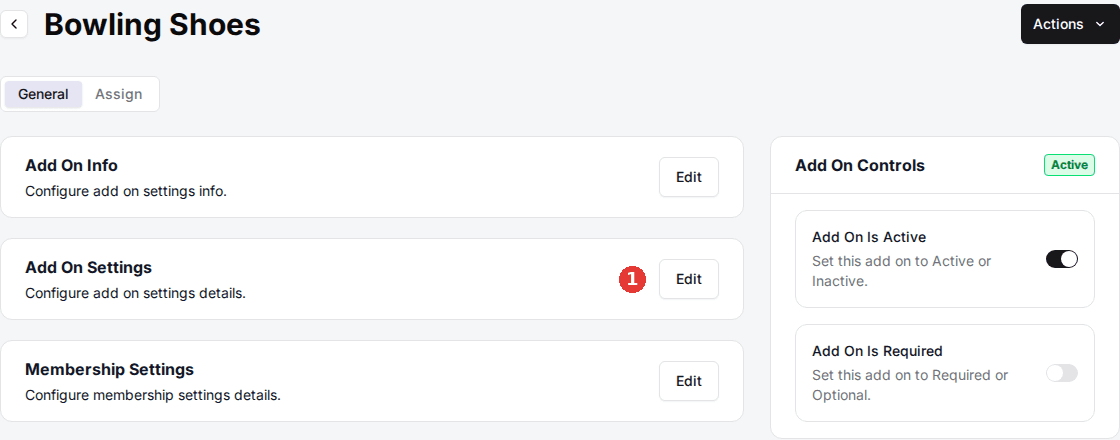
Click Edit on the Add On Settings card.
Choose a Pricing Method
Pick how the price is worked out.
Flat Rate
Most commonCharges the price per unit, whatever the booking length.
Best for: A $40 cake, a $15 t-shirt
Per Hour
Multiplies the price by the booking's length in hours.
Best for: A $20 an hour equipment or coaching add-on
Set the Price and Add On Type
Enter the Price, then choose the Add On Type that matches what you're selling.
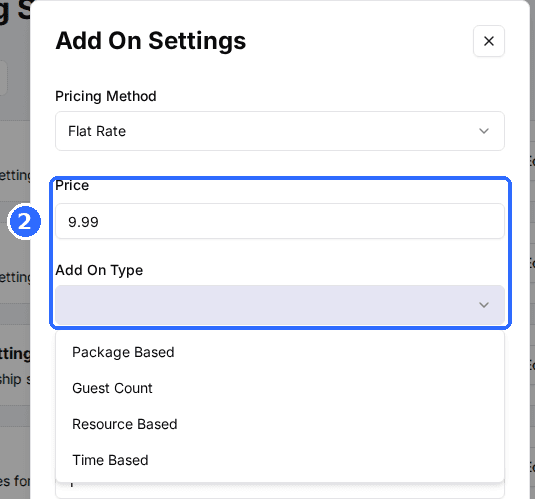
Package Based
DefaultA plain line item. The guest picks how many, within your minimum and maximum.
Best for: A cake, a balloon bundle, a souvenir photo
Guest Count
Each one bought adds a person to the party, at this add-on's price instead of the package's per-person price.
Best for: Spectators, non-players, kids
Resource Based
Books an extra resource (a lane, bay or table) as part of the reservation.
Best for: An added lane or table
Time Based
Adds time to the booking. Set Duration (minutes); each one bought extends the reservation by that much. Turn on Add Duration Once to add the time only once, whatever the quantity.
Best for: Add 30 minutes, extra hour
Set the quantity and deposit
Set Minimum Quantity and Maximum Quantity. For Deposit Percentage, choose No Deposit (0%) to let guests pay for the add-on at the venue, or Use Package Deposit to charge it under the package’s deposit rule.
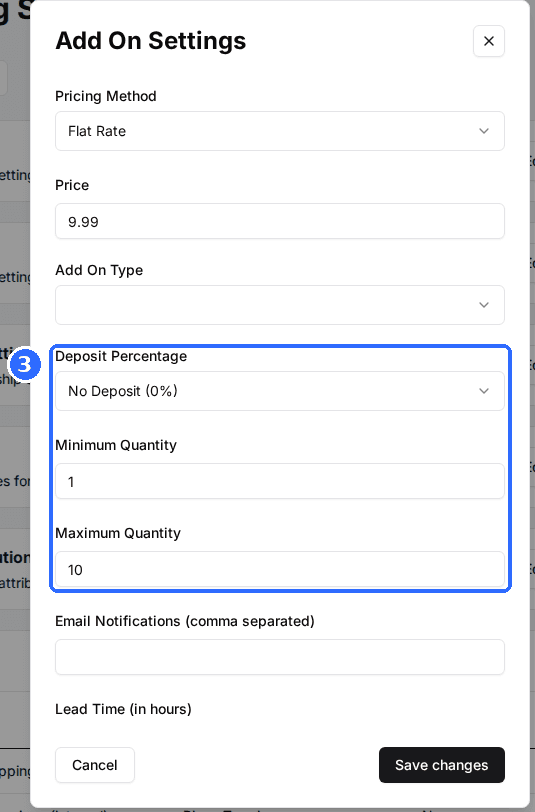
The rest of the Add On Settings window is optional. Set any of these, then click Save changes:
| Field | Description |
|---|---|
| Email Notifications (comma separated) | Addresses emailed whenever this add-on is booked, such as your kitchen or events team. |
| Lead Time (in hours) | How far ahead a guest must add this item. A cake that needs a day's notice might use 24. |
| Allow Customer Notes | Gives guests a text box on the add-on, such as Happy Birthday Sam for a cake. |
| Match Guest Count | Sets the quantity to the number of guests. |
| Match Resource Count | Sets the quantity to the number of resources booked. |
| Hide Quantity Picker | Hides the quantity from guests. They are still charged for a real quantity: Minimum Quantity, or the guest or lane count when Match Guest Count or Match Resource Count is on. |
| Hide Price | Hides the price on the booking page, for included or $0 items. |
| Auto Add Addon | Adds the add-on to the cart without the guest picking it. |
Three more cards sit below: Membership Settings (turn on Member Only Addon and pick the Membership Plans whose members can buy it), Categories (group add-ons so guests can filter them) and Revenue Attribution (map the add-on to a revenue category for reports).
Assign the add-on to packages
An add-on shows up only on the packages it is assigned to. Assignment is also where tax and fees are set.
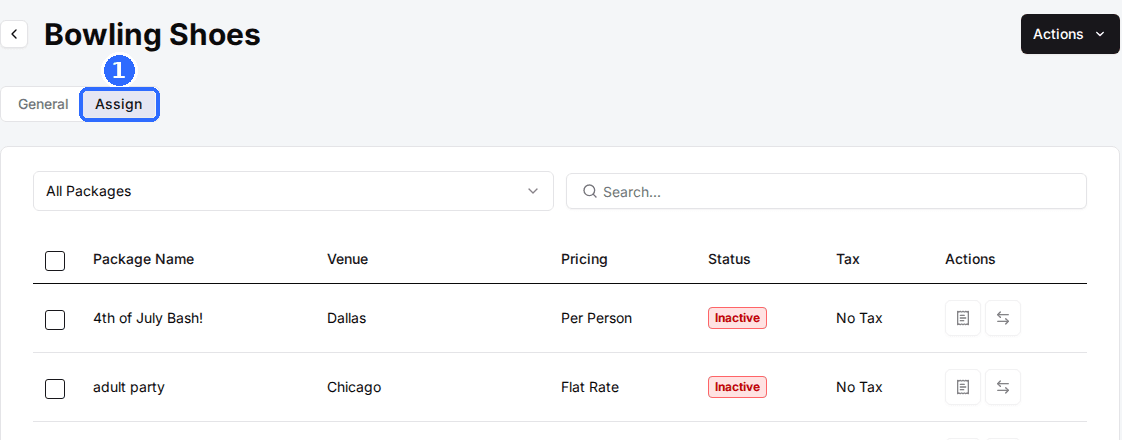
Open the Assign tab
On the add-on's page, click Assign. The table lists every package with its venue, pricing, status and tax. Filter with All Packages or All Venues (one row per venue, for bookings made without a package), or search by name.
Check each package
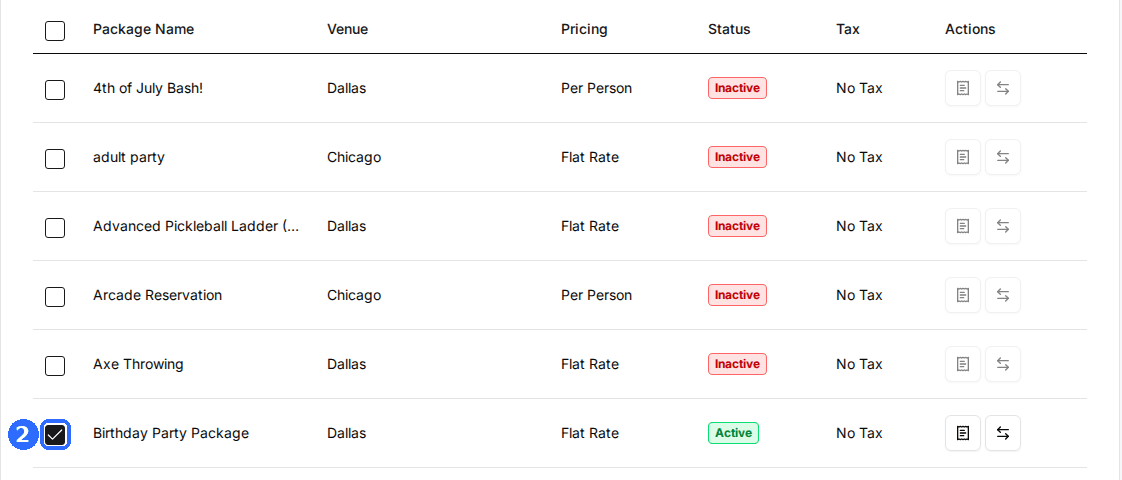
Tick a package to show the add-on on it. Untick to remove it. Each change saves straight away.
Show only assigned rows
Turn on Assigned only, between the filter and the search box, to list just the ticked rows. It works together with All Packages, All Venues, a single venue and the search.
If an Active add-on is assigned to no package or venue, a red banner at the top of the add-on's page says: "This add on is Active but isn't assigned to any packages or venues, so guests won't see it." Tick a package or venue on the Assign tab and the banner goes away.
Add tax and fees
Tax is set per package, so the same add-on can be tax-free in one package and taxed in another. A tax has to exist on the venue first.
Set up the venue's taxes
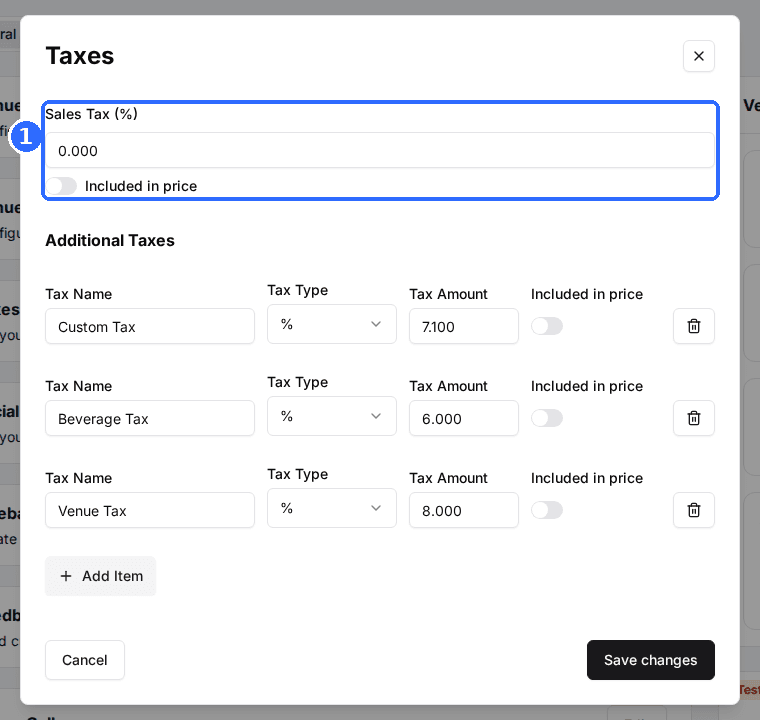
Open the venue and click Edit on its Taxes card. Sales Tax (%) becomes the Venue Tax option. Add other rates under Additional Taxes, each with a Tax Name, Tax Type and Tax Amount.
Open Edit Taxes & Fees for a package
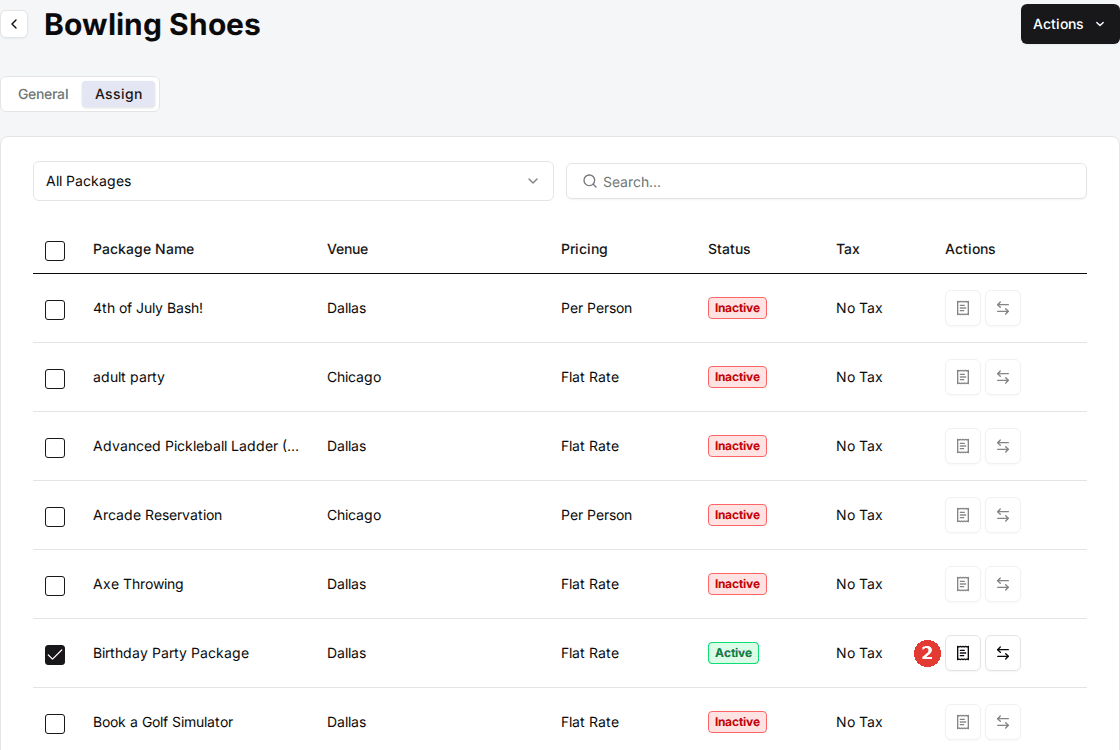
On the add-on's Assign tab, click the receipt icon (Edit Taxes & Fees) in a checked package's row. The Edit Addon For window opens on the Edit Tax tab.
Choose the taxes
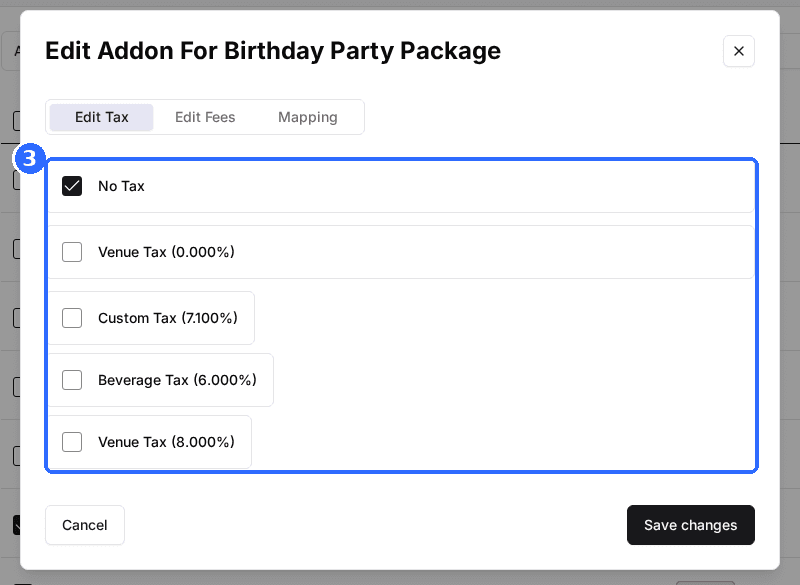
Check Venue Tax for your standard rate, plus any additional taxes that apply. Check No Tax to make the add-on tax-free in this package. Click Save changes.
The Edit Fees tab in the same window adds a service fee: click Add item and set the Fee Name, Fee Type, Fee and whether the fee itself is taxed. The Mapping tab links the add-on to your POS or Tripleseat items.
To set tax or fees on several add-ons at once, tick them on the Add Ons list and click Edit Taxes & Fees. The choice applies to every package those add-ons are assigned to.
Let guests customize with modifiers
Modifiers are choices on an add-on: a flavor for a cake, a size for a shirt. Like add-ons, one modifier can be used on many add-ons.
Create a modifier
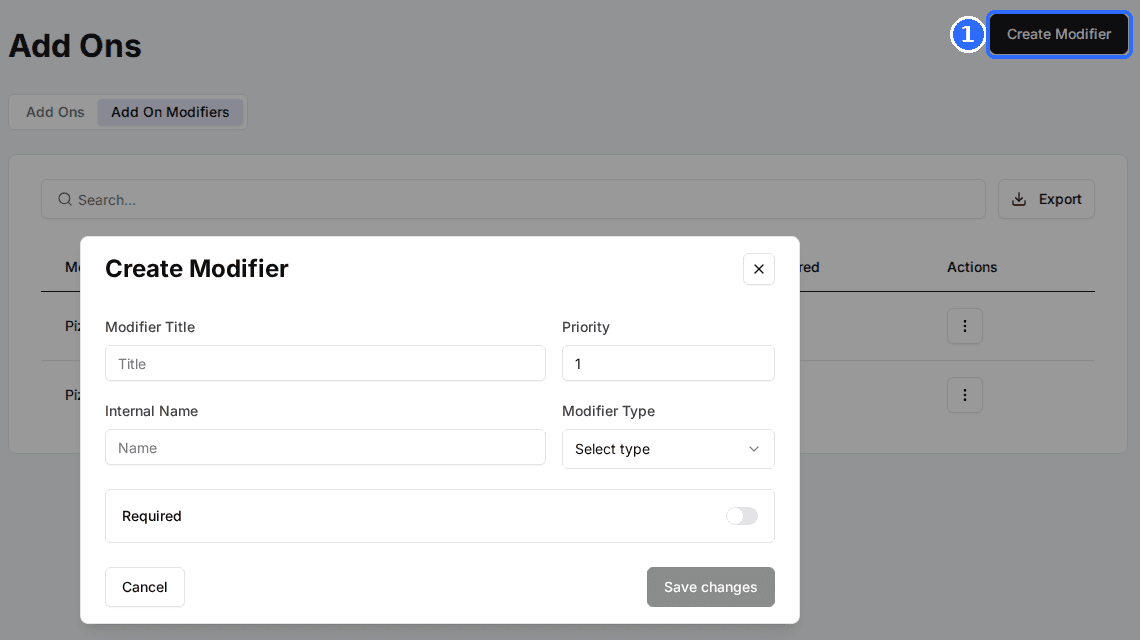
Open the Add On Modifiers tab and click Create Modifier. Enter the Modifier Title guests see, a Priority, an Internal Name and the Modifier Type, then save.
Single Select
The guest picks exactly one option.
Best for: A cake flavor, a shirt size
Multi Select
The guest ticks any number of options. Each option's price is added once.
Best for: Toppings, optional extras
Quantity Select
Each option has a counter, and its price is multiplied by the count.
Best for: Food and drink ordered for a group
Add the options
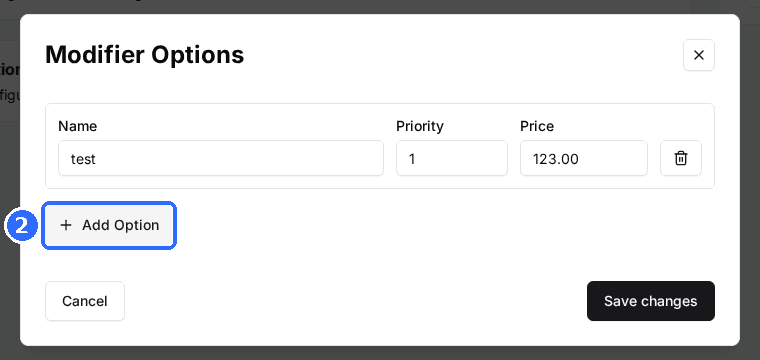
On the modifier's page, click Edit on the Options card, then Add Option for each choice. Each option has a Name, a Priority and a Price (0 for no charge). Higher priorities show first.
Attach the modifier to an add-on
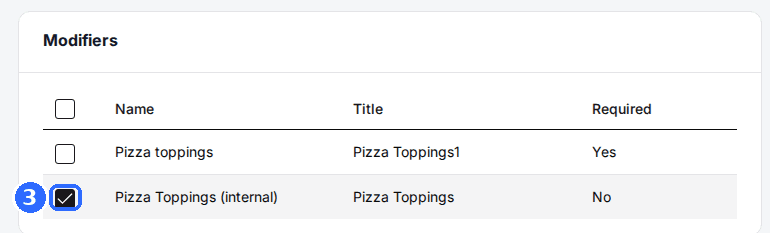
Open the add-on's General tab and tick the modifier in the Modifiers card. Changes save straight away.
Minimum Quantity and Maximum Quantity on a modifier mean different things by type. On Single Select and Multi Select they limit how many options a guest may tick. On Quantity Select they limit the total count across all options. Deleting a modifier removes it from every add-on, so untick it on one add-on instead.
Example: Quantity Select
A party of ten orders food with Burger at $5 and Chicken at $5. On Multi Select the guest can only tick both, for $10. On Quantity Select they set Burger to 6 and Chicken to 4, for $50. The counts follow the booking into the order summary, the confirmation email, the dashboard, the Host App and your POS (as 6x Burger).
What guests see
After picking a package and time, guests see your add-ons as cards with the image, name, short description and price. Opening one shows the long description, modifiers and quantity.
- Required add-ons are marked Required Add On, and the guest cannot continue until they add them.
- If your add-ons have categories, a filter bar lets guests jump to a group.
- Member-only add-ons ask the guest to sign in as a member.
Book through your own reservation page to check the add-ons, prices, modifiers and tax look right. To change the order packages appear in, see How priority controls the order packages and tabs appear.
Updated Oct 9, 2026
Was this helpful?