
Connect Tripleseat
The Tripleseat integration sends your Rex reservations to Tripleseat as events, keeps them up to date when they change or are cancelled, and can pull your Tripleseat events back into Rex so they block availability.
Before you start
- You need a Tripleseat login with permission to approve the connection.
- Have your Tripleseat IDs ready: Site ID, Owner ID, Event Type ID and Lead Source ID. They come from your Tripleseat account.
- Setup runs in this order: connect your account and enter the IDs once, turn Tripleseat on for each venue, then map your resources to Tripleseat rooms. Package settings are optional.
Connect your Tripleseat account
Navigate to Global Integrations
Type Tripleseat in the search box to find its card.
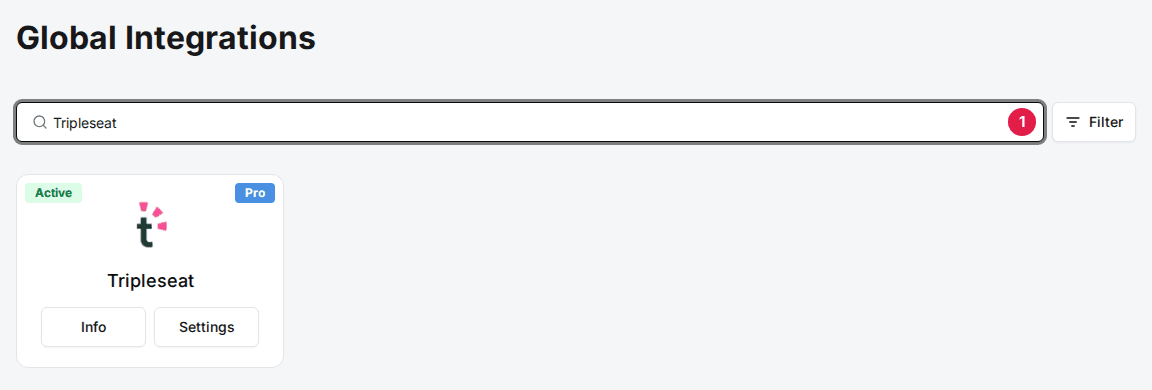
Add the Tripleseat card
Click Add, then Confirm and Add. If the card already shows Info and Settings, it's added, so go to the next step.
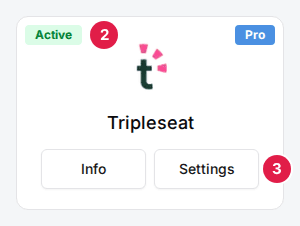
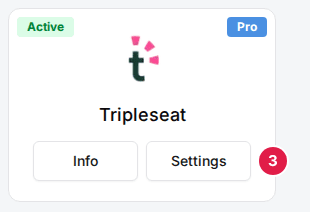
Click Settings on the Tripleseat card
The Tripleseat Settings window opens.
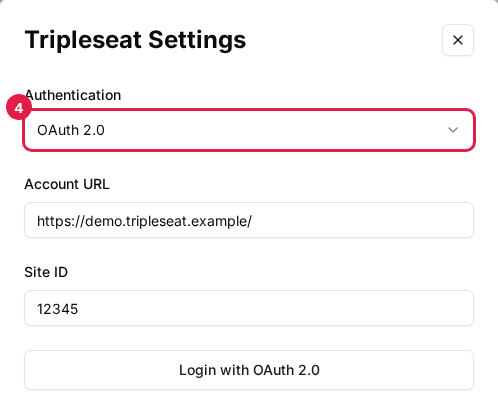
Select OAuth 2.0 in Authentication
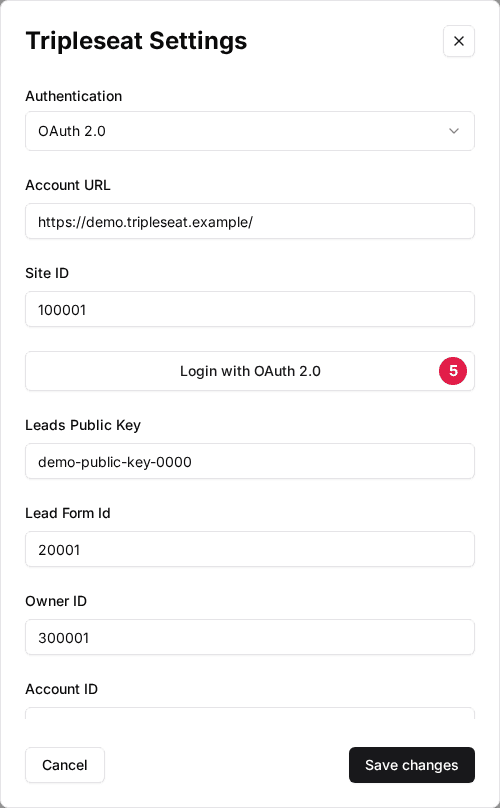
Open the Authentication dropdown and choose OAuth 2.0. A Login with OAuth 2.0 button appears below Site ID.
Click Login with OAuth 2.0
Tripleseat opens in a new window. Sign in and approve the connection. If you're already signed in to Tripleseat, it connects straight away.
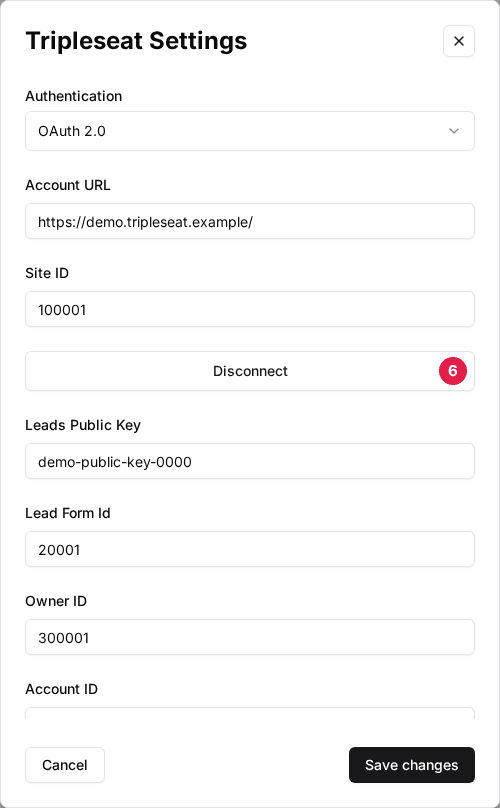
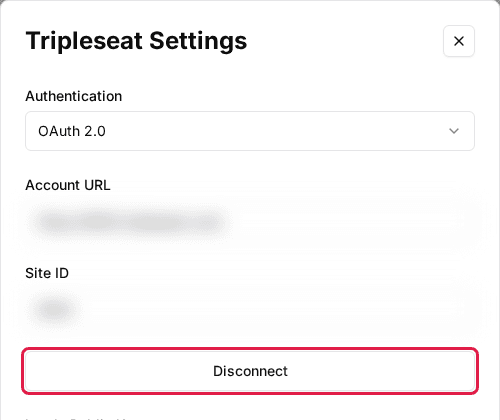
Verify the button now reads Disconnect
When the window closes, Login with OAuth 2.0 changes to Disconnect. That's your confirmation that the connection works. To remove the connection later, click Disconnect.
Already connected with an API key? Tripleseat is moving connections to OAuth 2.0. Switch Authentication from API Key (OAuth 1.0) to OAuth 2.0 and log in as above. The Key and Secret fields only show for API Key (OAuth 1.0).
Enter your Tripleseat IDs
In the same Tripleseat Settings window, fill in the IDs below, then click Save changes. They all come from Tripleseat; your Tripleseat account manager can help you find one. The last three fields are under Advanced.
| Field | Description |
|---|---|
| Account URL | Your Tripleseat address, for example https://yourname.tripleseat.com/. Rex uses it to link to Tripleseat events. |
| Site ID | Your Tripleseat site. Events Rex creates are filed under it. |
| Leads Public Key | Optional. With a key, party requests from your booking site arrive in Tripleseat as leads on the Lead Form Id below. Without one, they arrive as events. |
| Lead Form Id | The Tripleseat lead form that party requests are filed under. |
| Owner ID | The Tripleseat user who owns the events Rex creates. |
| Account ID | Optional. Files every event under this Tripleseat account. Leave it blank and Rex finds or creates an account and contact for each guest. |
| Contact ID | Optional. The contact used with the Account ID above. |
| Event Type ID | The event type given to events Rex creates. A package can choose its own. |
| Lead Source ID | The lead source stamped on events Rex creates. |
| CF Lanes Count | Optional. The ID of a Tripleseat custom field holding how many lanes an event uses. When set, only pulled events with a value above 0 block availability, and Rex sets it to 0 on its own events so they aren't counted twice. |
| Custom Field for Check In | Optional. The Tripleseat custom field Rex uses to record that a Tripleseat event has checked in. |
| Custom Field for GoTab ID | Optional. The Tripleseat custom field where Rex writes the GoTab tab ID when a Tripleseat event is checked in with GoTab. |
Turn on Tripleseat for each venue
Navigate to the venue
Open the venue. The Integrations section is at the bottom of the General tab.
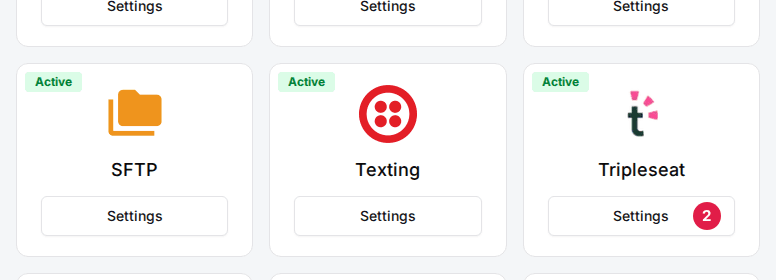
Click Settings on the Tripleseat card
The Tripleseat window opens.
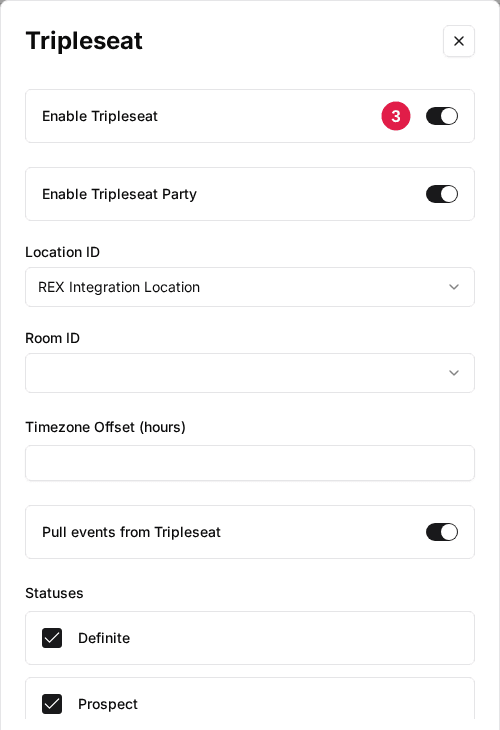
Toggle Enable Tripleseat to ON
Set the other fields in the table below, then click Save changes.
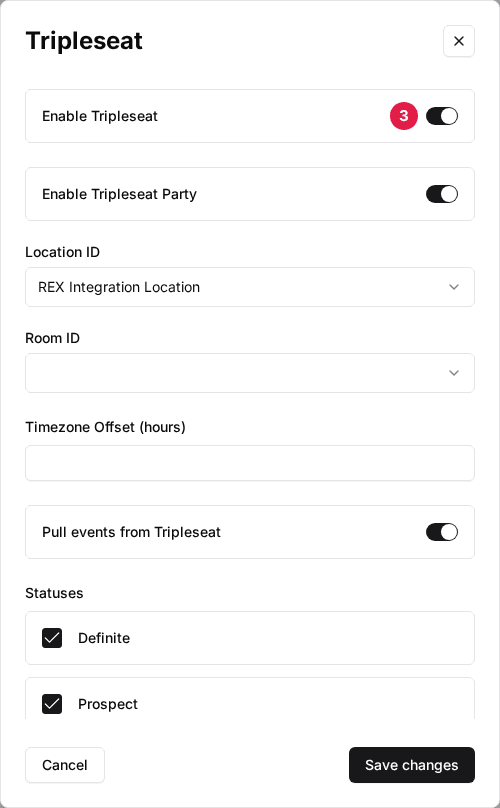
| Field | Description |
|---|---|
| Enable Tripleseat | Turns Tripleseat on for this venue. Nothing syncs while it's off. |
| Enable Tripleseat Party | Sends party requests from your booking site to Tripleseat. |
| Location ID | The Tripleseat location this venue maps to. |
| Room ID | A default Tripleseat room for the venue. Shows once the chosen location has rooms. |
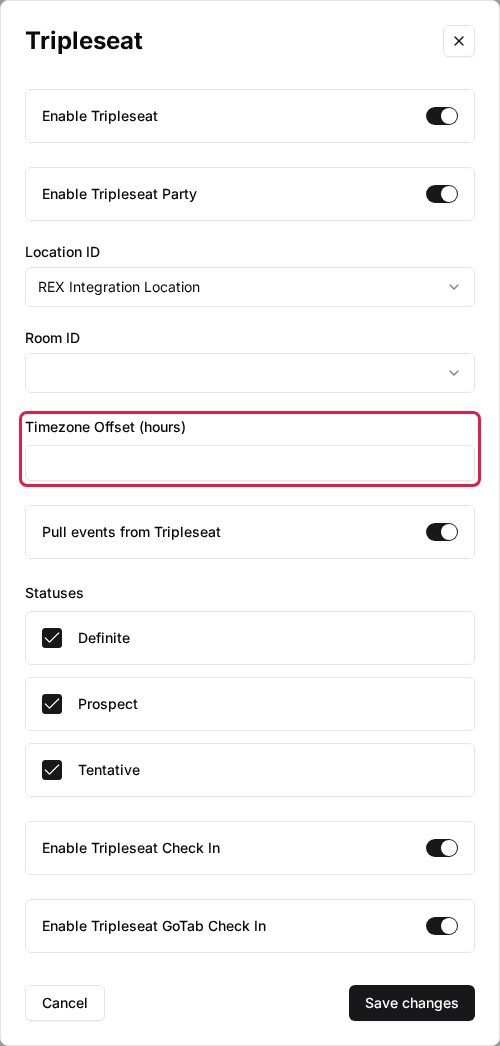
| Timezone Offset (hours) | Hours added when turning Tripleseat event times into Rex times. Leave it at 0 unless pulled events land at the wrong time. |
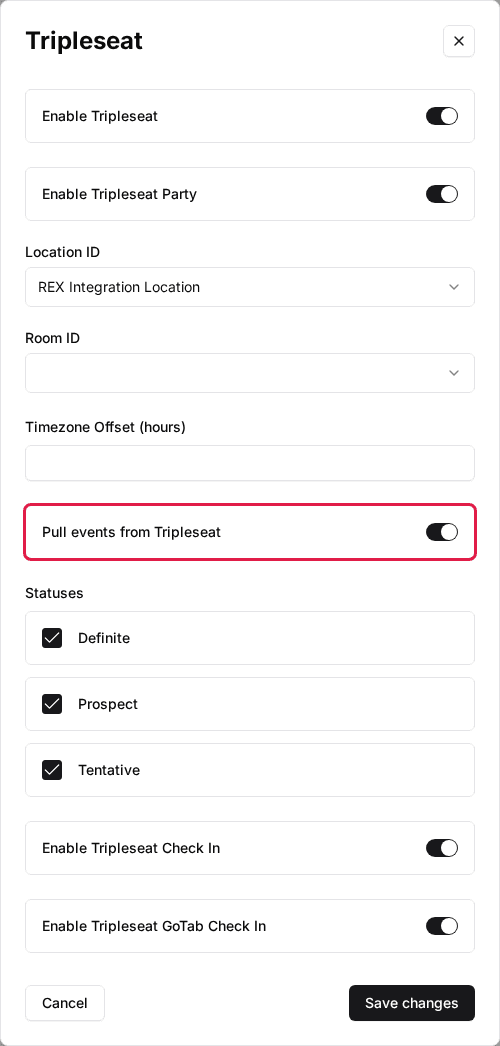
| Pull events from Tripleseat | Pulls your Tripleseat events into Rex and blocks the matching availability. |
| Statuses | The Tripleseat event statuses that block availability when pulling, for example Definite and Prospect. |
| Enable Tripleseat Check In | Lets your staff check in Tripleseat events from the host app. |
| Enable Tripleseat GoTab Check In | Shows once Enable Tripleseat Check In is on. Checking in a Tripleseat event opens a GoTab tab and writes its ID back to the event. |
Map your resources to Tripleseat rooms
Mapping tells Rex which Tripleseat room each resource (lane, bay, court, table) is, so pushed events land in the right room and pulled events block the right resources.
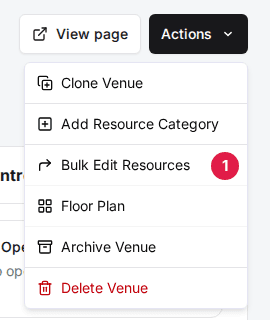
Click Bulk Edit Resources
Open the venue, click Actions at the top right and choose Bulk Edit Resources.
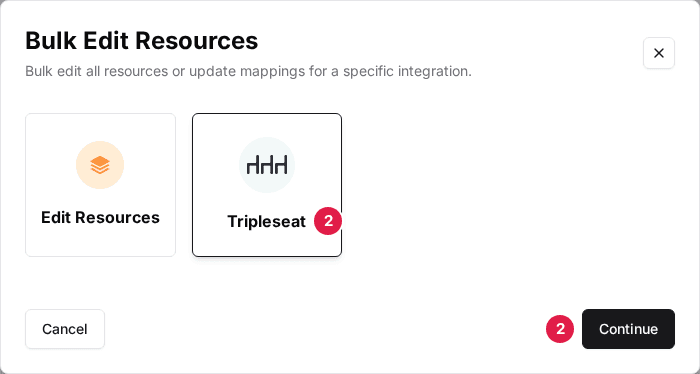
Select Tripleseat and click Continue
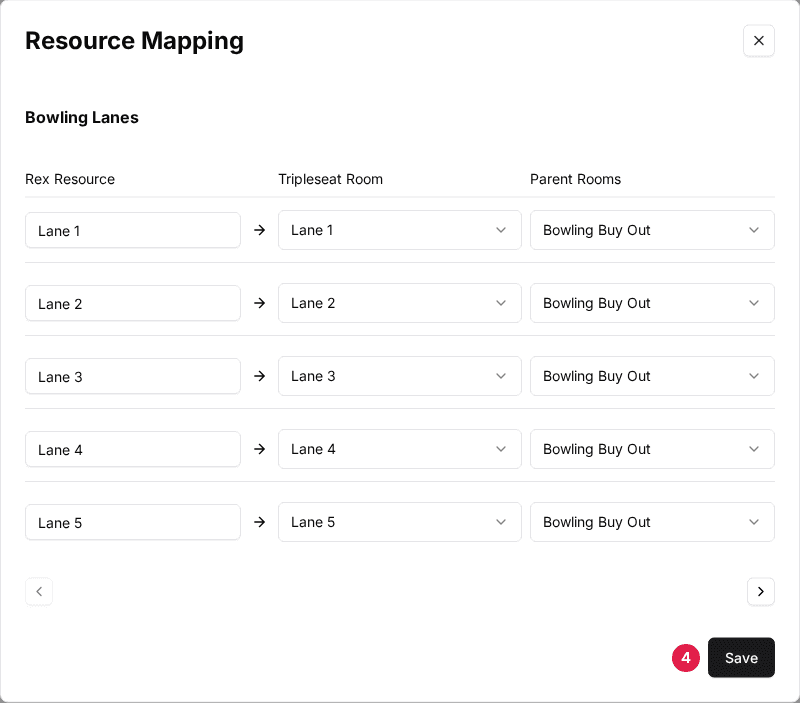
The Resource Mapping window opens.
Set the Tripleseat Room for each resource
Each row has three columns: Rex Resource, Tripleseat Room, and Parent Rooms. Parent Rooms is optional; see below.
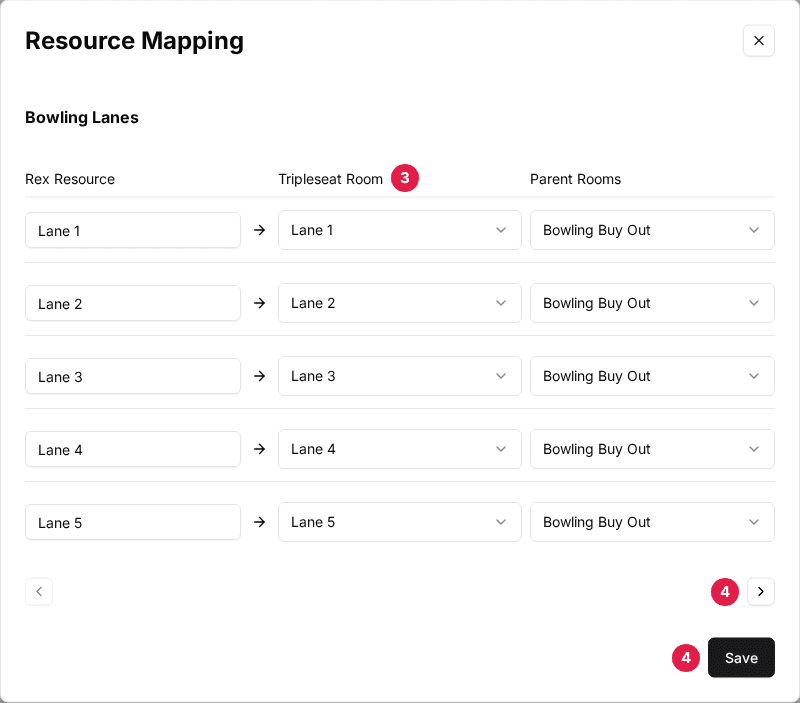
Save each category
Use the arrows at the top to move between resource categories, and click Save on each one.
To map one resource at a time, open the venue's Resources tab, click Edit in the resource's menu, and set TripleSeat Room ID and TripleSeat Room Path on the Mapping tab.
About Parent Rooms
In Tripleseat you can book a larger room made up of smaller ones. Parent Rooms tells Rex about that: list every larger Tripleseat room that a resource's room belongs to. When Rex pulls an event, it blocks the resource if the event booked its own room or any of its parent rooms.
For example, each lane maps to its own Tripleseat room, and lanes 1 to 4 can also be booked together as Lane Bay A. Add Lane Bay A as a parent room on all four lanes, and a Lane Bay A booking in Tripleseat blocks all four lanes in Rex. Parent Rooms only matters for pulled events. Leave it empty if you don't pull events or don't use combined rooms.
Package settings
Packages use the venue and account settings unless you change them. Open the package from the venue's Packages tab, then click Settings on the Tripleseat card in the package's Integrations section.
| Field | Description |
|---|---|
| Send bookings to Tripleseat | On by default. Turn it off and new bookings for this package aren't sent to Tripleseat. Bookings that are already in Tripleseat keep updating. |
| Specific Tripleseat Integration | Uses this package's Location, Room, Account ID, Contact ID and Status instead of the venue and account settings. |
| Event Type | The event type for this package's events, instead of the account's Event Type ID. |
| Event Style | The Tripleseat event style for this package's events. |
| Status | The status this package's events are created with when Specific Tripleseat Integration is on. Otherwise events are Definite. |
| Title | A custom event name. Click the plus icon to insert reservation details. Blank uses the reservation number and guest name. |
| Read availability from Tripleseat | Lets Tripleseat events with the Statuses to pull block this package's availability. Availability Type sets how an event counts: by guests, guaranteed guests, the Room IDs it books, or a custom field's value. |
| Custom Fields Mapping | Fills Tripleseat custom fields from the reservation. Click Add Item, enter the TS Custom Field ID, and pick the Reservation Field (or Custom with your own Custom Text). |
Change an event where it was made. Edit a Rex booking in Rex and the change syncs to Tripleseat. Edit an event made in Tripleseat in Tripleseat, and Rex picks up the change on the next pull. Editing the same event in both places causes conflicts.
What syncs, and when
| Field | Description |
|---|---|
| New reservation | Rex creates an event in Tripleseat and links it to the reservation. Each additional activity on the reservation becomes its own event. |
| Changed reservation | Rex updates the linked event. |
| Cancelled reservation | Rex deletes the linked event. |
| Resources changed | Rex updates the event's rooms. |
| Party request | With Enable Tripleseat Party on, a party request becomes a lead or an event in Tripleseat. |
| Pulled events | With Pull events from Tripleseat on, Rex regularly pulls your events with the chosen statuses and blocks the matching availability. |
Every sync is listed in the reservation's Timeline as Sync with Tripleseat or Sync cancel with Tripleseat. To send a reservation again, open it, click Actions, choose Manual Sync, select Tripleseat and click Sync. When a sync fails, Rex also emails the addresses in the venue's Error notification emails setting.
Troubleshooting
Reservations stop reaching Tripleseat
Possible causes
- •The OAuth 2.0 connection was lost
- •Enable Tripleseat is off at the venue
- •Send bookings to Tripleseat is off on the package
Fix
Open the Tripleseat card's Settings. If it shows Login with OAuth 2.0 instead of Disconnect, log in again. Then check the venue's Enable Tripleseat switch and the package's Send bookings to Tripleseat switch, and use Manual Sync on any reservation that was missed.
Pulled Tripleseat events don't block lanes
Possible causes
- •Pull events from Tripleseat is off, or the event's status isn't ticked under Statuses
- •The resources aren't mapped to Tripleseat rooms
- •CF Lanes Count is set and the event's value for it is 0 or empty
Fix
Turn on Pull events from Tripleseat and tick the statuses you book with, then map each resource to its Tripleseat room with Bulk Edit Resources.
Pulled events land at the wrong time
Possible causes
- •The venue's Timezone Offset (hours) is wrong
Fix
Set Timezone Offset (hours) in the venue's Tripleseat window. Leave it at 0 unless times come in shifted.
Updated Oct 8, 2026
Was this helpful?