
Set your Host App preferences
Each staff member sets their own Host App preferences from the Settings page. Your default page, venue, resource types and zoom level follow your login, so changing them doesn't affect anyone else.
Change your preferences
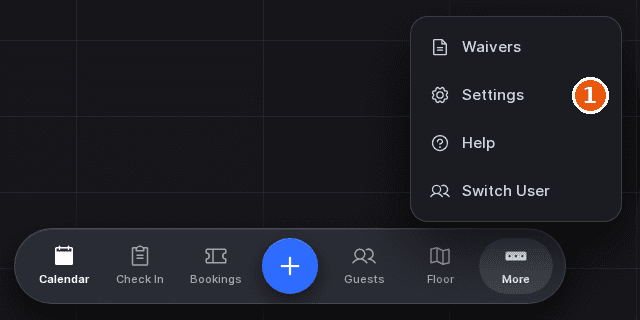
Navigate to Settings
Tap More in the dock at the bottom of the screen, then tap Settings.
Set each preference
Under Preferences, pick a value in each dropdown. The fields are described in the table below; some only appear when they apply to your account.
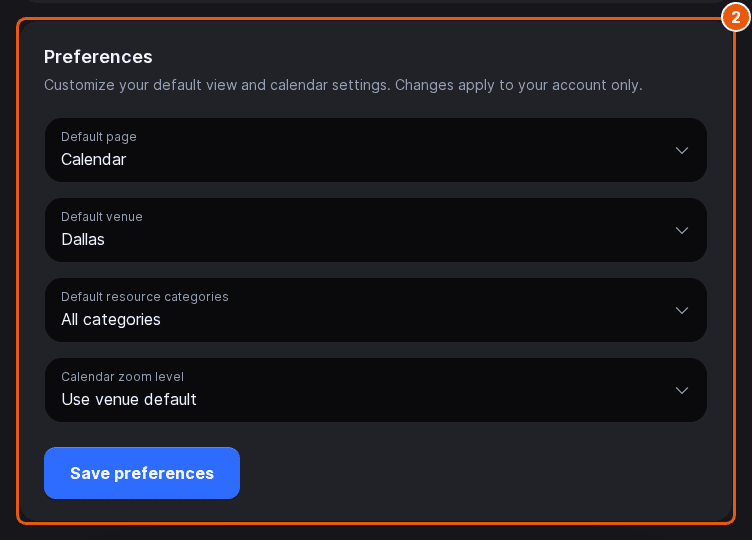
| Field | Description |
|---|---|
| Default page | The page the app opens on after you sign in: Calendar, Check In, Reservations, Floor View, Guests or Waivers. Waivers is only listed when your venue collects waivers, and Reservations opens the Bookings page. |
| Default venue | The venue the calendar opens on. Only shown when your account can access more than one venue. |
| Default resource categories | The resource types shown on the calendar when it opens. Tick the ones you want; if you untick them all, every type is shown. Only shown when the venue has more than one resource type. |
| Calendar zoom level | How tall each resource row is on the calendar: Use venue default, Small, Medium or Large. |
Save your preferences
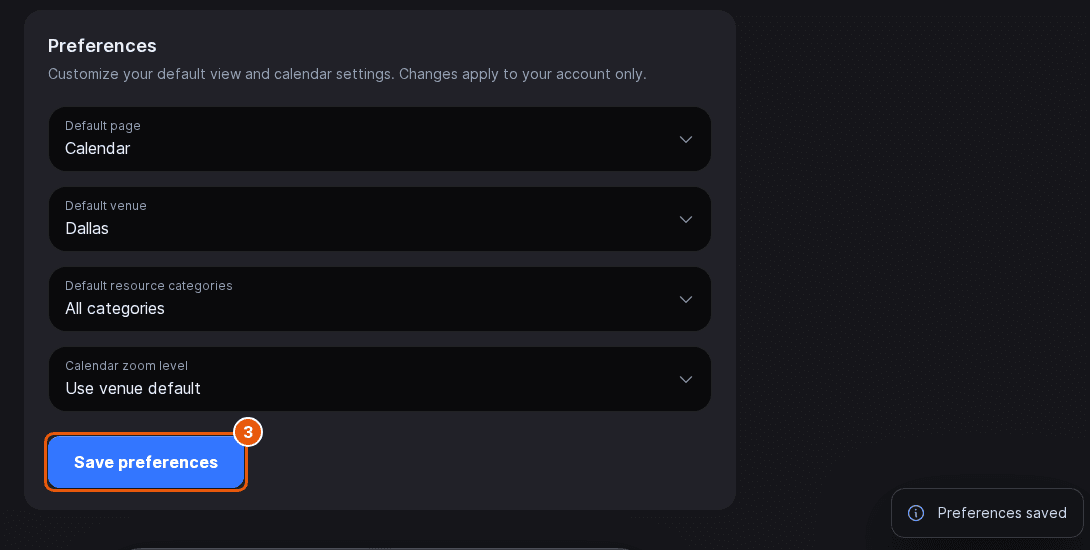
Tap Save preferences. A Preferences saved message confirms the change.
Choose light or dark mode
Under Appearance, tap Default, Dark or Light. Default follows the theme your admin set for the account. Dark and Light apply to this device only and take effect straight away, with no save needed.
Log out or switch user
The Account card at the top shows your name, email and current venue. Log out signs this device out after you confirm. Switch user opens the PIN keypad so another staff member can take over a shared device; see Switch users on the Host App with a PIN.
On a device the whole team shares, use Switch user instead of Log out. The device stays signed in, and each person's changes are still recorded against them.
Updated Oct 8, 2026
Was this helpful?