
Set up SFTP file transfers
The SFTP integration has two parts: the server connection and the report schedule. Configure them separately using the Configure dropdown in the settings modal.
1
Open the SFTP integration
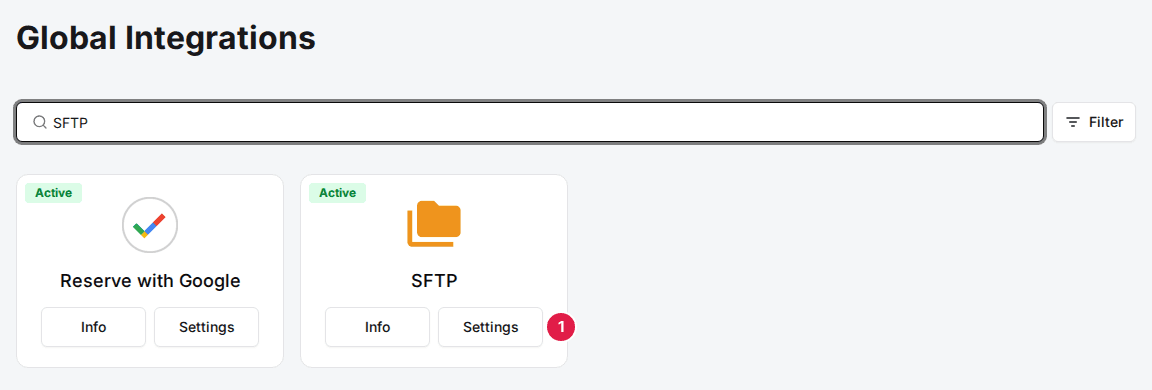
Navigate to the Integrations page, find the SFTP card and click Settings to open SFTP & Daily Reports.
Marketplace›Integrations
2
Configure the SFTP connection
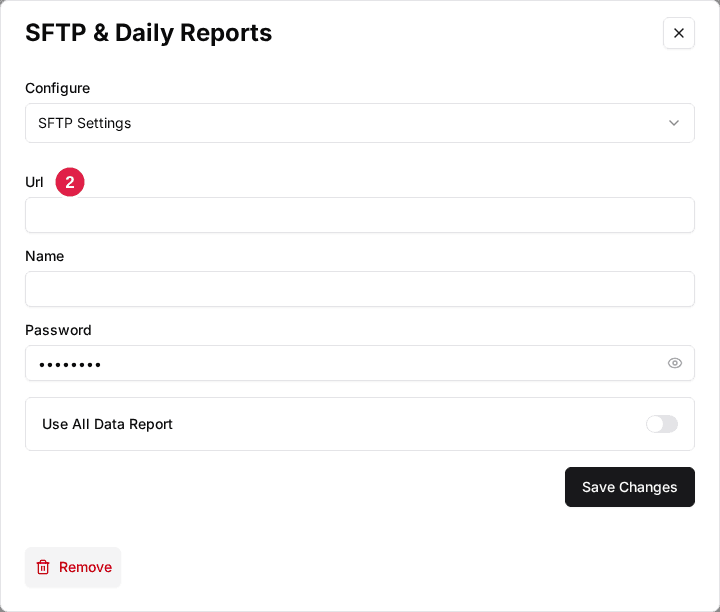
Enter your server URL, username, and password, then save the changes.
Marketplace›Integrations›SFTP
3
Configure daily reports
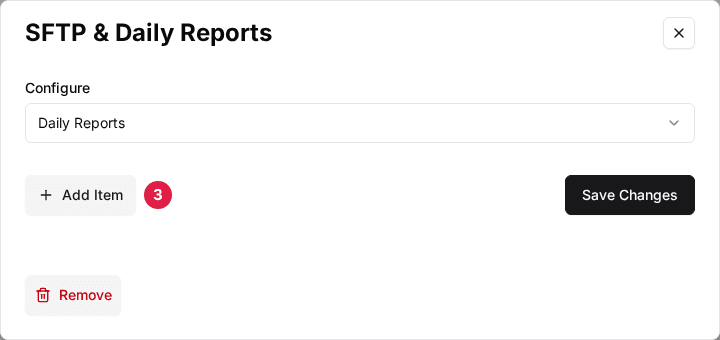
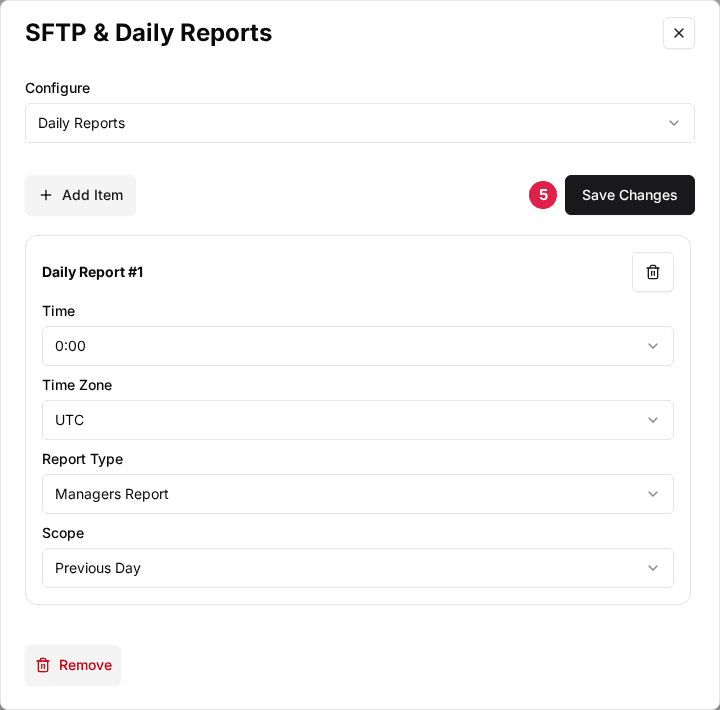
In the SFTP & Daily Reports window, change Configure to Daily Reports, then click Add Item to add a new report schedule.
Marketplace›Integrations›SFTP›Daily Reports
4
Set up each report
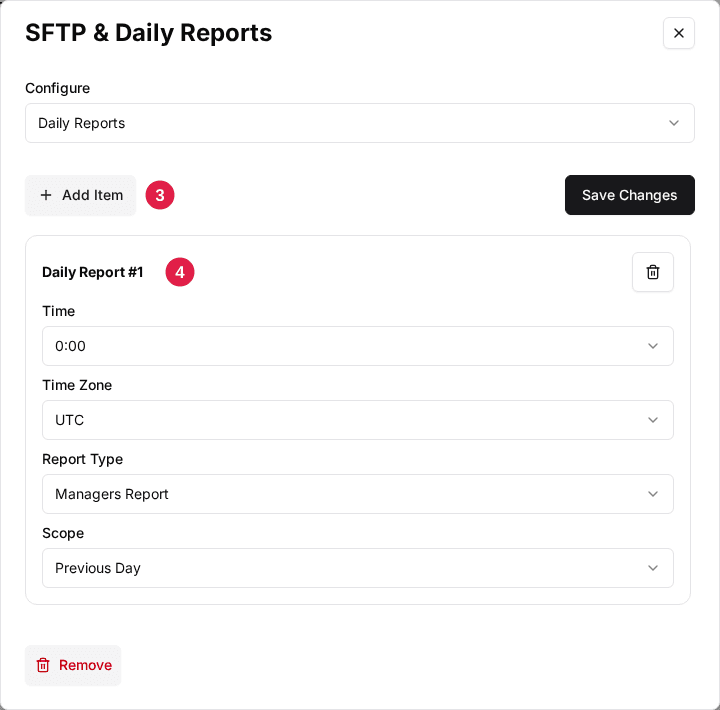
Choose the delivery time, time zone, report type, and data scope for each report item.
Marketplace›Integrations›SFTP›Daily Reports
5
Save
Apply the report schedule.
| Field | Description |
|---|---|
| Url | The SFTP server address (e.g., sftp://files.example.com). |
| Name | SFTP username for authentication. |
| Password | SFTP password for authentication. |
| Use All Data Report | When on, reports with no Scope of their own include all historical reservations instead of just the previous day. A daily report's Scope overrides it. |
| Field | Description |
|---|---|
| Time | The time of day to deliver the report (in 30-minute increments), in the Time Zone you pick for it. |
| Time Zone | The time zone for the delivery Time, and for deciding which day is the previous day. |
| Report Type | Managers Report, Tax Report, Revenue Export, or Reservation with Transactions. |
| Scope | Previous Day (reservations from yesterday) or All time (all reservations). |
Updated Oct 8, 2026
Was this helpful?