
Get started with the Rex API and webhooks
The Rex API lets your own systems read and change your account's data: reservations, venues, packages, customers and more. Webhooks work the other way round: Rex posts an event to your system the moment something happens, such as a new booking. Both are set up on the API page.
The API page is part of the Rex Growth and Rex Enterprise plans. On other plans it shows Upgrade Your Plan instead.
Create an API key
Give each system its own key, named after where it is used. You can then rotate or delete one system's access without breaking the others.
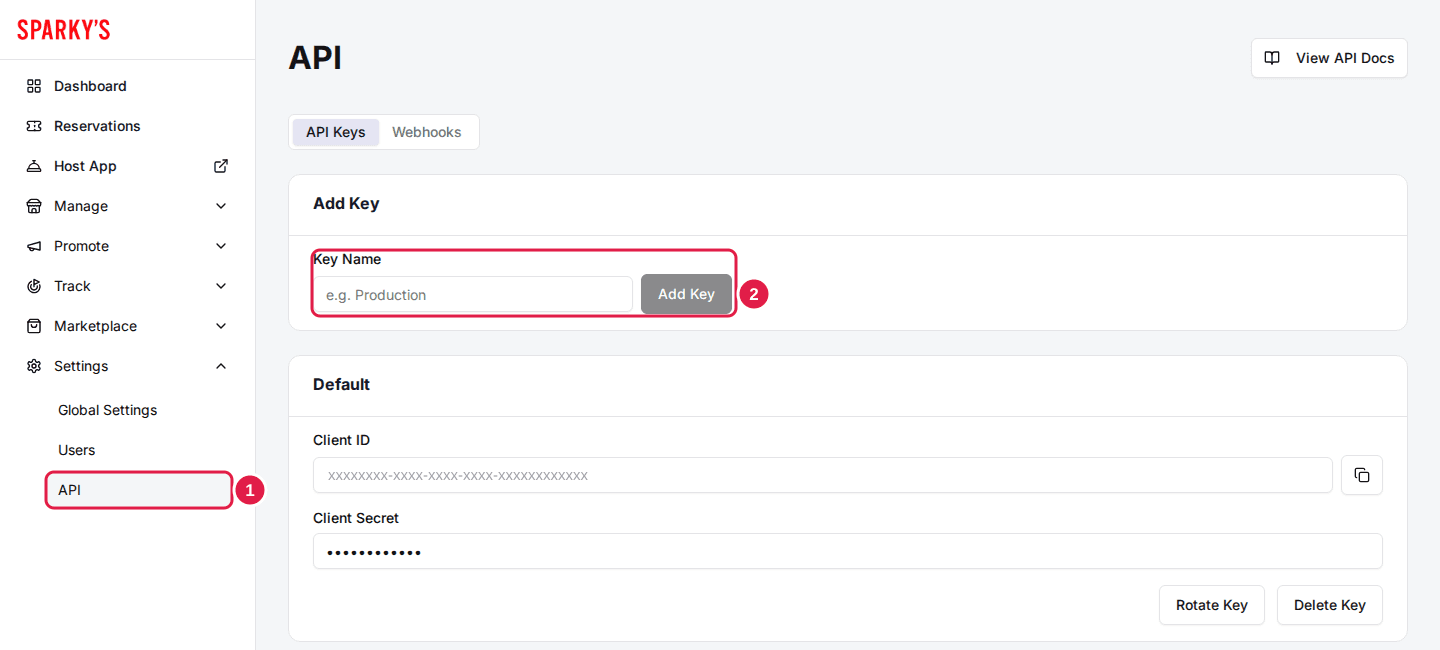
Navigate to the API page
The API Keys tab lists every key you have, each in its own card.
Enter a key name and generate the key
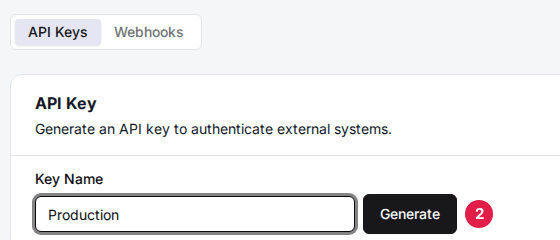
Type a name in Key Name, for example Production, then click Generate. Once you have a key, the card is called Add Key and the button reads Add Key.
Copy the Client ID and Client Secret
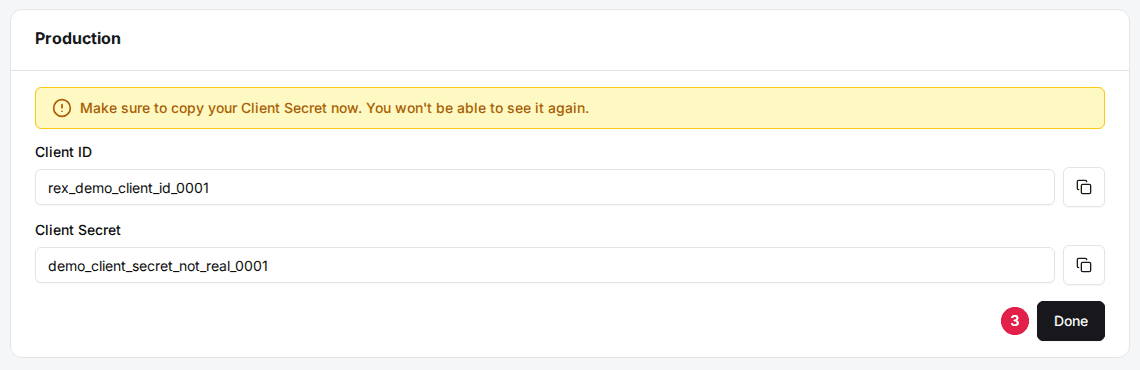
The new key's card shows both values with a copy button and the message "Make sure to copy your Client Secret now. You won't be able to see it again." Copy both into your system, then click Done. After that the secret shows as dots and cannot be shown again.
Get an access token
Your system does not send the key itself on each call. It exchanges the Client ID and Client Secret for an access token, then sends the token with every request:
POST https://app.reservewithrex.com/api/api-key/token
Content-Type: application/json

{ "clientId": "<Client ID>", "clientSecret": "<Client Secret>" }

-> { "token": "<access token>" }

Authorization: Bearer <access token>
A token is valid for one hour. When it expires, your system requests a new one the same way. Keep the Client Secret on your server, never in a web page or app that guests can open.
A token acts as an admin of your whole account, for every venue. Treat the Client Secret like a password, and never paste it into a shared document, a ticket or a chat message.
Find the endpoints
Click View API Docs at the top of the API page. It appears once you have at least one key, and opens the full endpoint reference in a new tab, grouped by area, with a sample request for each endpoint. The docs stay open for about two hours; after that, click View API Docs again.
Rotate or delete a key
Rotate Key issues a new Client Secret for that key and shows it once, just like a new key. The Client ID stays the same, and the old secret stops working straight away, so update your system at the same time. Use it when a secret may have leaked, or when someone who knew it leaves.
Delete Key removes the key after a confirmation. Any system using it loses access. In both cases, a token your system already received keeps working until it expires, at most one hour later.
Send events with webhooks
A webhook endpoint is an address on your own system that Rex posts events to, for the venues you choose.
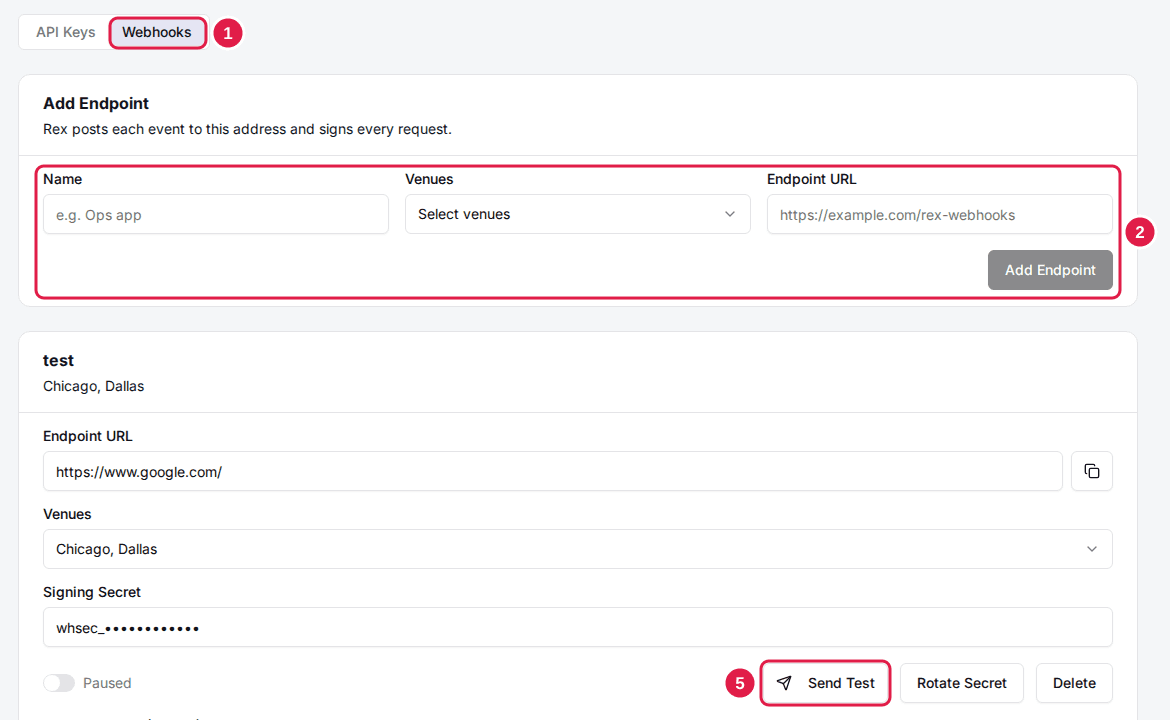
Click the Webhooks tab
It sits next to API Keys on the same page.
Enter the endpoint details
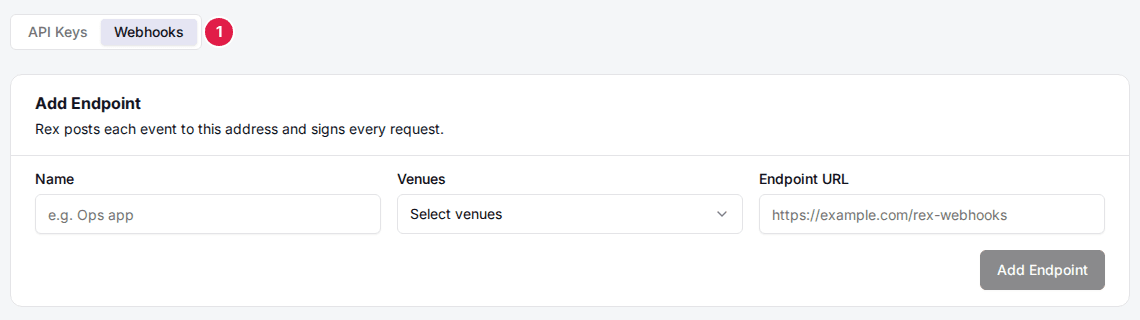
In Add Endpoint, enter a Name, pick one or more Venues, and enter the Endpoint URL. Then click Add Endpoint. A new endpoint is sent every event type.
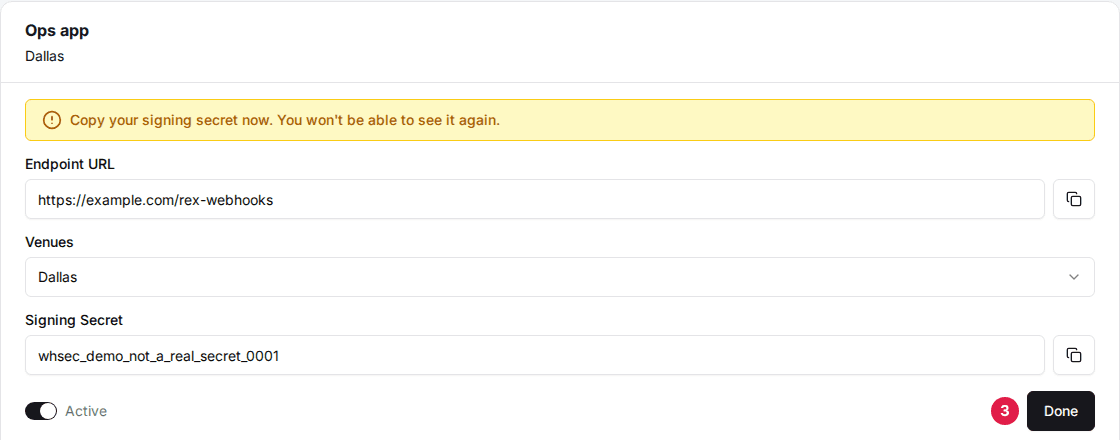
Copy the signing secret
The new endpoint's card shows its Signing Secret once, with the message "Copy your signing secret now. You won't be able to see it again." Copy it into your system, then click Done.
Choose the events to send
Under Events to send, turn off any event your system does not need. The switch next to Active / Paused turns the whole endpoint on or off.
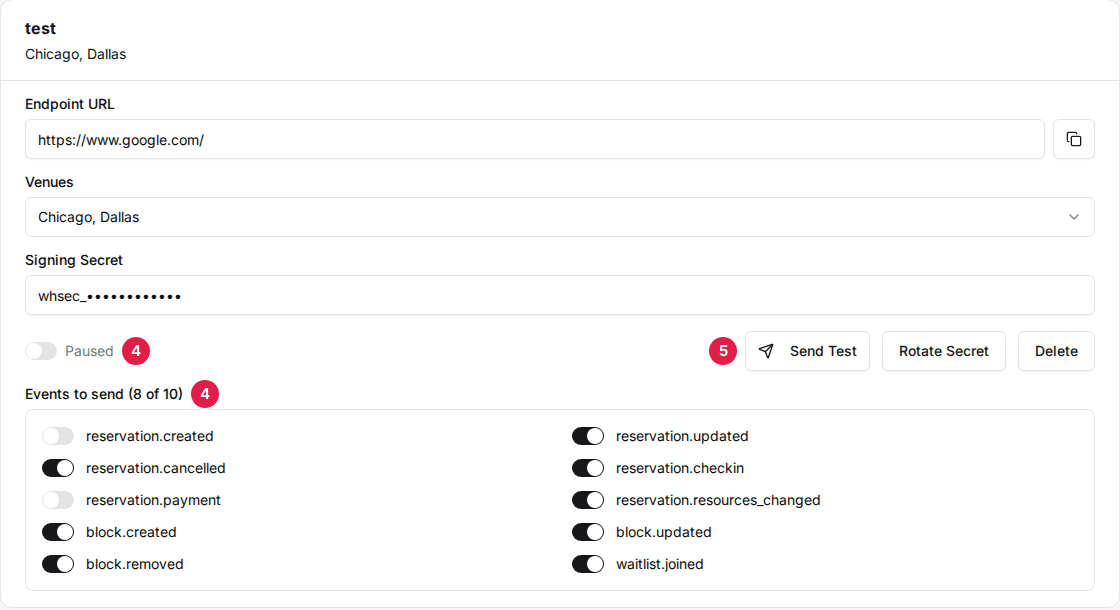
Send a test
With the endpoint Active, click Send Test. Rex posts a sample reservation.created event whose data says "test": true, so you can check that your system receives it.

These are the events an endpoint can receive. The Event Reference card at the bottom of the Webhooks tab shows the exact body Rex posts for each one.
| Field | Description |
|---|---|
| reservation.created | A reservation is created. |
| reservation.updated | A reservation is updated. The changed_fields object lists what changed. |
| reservation.cancelled | A reservation is cancelled or deleted. |
| reservation.checkin | The check-in status of a reservation changes. |
| reservation.payment | A payment is recorded against a reservation. Covers card payments and refunds through Heartland, Stripe, Square, Teya and GoTab. |
| reservation.resources_changed | The resources assigned to a reservation change. A bulk change sends one event per venue, listing that venue's reservations. |
| block.created | A block is created. |
| block.updated | A block is updated. |
| block.removed | A block is removed. |
| waitlist.joined | A guest joins the waitlist. |
Check that a webhook came from Rex
Every request carries three headers:
- X-Rex-Signature: t=<timestamp>,v1=<signature>. The signature is an HMAC-SHA256, in hex, of <timestamp>.<raw request body>, keyed with the endpoint's signing secret.
- X-Rex-Event-Id: a unique id for the event, so your system can ignore a repeat.
- X-Rex-Event-Type: the event, for example reservation.created.
Rotate Secret issues a new signing secret. For the next 24 hours each request carries a second v1 signature made with the old secret, so you can switch over without missing events.
Your endpoint should answer with a 2xx status within 5 seconds. If it does not, Rex tries again after 1, 5 and 15 minutes, then after 1, 3, 6, 12 and 24 hours, and then gives up on that event.
Updated Oct 8, 2026
Was this helpful?