
Set up Heartland payments
Heartland is one of the payment processors Rex can take card payments through. You set it per venue on the venue's Payment card, using the API credentials from your Heartland merchant account. Guests then pay by card at checkout and are charged straight away.
Each venue uses one payment processor at a time. Switching a venue to Heartland replaces the processor it used before.
Connect Heartland to a venue
Navigate to the venue
Open the venue and stay on the General tab. The Payment card is on the right.
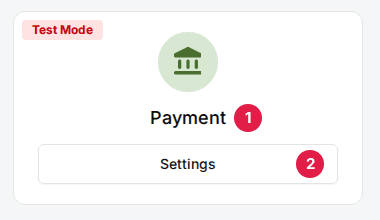
Click Settings on the Payment card
The Payment Settings window opens.
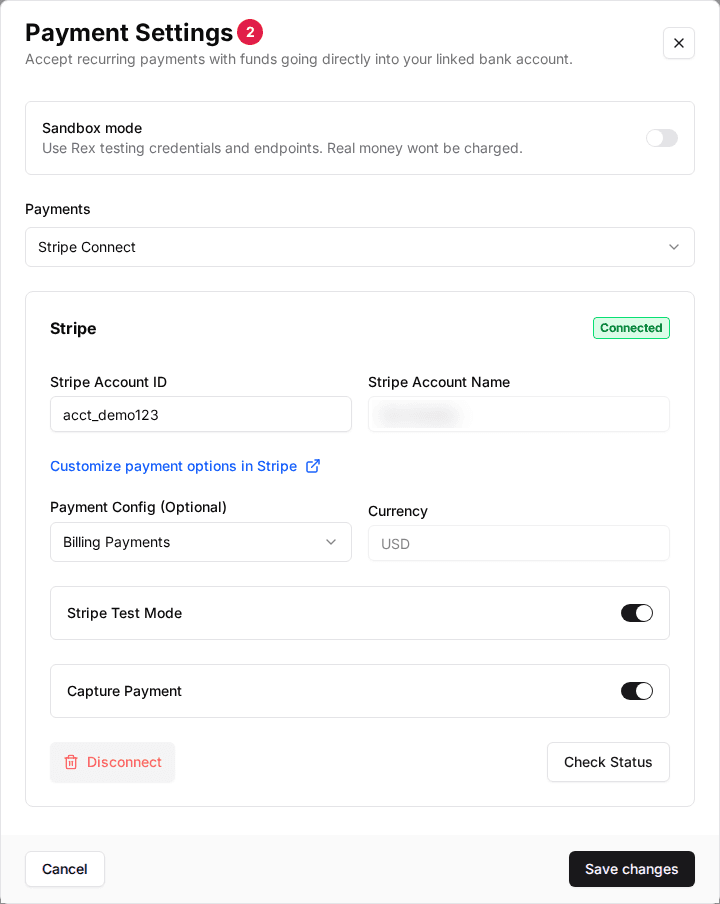
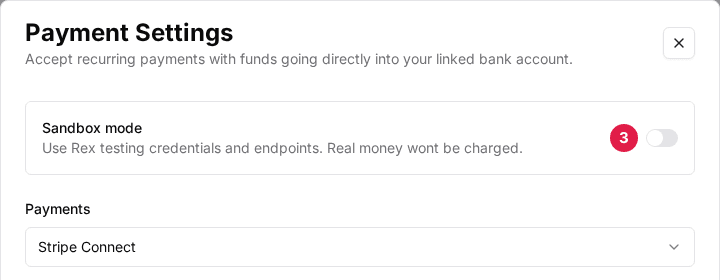
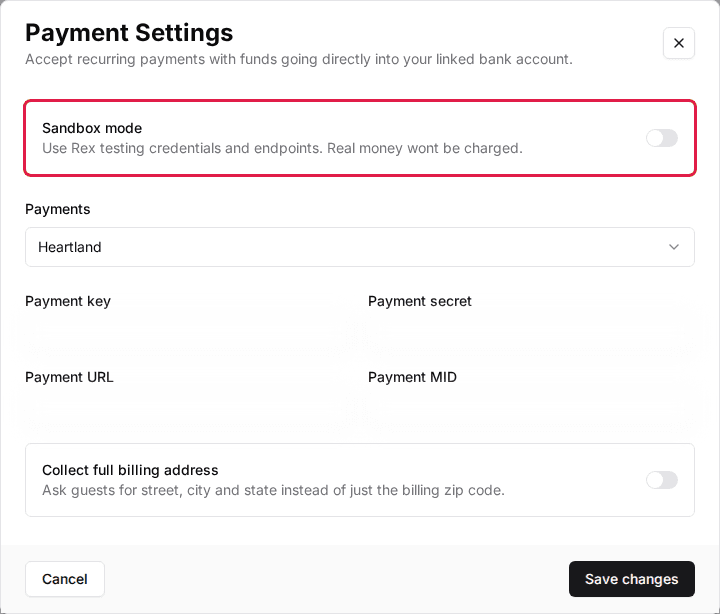
Toggle Sandbox mode to OFF
Sandbox mode uses Rex's testing credentials and charges no real money. While it's on, the processor fields are hidden.
Select Heartland in Payments
Four credential fields and the Collect full billing address switch appear.
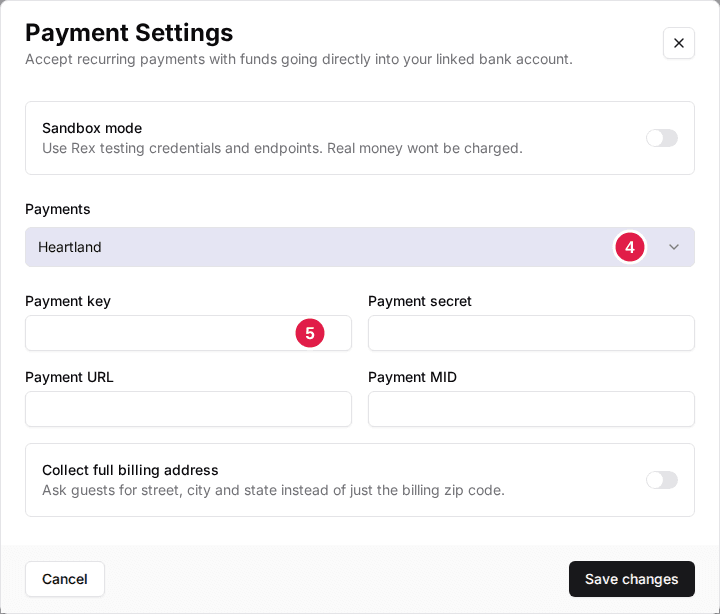
Enter your Heartland credentials
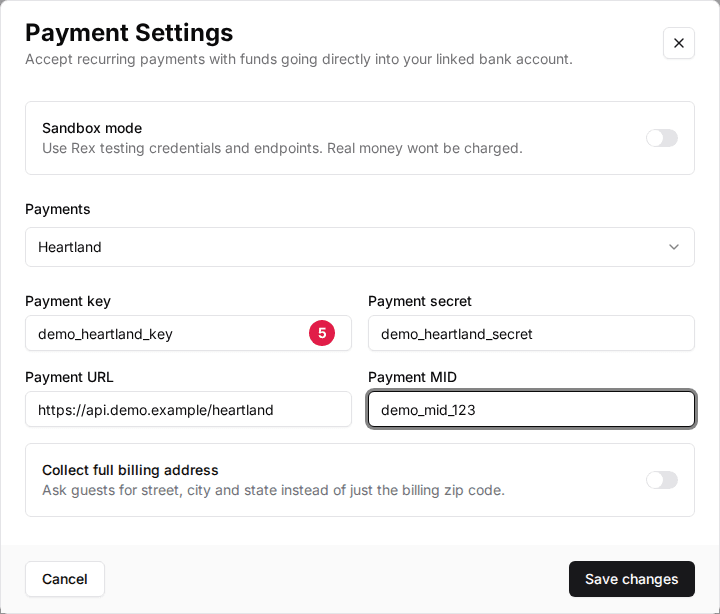
Fill in all four fields from your Heartland merchant account (see the table below), then click Save changes. Rex won't save until all four are filled in.
| Field | Description |
|---|---|
| Payment key | Your Heartland public API key. It starts with pkapi_. |
| Payment secret | Your Heartland secret API key. It starts with skapi_. |
| Payment URL | The Heartland gateway address for your account. |
| Payment MID | Your Heartland merchant ID. |
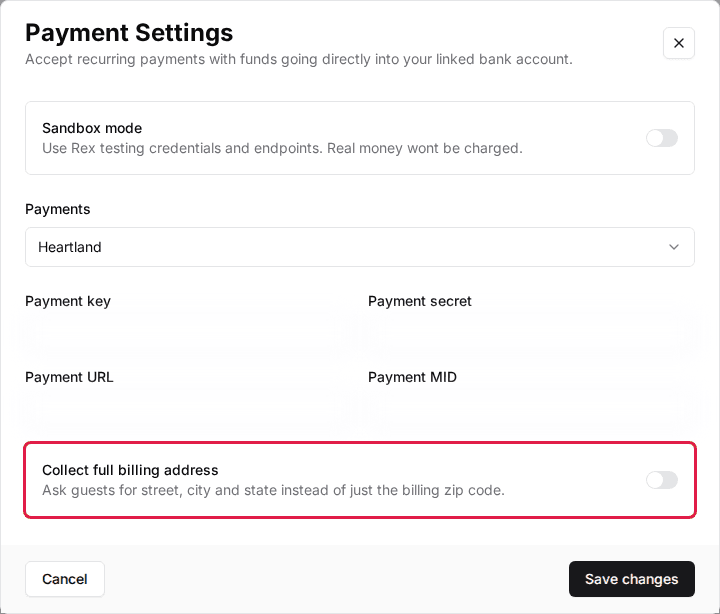
| Collect full billing address | Asks guests for street, city and state instead of just the billing ZIP code. Turn it on if your Heartland account checks the street address. |
Test before going live
Turn Sandbox mode on to run test bookings without charging real cards. While it's on, the venue's Payment card shows a Test Mode badge. Turn it off and enter your live credentials before you send guests to the booking page.
Refunds
Refund a Heartland booking from Rex the same way as any other reservation, in full or in part. Rex sends the refund to Heartland for you.
Troubleshooting
Guests see "Your billing address did not match your card. Please check the ZIP code and street address on your card statement and try again."
Possible causes
- •Your Heartland account checks the street address, but Rex only collects the ZIP code
- •The guest typed an address that doesn't match their card
Fix
Turn on Collect full billing address in the venue's Payment Settings so guests enter their street, city and state.
Guests see "Your card was declined. Please try a different card or contact your bank."
Possible causes
- •The card issuer declined the payment
Fix
Ask the guest to use another card or call their bank. Nothing needs changing in Rex.
Guests see "This card is expired. Please try another card."
Possible causes
- •The card has expired
Fix
Ask the guest to use another card.
The Payment card shows Test Mode
Possible causes
- •Sandbox mode is on, so no real payments are taken
Fix
Open the Payment card's Settings, turn Sandbox mode off, select Heartland and enter your live credentials.
Updated Oct 8, 2026
Was this helpful?