
Set up a QR code scanner for check-in
A USB barcode scanner lets your team check guests in by scanning the QR code on their booking confirmation, instead of looking each guest up by name. You configure the scanner once per computer, and from then on a scan on the Check In page checks the guest in automatically.
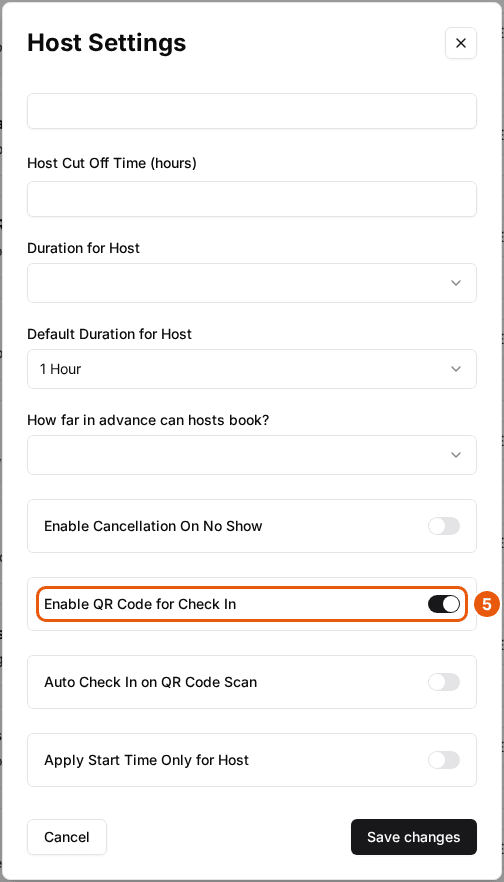
Before you set up a scanner, make sure QR codes are turned on for the package guests are booking. In the package's Host Settings, turn on "Enable QR Code for Check In" so every booking gets a QR code — see Create and manage ticketed events at your venue for where that toggle lives.
How scanning checks a guest in
The Host App does the work — not the browser. While the Host App is open, it's always listening for a scan in the background, so you don't click into a box or aim at a particular field first. When the scanner reads a QR code, it types the booking's check-in link with a ~ in front of it and an Enter at the end. The Host App notices the ~, reads the link that follows, and checks the guest in on the spot.
This is why the prefix has to be exactly ~ and not a "select URL bar" command: the ~ is the marker the Host App watches for. The scanned link never goes into the browser's address bar — if it did, the browser would just load a page without checking anyone in. So you don't need to click the URL bar, and you shouldn't program the scanner to select it.
What kind of scanner you need
These steps work with most USB barcode scanners that can read QR codes — Zebra, Honeywell, Datalogic, Symbol, and similar. The configuration utility is named differently by each manufacturer, but the steps are the same. You're configuring the scanner to do two things: send each scan to the computer as keystrokes, and add a prefix character that Rex uses to recognize a scan.
Configure your scanner
Install your scanner's configuration utility
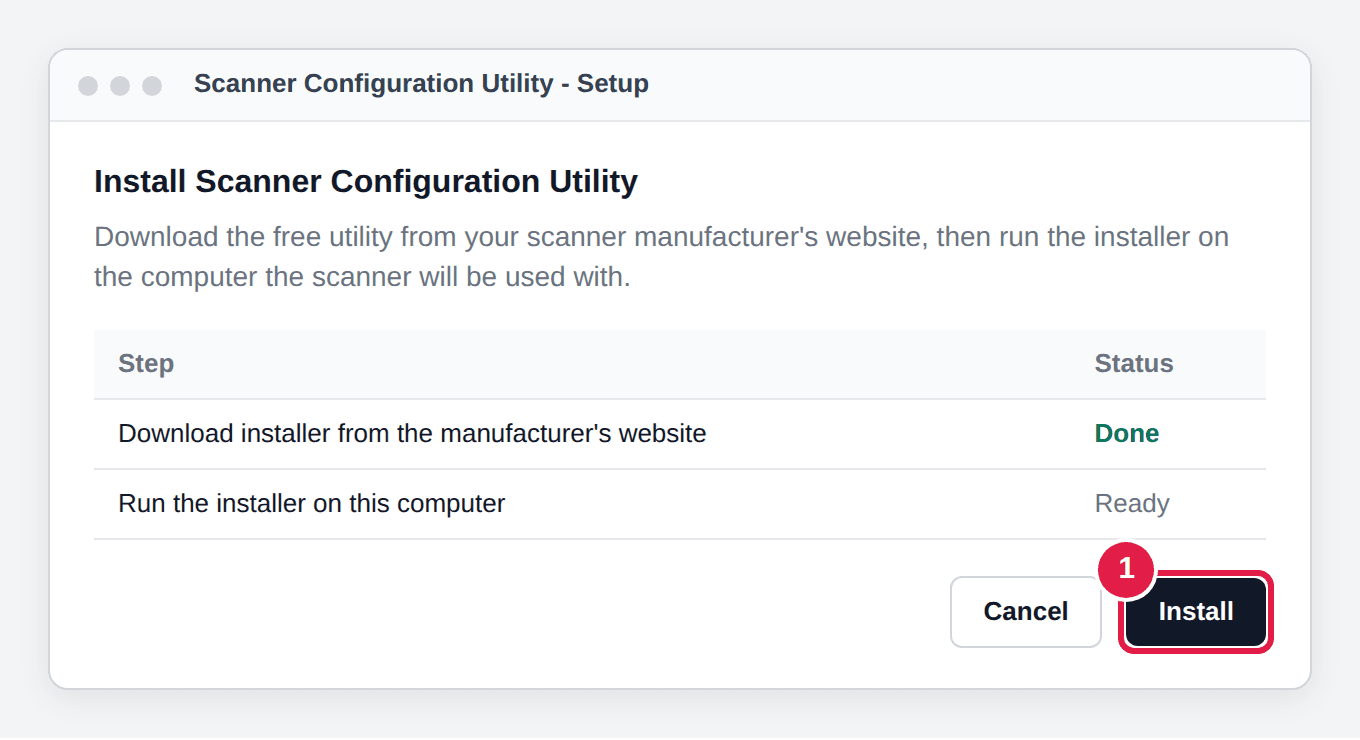
Download the free configuration utility from your scanner manufacturer's website and install it on the computer the scanner will be used with. If you're on a Mac and your manufacturer's utility is Windows-only, you can usually configure the scanner instead by scanning the configuration barcodes printed in the scanner's product reference guide (a PDF on the manufacturer's website).
| Field | Description |
|---|---|
| Zebra / Symbol | 123Scan — zebra.com/123Scan |
| Honeywell | EZConfig Scanning — honeywell.com |
| Datalogic | Aladdin — datalogic.com |
| Other brands | Search "[brand name] scanner configuration utility". |
Connect the scanner and open the utility
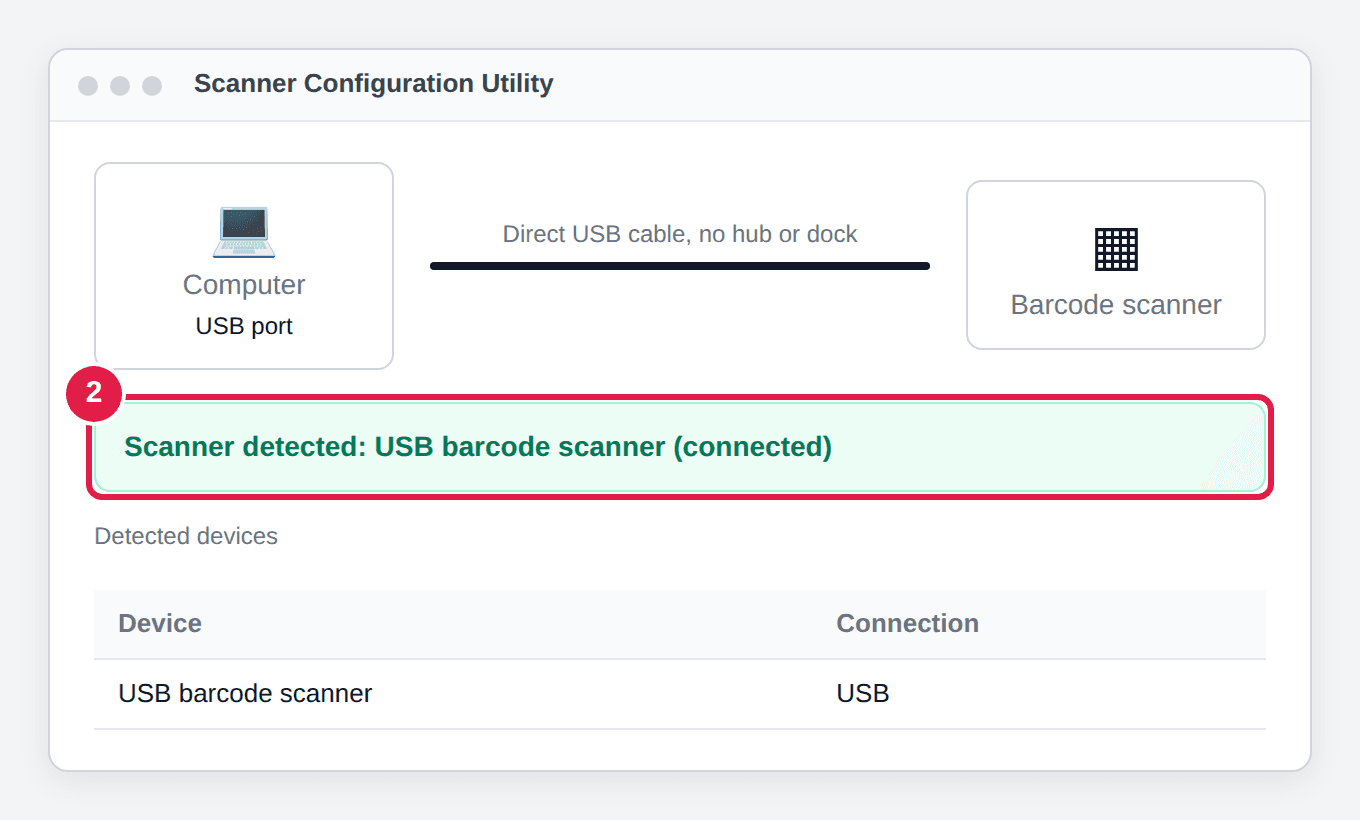
Plug the scanner directly into a USB port on the computer — not through a hub, dock, or adapter. Open the configuration utility; it should detect the scanner automatically.
Set the scanner to USB HID Keyboard mode
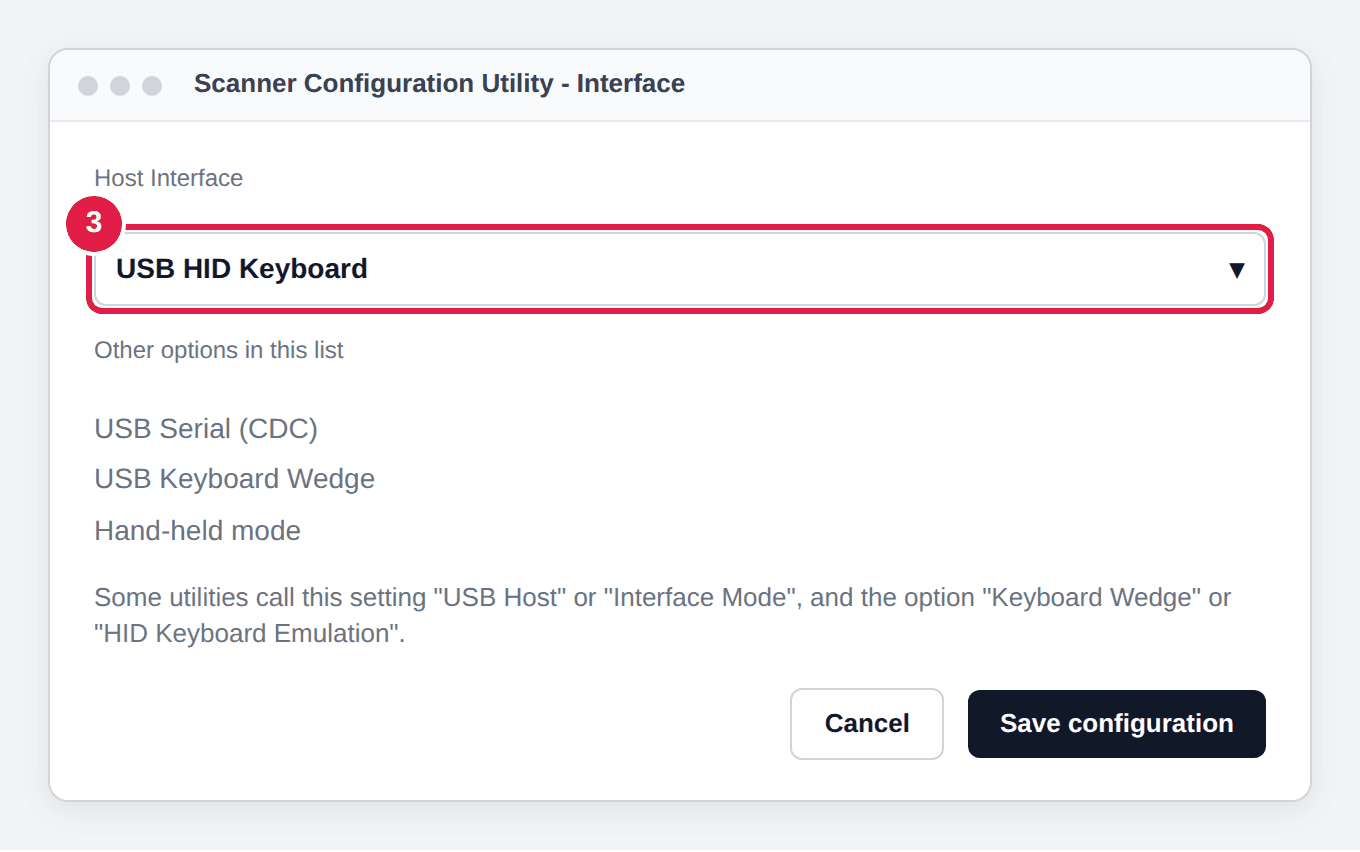
Find the "Host Interface," "USB Host," or "Interface Mode" setting and set it to USB HID Keyboard (sometimes called "Keyboard Wedge" or "HID Keyboard Emulation"), then save the configuration. This is what makes the scanner type each code into the computer like a keyboard.
Add a prefix character
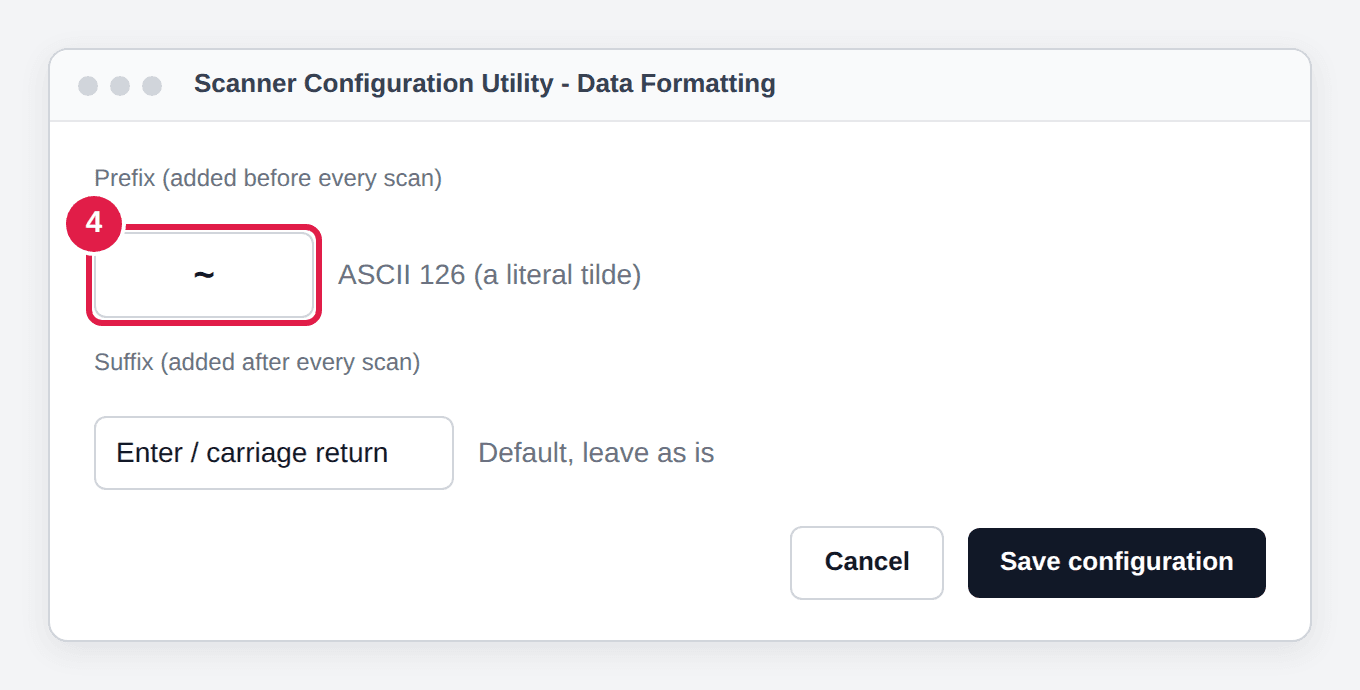
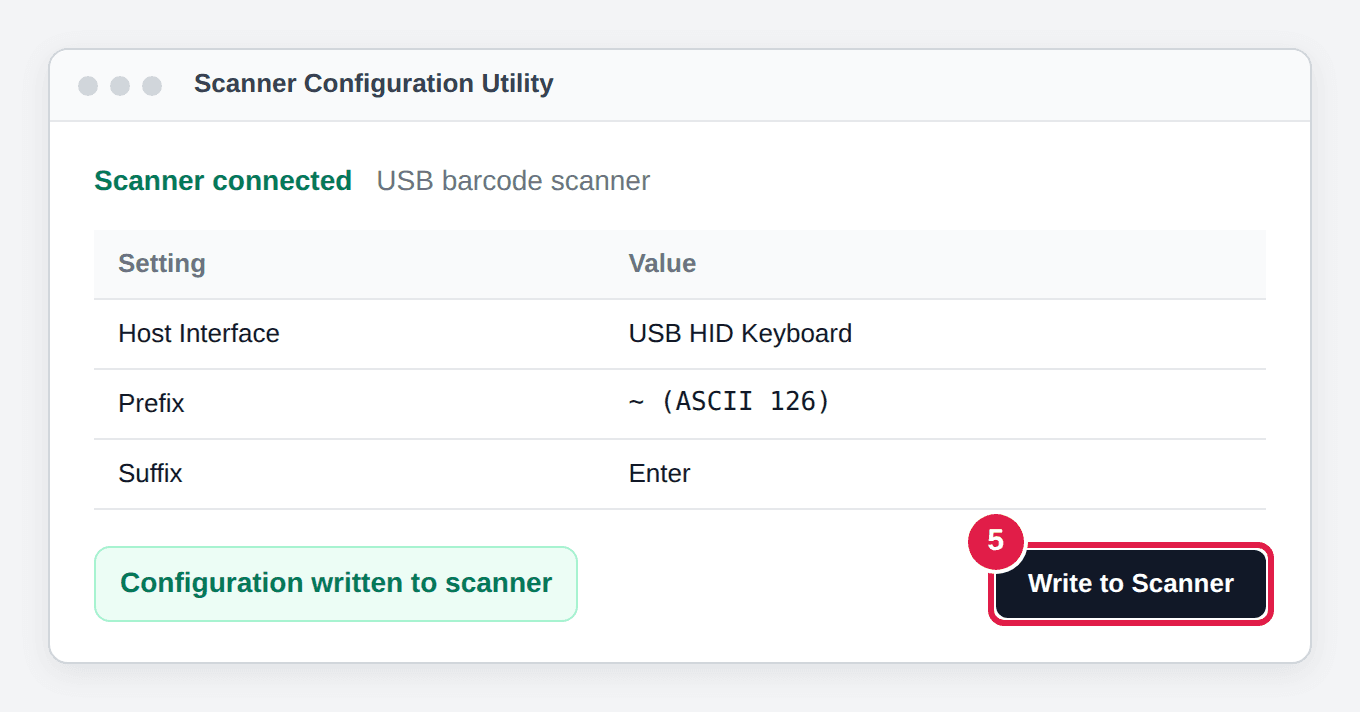
Find the "Data Formatting," "Prefix/Suffix," or "Data Editing" section and add a prefix to all scans using the tilde character ~ (ASCII code 126) — a literal tilde, not a "select URL bar" or other command. Leave the suffix as the default Enter / carriage return — it's usually already set. Save the configuration. The Host App watches for that ~ to tell a scan apart from someone typing on the keyboard (see "How scanning checks a guest in" above).
Write the configuration to the scanner
With the scanner still connected, click "Write to Scanner," "Program Scanner," or similar, and wait for confirmation. The scanner may beep to confirm.
Test the scanner
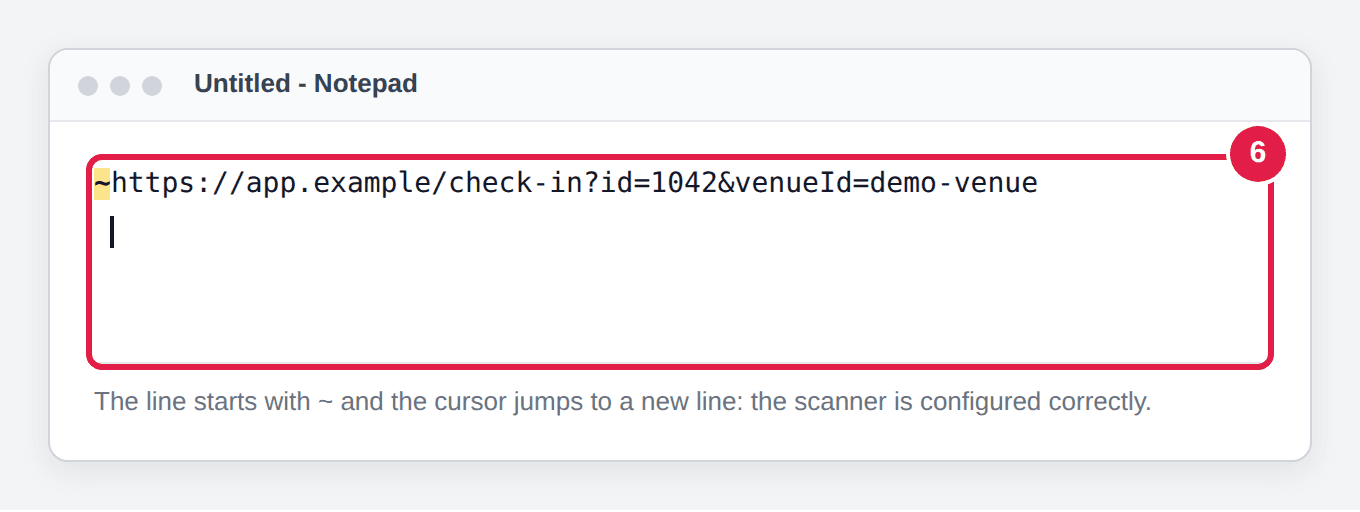
Open a blank TextEdit (Mac) or Notepad (Windows) window and click into it so the cursor is active. Scan a Rex QR code. You should see a line of text appear that starts with the ~ character — the Rex check-in link — followed by the cursor jumping to a new line. If it starts with ~, the scanner is configured correctly.
Check guests in at the door
In the Host App, open the Check In page for your event. Scan a guest's QR code with the configured scanner:
| Field | Description |
|---|---|
| Successful scan | The guest is checked in immediately and you'll see a "Checked in" confirmation with their name. |
| Bad or wrong code | If the code isn't a valid Rex ticket, you'll see an "Unrecognized QR code" message — ask the guest to pull up their confirmation again. |
Guests who can't find their QR code can still be checked in by hand. Open the Check In page, find their name in the Upcoming list, and check them in there.
Troubleshooting
Nothing appears in the text document when you scan
Possible causes
- •The scanner is connected through a hub, dock, or adapter.
Fix
Plug the scanner into a different USB port directly on the computer, not through a hub, dock, or adapter, and test again.
The scanner beeps but no text appears
Possible causes
- •The scanner is decoding the code but isn't in keyboard mode.
Fix
Repeat the USB HID Keyboard step (set the Host Interface to USB HID Keyboard) and write the configuration to the scanner again.
Characters appear but look wrong — for example @ instead of "
Possible causes
- •The scanner's keyboard layout doesn't match the computer's.
Fix
In the utility, set "Keyboard Country" or "Keyboard Layout" to match your computer (usually US English), then write to the scanner again.
There's no configuration utility for your scanner
Possible causes
- •The manufacturer doesn't offer a utility for your operating system.
Fix
Open the scanner's product reference guide (a PDF on the manufacturer's website). Most scanners can be configured by scanning the configuration barcodes printed in the guide.
Scanning a configured scanner doesn't check anyone in
Possible causes
- •QR check-in isn't enabled on the package, or the booking was made before it was turned on.
Fix
Turn on "Enable QR Code for Check In" in the package's Host Settings. QR codes are generated for bookings made after it's enabled.
Updated Oct 8, 2026
Was this helpful?