
Create and manage ticketed events at your venue
A ticketed event is a package that sells admission for a specific date: a New Year's Eve party, a holiday brunch, a trivia night. Instead of ongoing bookings, you sell a set number of spots for one occasion, often at more than one price.
The running example is a New Year's Eve party with 200 spots, sold as General Admission and VIP tickets. If you're new to packages, read Create and configure a package first; this guide covers the event-specific settings.
Create the event package
Create the package
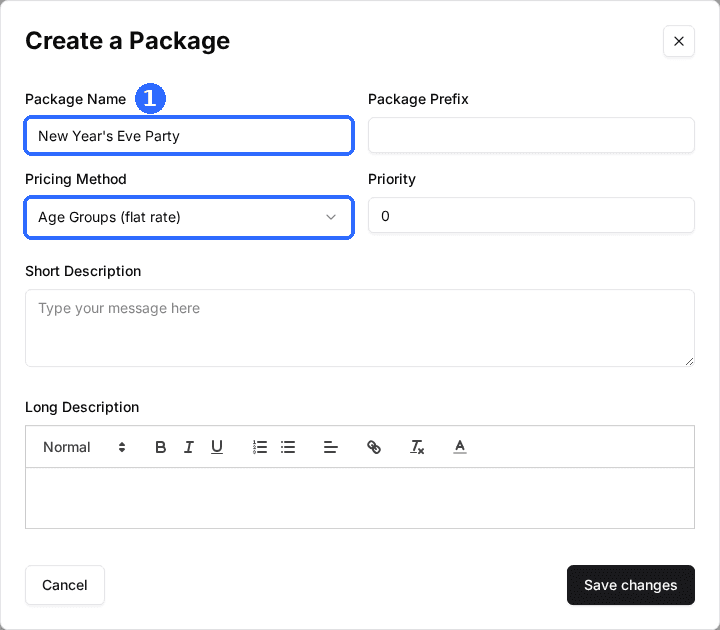
Click your venue, open the Packages tab, and click Create Package. Name it for the event, such as New Year's Eve Party, set Pricing Method to Age Groups (flat rate), and click Save changes.
Turn the package on
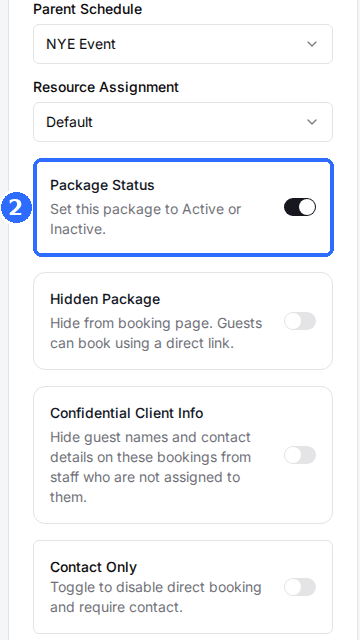
In the Package Controls card, switch on Package Status. The event shows on your reservation page once it has a schedule.
Create your ticket types
Ticket tiers are built with age groups. Despite the name, an age group is a named ticket type with its own price, so you can use it for General Admission and VIP as easily as for Adult and Child.
Open Package Settings
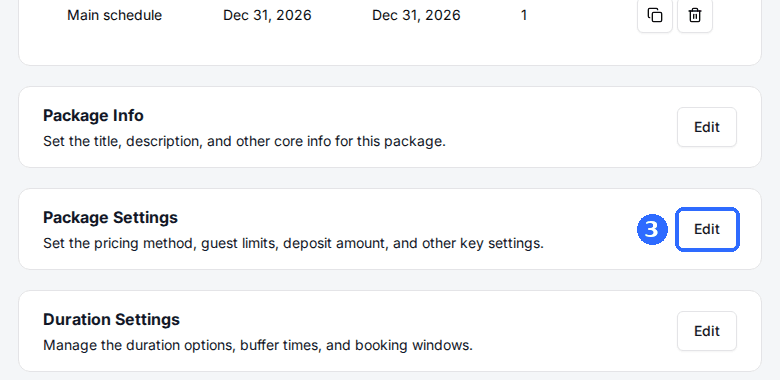
On the event package's page, click Edit on the Package Settings card. Because the Pricing Method is an Age Groups method, an Age Groups panel appears under it.
Add a ticket type for each tier
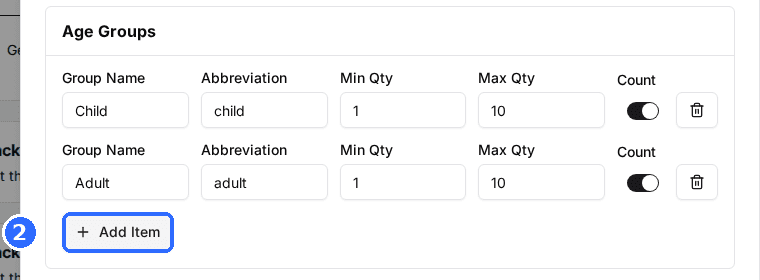
Click Add Item once per ticket type, for example General Admission and VIP, and fill in the fields below. Set Maximum Guests to the most tickets one order can hold, then click Save changes.
| Field | Description |
|---|---|
| Group Name | The ticket name guests see, such as General Admission or VIP. |
| Abbreviation | A short label, such as GA or VIP. It's what labels each ticket's row when you price the time slot. |
| Min Qty | The fewest of this ticket one order must include. Use 0 to make a tier optional. |
| Max Qty | The most of this ticket one order can include. Use it to limit VIP tickets per buyer. |
| Count | On: these tickets count toward the event's capacity and the package's Maximum Guests. Off: they're still charged but don't use up spots. |
Choose how to cap the event
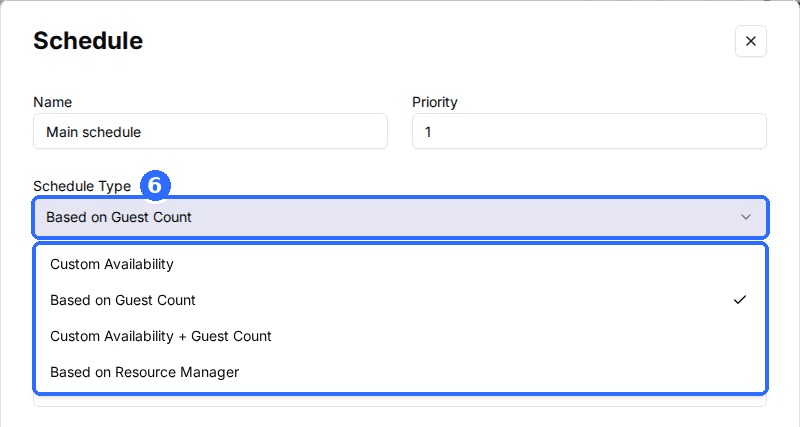
The schedule's Schedule Type decides how Rex counts your 200 spots. The two that suit events:
Based on Resource Manager
Each booking takes a resource from your Resource Manager, such as a table or a room, so it appears on the Host App calendar.
Best for: Smaller seated events where each booking needs its own table or space.
Based on Guest Count
Simplest for big eventsEach time slot has a Guest cap. Rex stops selling the slot when tickets sold reach the cap; no resources are involved.
Best for: Large general-admission events.
Add the event schedule
Click Add Schedule
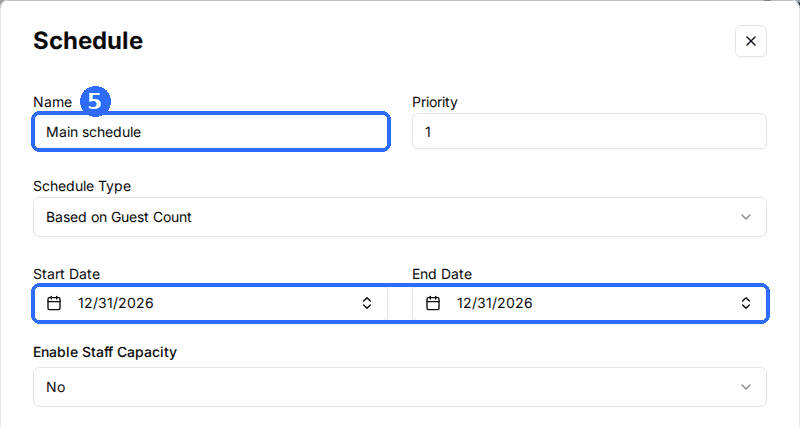
In the Schedules card on the event package's page, click Add Schedule. Give it a Name and set both Start Date and End Date to the day of the event, so it only sells for that date.
Select the Schedule Type
Choose Based on Guest Count or Based on Resource Manager, to match the cap you chose above.
Add the event's time slot
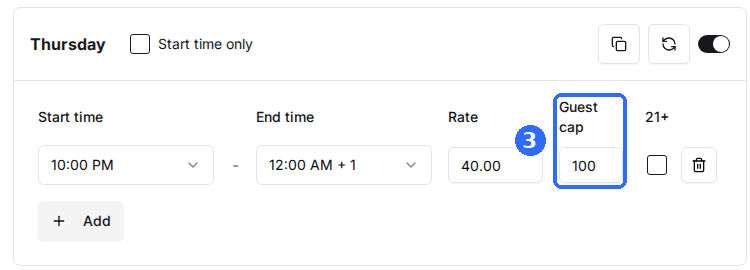
Switch on the weekday the event falls on and set the slot's Start time and End time, for example 8:00 PM to 1:00 AM. For Based on Guest Count, enter the event's total spots in Guest cap.
Price each ticket type
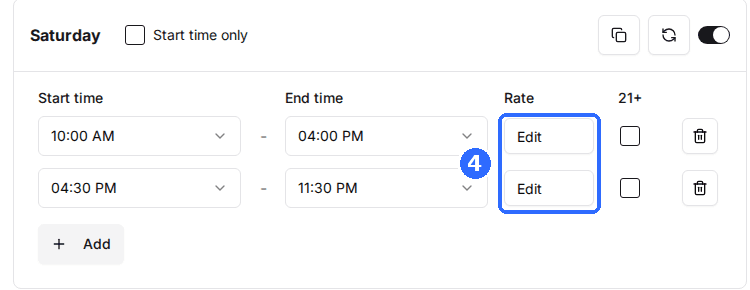
Click Edit in the slot's Rate column. The Age-Group Pricing window lists each ticket type: enter its Rate, switch it on, and click Save. Then click Save Changes on the schedule.
To keep VIP scarce, cap it per order with Max Qty and make it optional with a Min Qty of 0, while General Admission keeps a Min Qty of 1.
Check guests in with QR codes
Turn on QR check-in
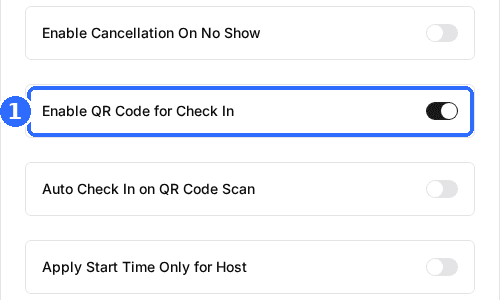
On the event package's page, click Edit on the Host Settings card, switch on Enable QR Code for Check In, and click Save changes. Each booking's confirmation then carries a QR code.
At the door, scan the guest's code with a scanner set up for Rex (see Set up a QR code scanner for check-in). The Host App opens the booking and checks the guest in, showing Checked in with their name. A code that isn't a Rex check-in code shows Unrecognized QR code.
If staff open codes with a phone camera instead of a scanner, also switch on Auto Check In on QR Code Scan in Host Settings. Without it, the code opens the booking on the Check In page and staff check the guest in from there.
A guest who can't find their code can still be checked in by hand: find their booking on the Host App's Check In page and check them in there. This works for both cap types.
Updated Oct 8, 2026
Was this helpful?