
Staff capacity: limit how many reservations start at the same time
Staff capacity controls how many reservations can start at the same time for a package. It's useful when each booking needs a staff member to greet, brief, or onboard the group, and you only have so many people to do that at once. It does not limit how many reservations can be active at the same time — it only looks at start times.
Staff capacity is off by default. You turn it on per schedule with the Enable Staff Capacity setting, then set a cap on each time slot. Until it's enabled, there's no start-time limit beyond your normal resource availability.
How it works
When staff capacity is on, Rex counts how many existing reservations already start at a given time for that package. Once that count reaches the slot's staff cap, no more reservations can start at that time — the slot stops being offered, even if lanes are still free.
| Field | Description |
|---|---|
| Staff cap = 1 | Only one reservation for this package can start at this time. If a reservation already starts at 5:00 PM, no other reservation for this package can start at 5:00 PM. |
| Staff cap = 2 | Up to two reservations for this package can start at the same time. A third reservation at the same start time is blocked. |
| Staff cap blank | No staff-capacity limit on that time slot. Availability is governed only by your resources (lanes, guest capacity, etc.). |
Start times vs. active reservations
Staff capacity only looks at start times. If a package has a staff cap of 2 and there are 5 active reservations at 5:00 PM but none of them start at 5:00 PM, a new reservation can still start at 5:00 PM (as long as resources are available). This is what makes staff capacity useful for controlling how many groups your team has to onboard at once, rather than how many are on the floor.
Turn on staff capacity
Staff capacity lives on a package's schedule. Open the package you want to limit, then open the schedule whose time slots you want to cap.
Open the package's schedule
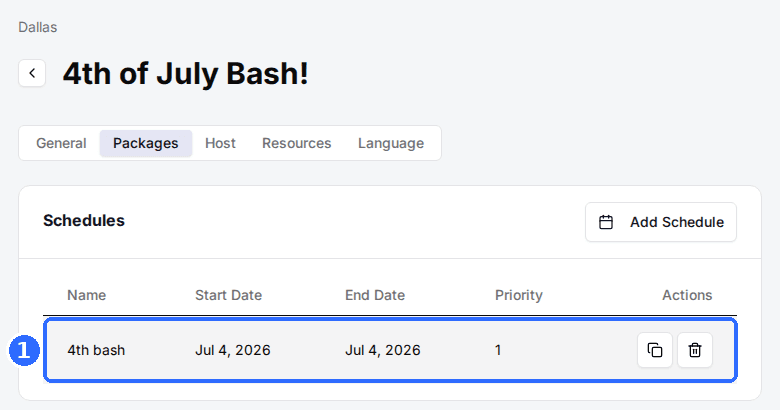
Open the venue, go to Packages and click the package. Scroll to the Schedules card and click a schedule to edit it (or click Add Schedule to create one).
Set Enable Staff Capacity to Yes
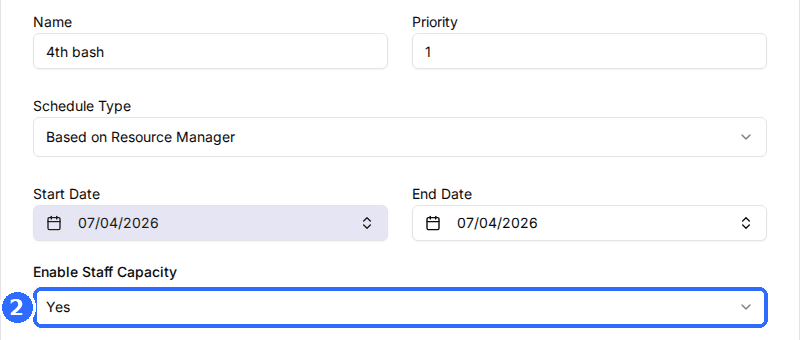
Near the top of the schedule editor, set Enable Staff Capacity to Yes. A Staff cap column appears on each day's time slot table.
Enter a staff cap on each time slot
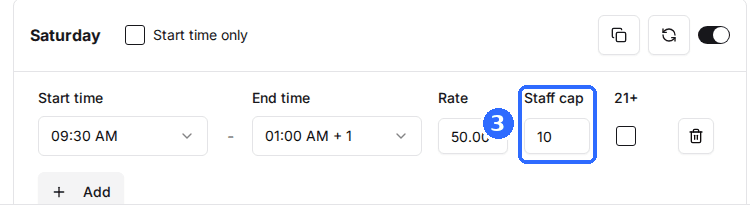
In the Staff cap column, type the number of reservations allowed to start at that time. Leave a slot blank to keep it unlimited. Different slots can have different caps.
Save the schedule
Save the schedule. The caps apply to new bookings for any date this schedule covers.
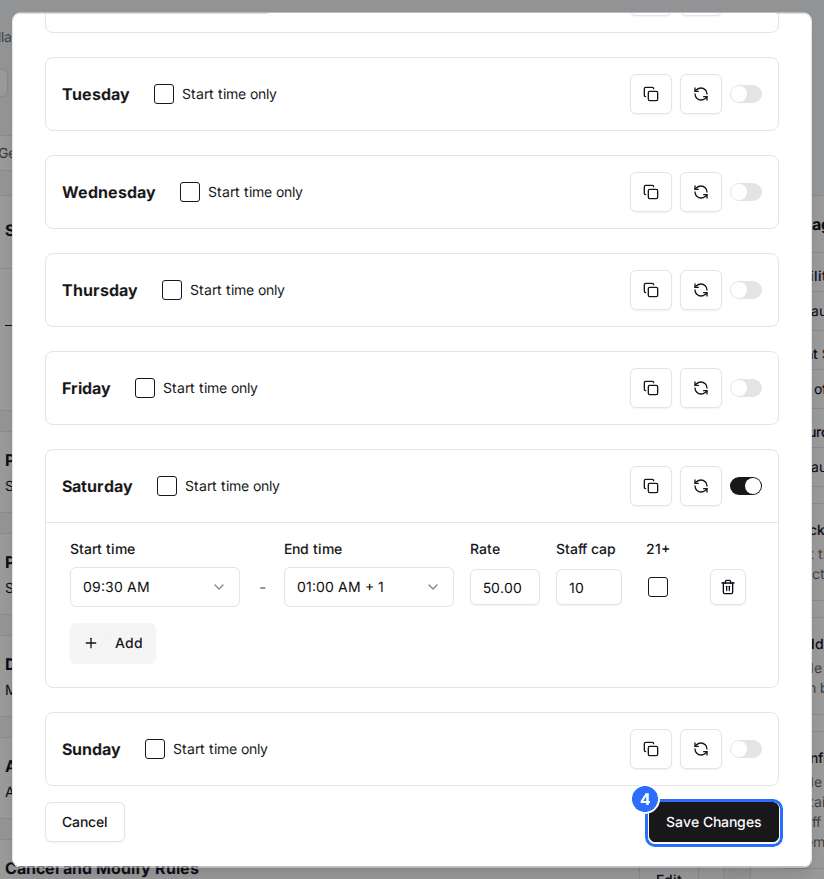
To apply the same cap across a whole day at once, use the Start time settings generator (the refresh icon on a day's time slot header) — its Staff Capacity field sets the cap on every slot it generates.
Updated Oct 8, 2026
Was this helpful?