
Update your Tripleseat integration to OAuth 2.0
Tripleseat is moving to OAuth 2.0 for connecting to Rex. If your venue already uses Tripleseat, switch your integration over in the Rex Admin Dashboard — it takes one to two minutes and you only authorize once.
You need a Tripleseat account login to complete the connection. Have those credentials handy before you start.
Open your Integrations settings
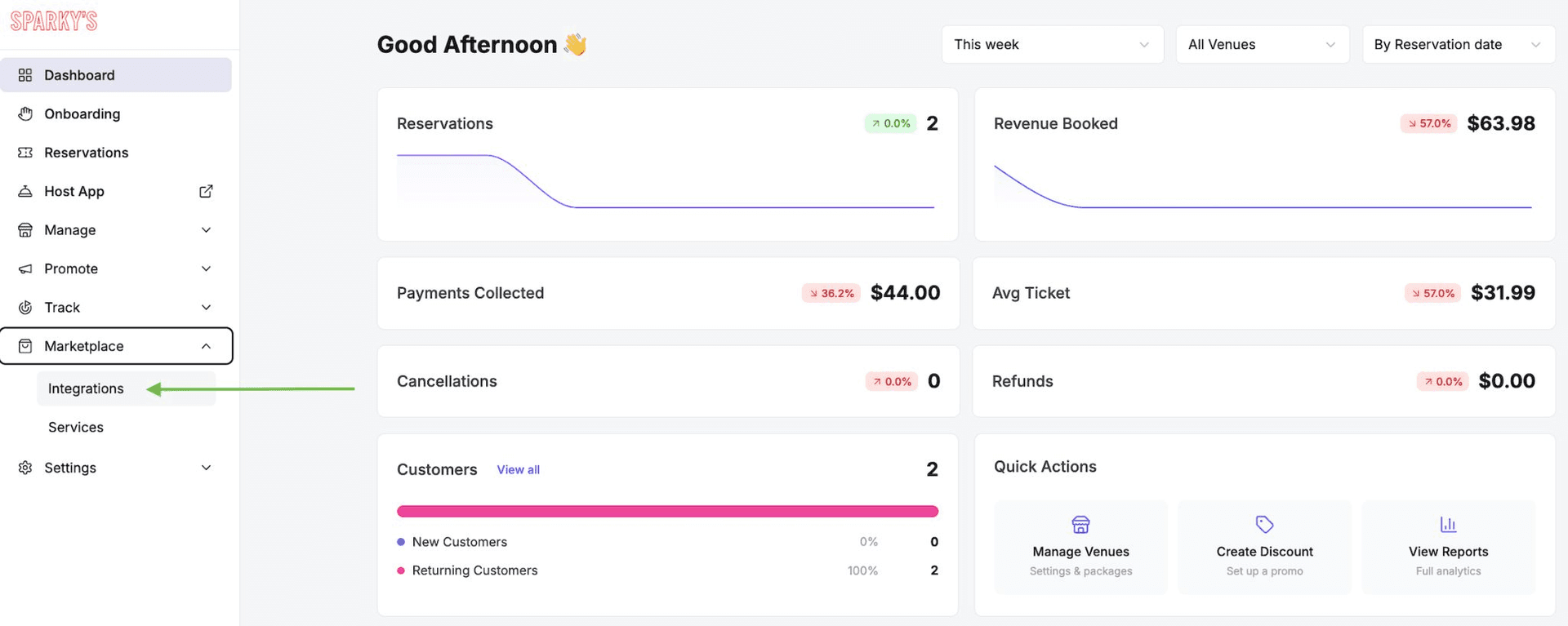
From the main menu in the Rex Admin Dashboard, go to Marketplace, then Integrations.
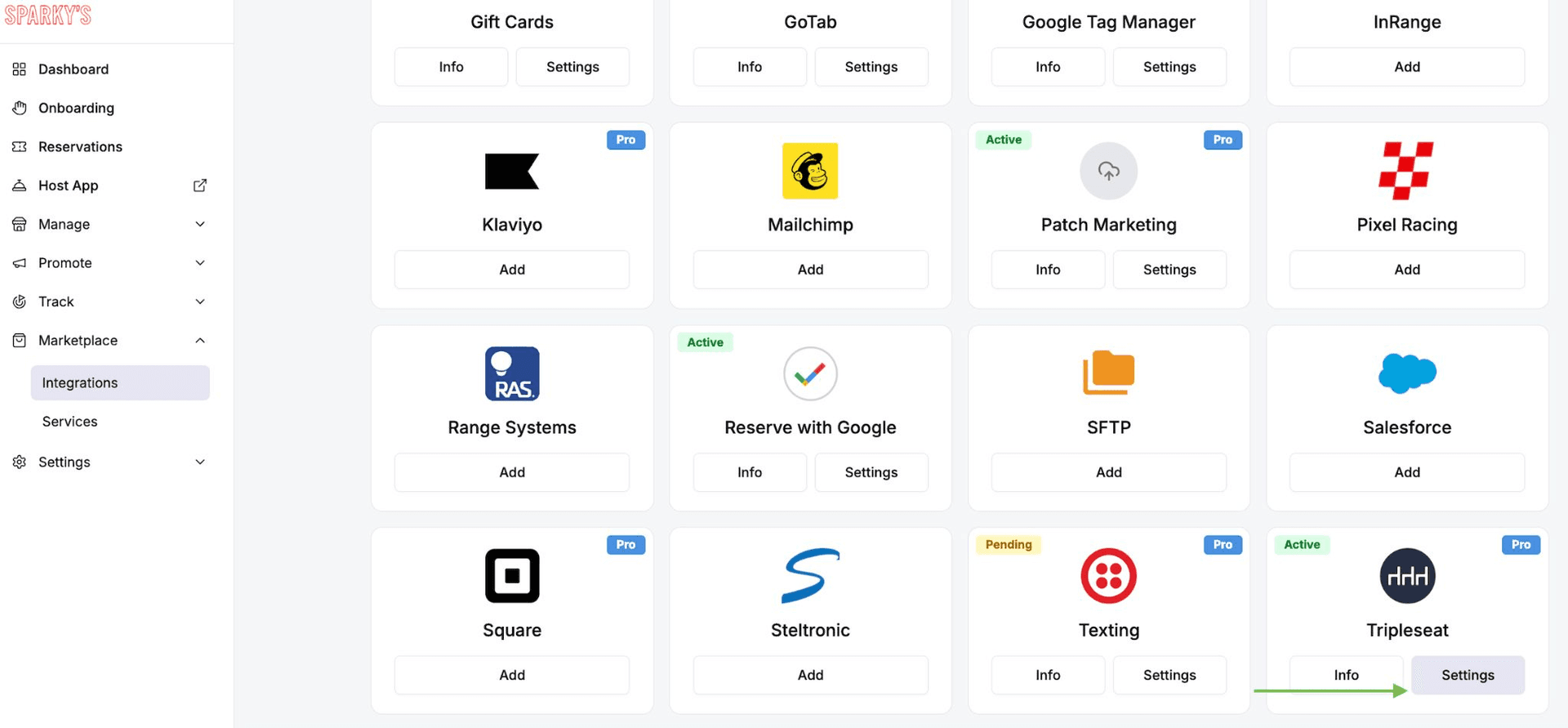
Open Tripleseat settings
Scroll down to the Tripleseat integration and click Settings to open the Tripleseat Settings window.
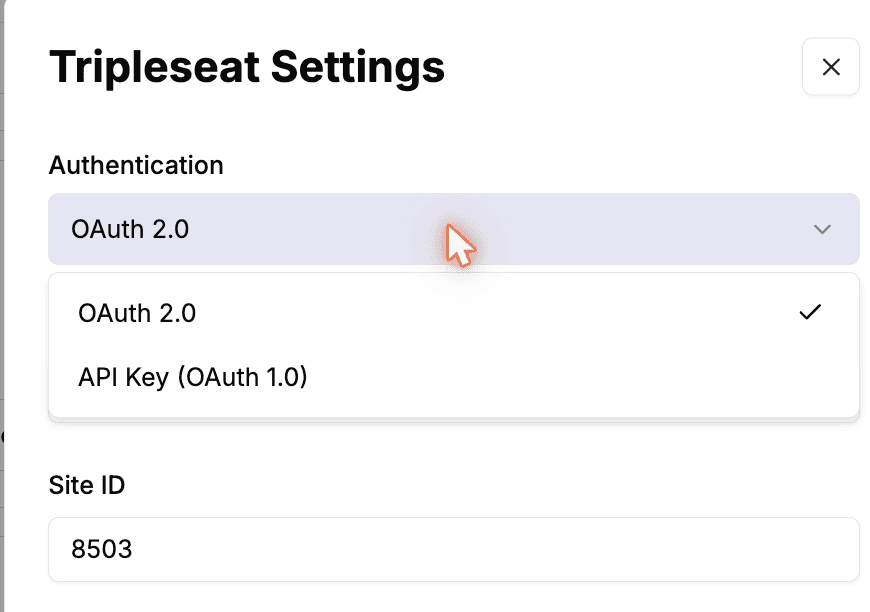
Set Authentication to OAuth 2.0
In the Tripleseat Settings window, open the Authentication dropdown and choose OAuth 2.0. Once OAuth 2.0 is selected, a Login with OAuth 2.0 button appears below the Site ID field.
Click Login with OAuth 2.0
Click Login with OAuth 2.0. Rex opens Tripleseat in a new window so you can authorize the connection.
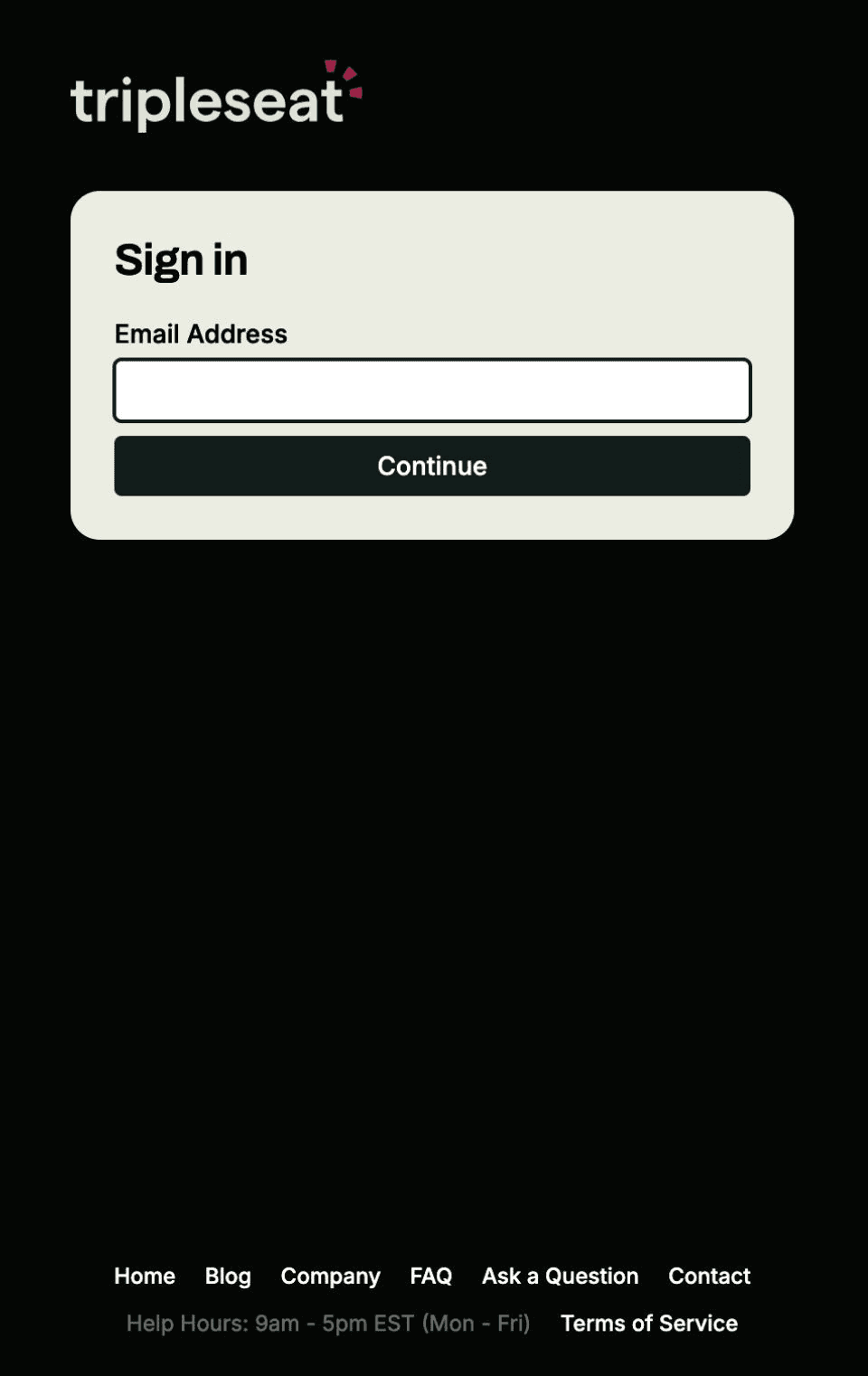
Sign in to Tripleseat
If you aren't already signed in, log in to your Tripleseat account to approve the connection. If you're already signed in to Tripleseat, it connects automatically and you can skip to the next step.
Confirm the connection
Back in the Rex Admin Dashboard, the Login with OAuth 2.0 button changes to Disconnect. When you see Disconnect, OAuth 2.0 is enabled and your setup is complete.
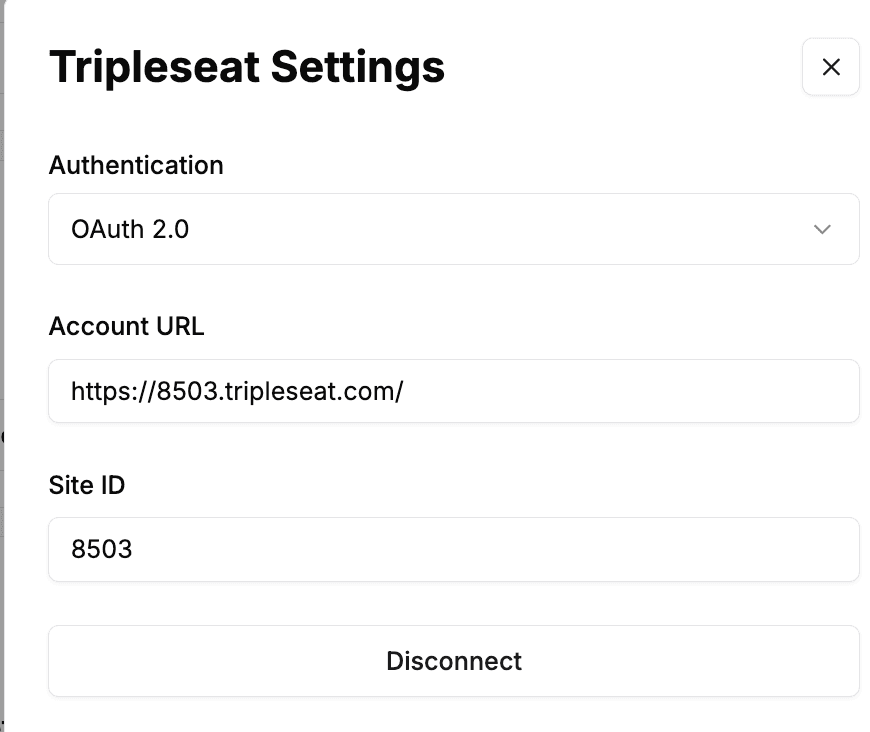
Seeing a Disconnect button is your confirmation that OAuth 2.0 is connected. If you ever need to remove the connection, that's the button to use.
Updated Jun 22, 2026
Was this helpful?