
Set up Square payments
With Square connected, guests pay through your Square account: by card at checkout, by Square invoice when a package takes a deposit, or in person on a paired Square card reader. Your packages and add-ons can be mapped to Square catalog items so orders and receipts show the right line items.
Setup has three parts: connect Square once for your account, turn it on and pick a Square location for each venue, then make Square the venue's payment processor. Card readers are optional.
Connect your Square account
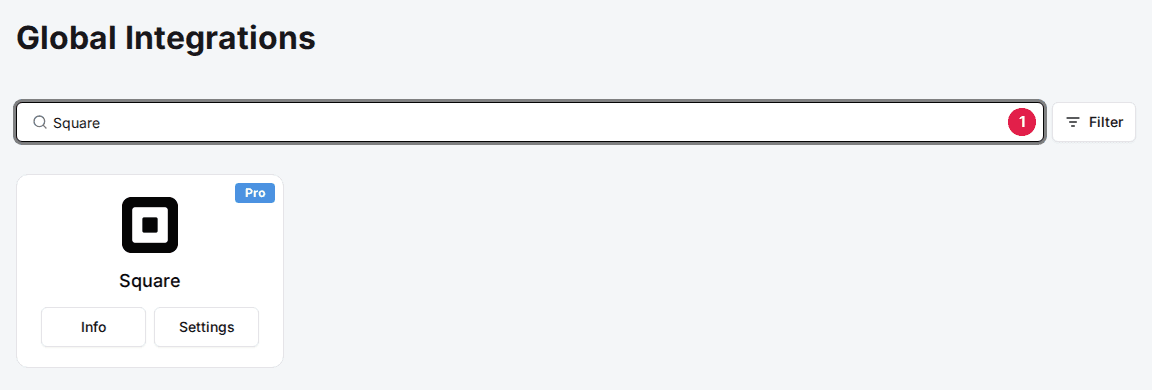
Navigate to Global Integrations
Type Square in the search box to find its card.
Add the Square card
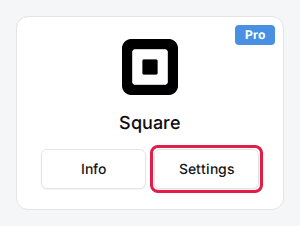
Click Add, then Confirm and Add. Square carries a Pro badge: if your account isn't on the Pro plan, the Add window says that adding it upgrades your subscription. If the card already shows Info and Settings, it's added.
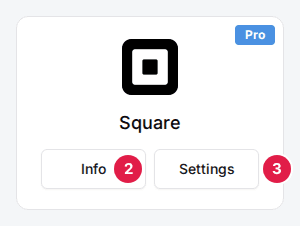
Click Settings on the Square card
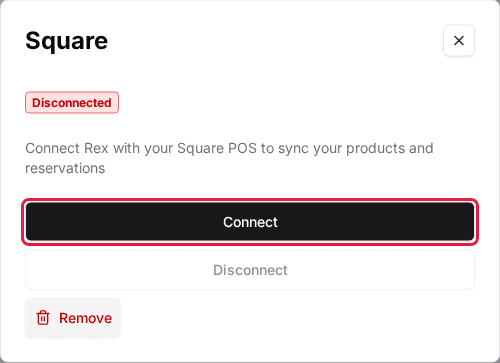
The Square window opens and shows Disconnected.
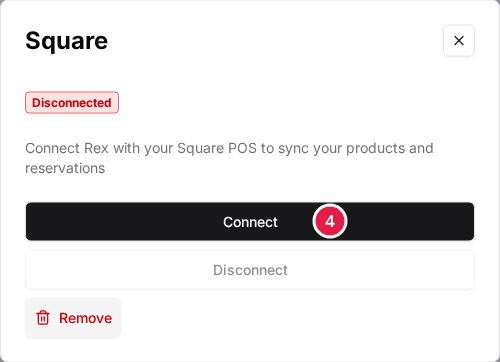
Click Connect
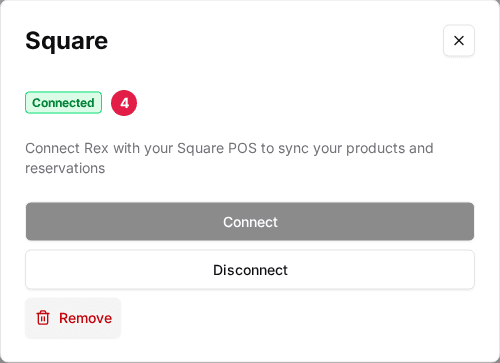
Sign in to Square and approve the permissions Rex asks for. Back in Rex, the Square window shows Connected. You only do this once for the whole account.
Turn on Square for each venue
Navigate to the venue
Open the venue. The Integrations section is at the bottom of the General tab.
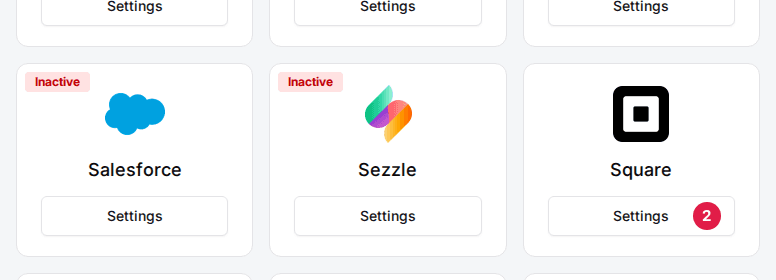
Click Settings on the Square card
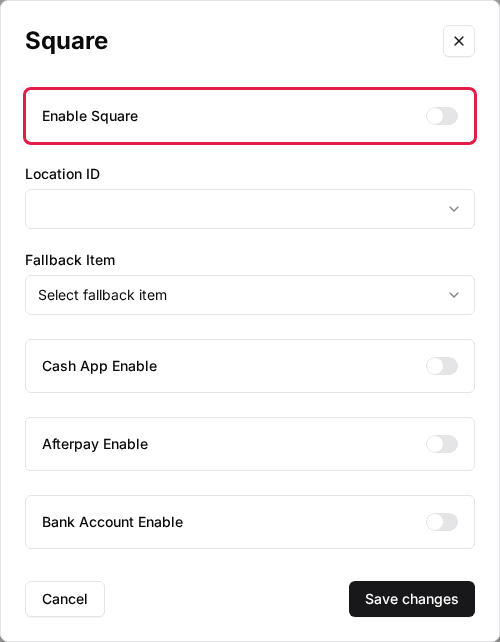
The Square window opens.
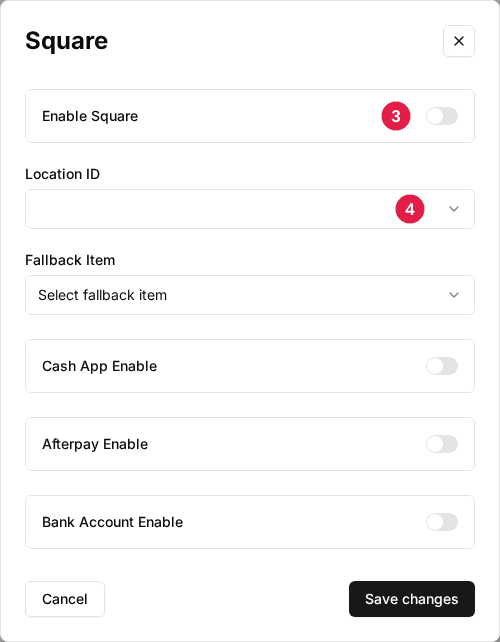
Toggle Enable Square to ON
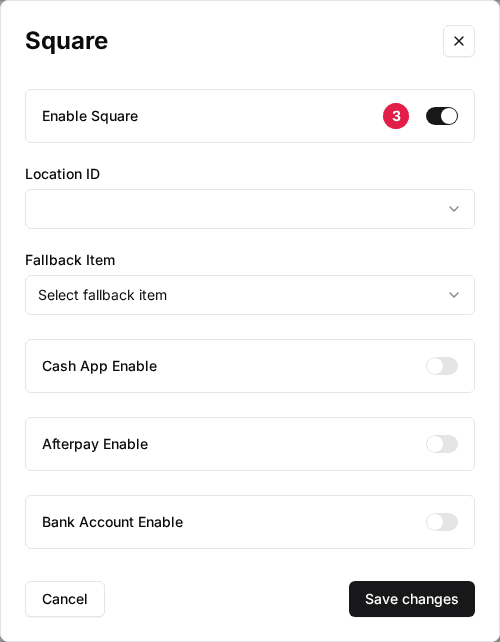
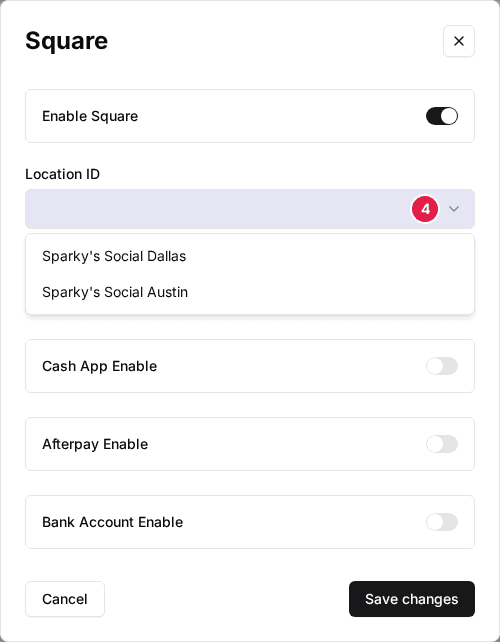
Select the Location ID
Pick the Square location for this venue, choose a Fallback Item, set the switches in the table below, then click Save changes.
| Field | Description |
|---|---|
| Enable Square | Turns Square on for this venue. Needed for payments, invoices and card readers. |
| Location ID | The Square location this venue's payments, catalog and card readers belong to. |
| Fallback Item | The Square catalog item Rex uses when a package or add-on has no item, or its item can't be found any more. Recommended. |
| Cash App Enable | Adds Cash App Pay to the card checkout. |
| Afterpay Enable | Adds Afterpay (Clearpay) to the card checkout. |
| Bank Account Enable | Lets guests pay Square invoices by bank transfer. |
Make Square the venue's payment processor
On the venue's General tab, click Settings on the Payment card, choose Square in the Payments dropdown and click Save changes. There are no keys to enter. Square shows as Square (Unavailable) until the account is connected and the venue's Enable Square switch is on.
How guests pay
Full payment
The guest pays the whole amount at checkout on Square's card form and is charged straight away.
Best for: Packages that take the full amount, or no deposit, at checkout.
Deposit
Rex emails the guest a Square invoice. The deposit is due today and the balance is due by the reservation date (or tomorrow if the reservation is today). The guest can pay by card, Cash App Pay, or bank transfer if Bank Account Enable is on. Rex marks the reservation paid when the invoice is paid.
Best for: Packages that take a deposit of less than 100%.
The deposit on a Square invoice has to be paid within about 30 minutes. If it isn't, Rex cancels the invoice and the pending booking.
Map packages and add-ons to Square items
Mapping links your packages and add-ons to items in your Square catalog, so Square orders show the right line items instead of the Fallback Item. The catalog comes from the venue's Location ID, so set that first.
Packages
Open the package from the venue's Packages tab and click Settings on the Square card in the package's Integrations section. Pick the Square item in Items, set Square Quantity and click Save changes.
| Field | Description |
|---|---|
| Default | Rex picks: the number of lanes for per-lane pricing, 1 for flat rate, and the number of guests otherwise. |
| 1 | One line for the whole package price. |
| Guests | One unit per guest. |
| Lanes | One unit per lane. |
Square Quantity sets how the package line is split on the Square order. Rex only splits the price when it divides evenly, and sends a single line otherwise.
Add-ons
Open the add-on, go to its Assign tab and click the Edit Mapping icon on the package's row. On the Mapping tab, click Get Items List in the Square section, pick the Item and click Save changes.
Pair a Square card reader
Pair a Square Terminal, or the Square app on a supported device, so staff can take in-person card payments from the host app. Readers belong to the venue's Square location, so set the Location ID first.
Click Edit on the Payment Settings card
It's on the venue's Host tab. The Payment Settings window opens.

Toggle Square Card Reader to ON
It only shows when the venue's payment processor is Square, and stays greyed out until Square is connected and Enable Square is on.
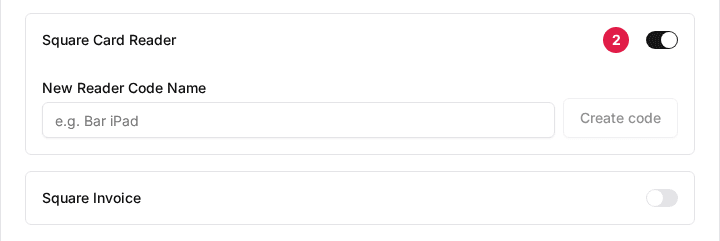
Enter a New Reader Code Name
Use a name you'll recognise, for example Bar iPad.
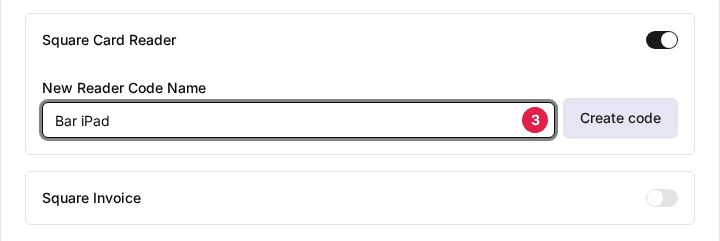
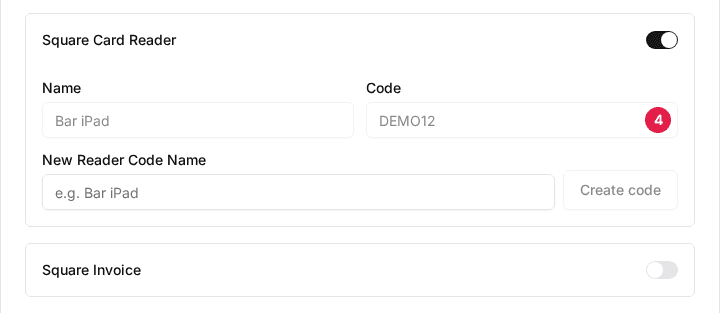
Click Create code
A new row shows the reader's Name and Code.
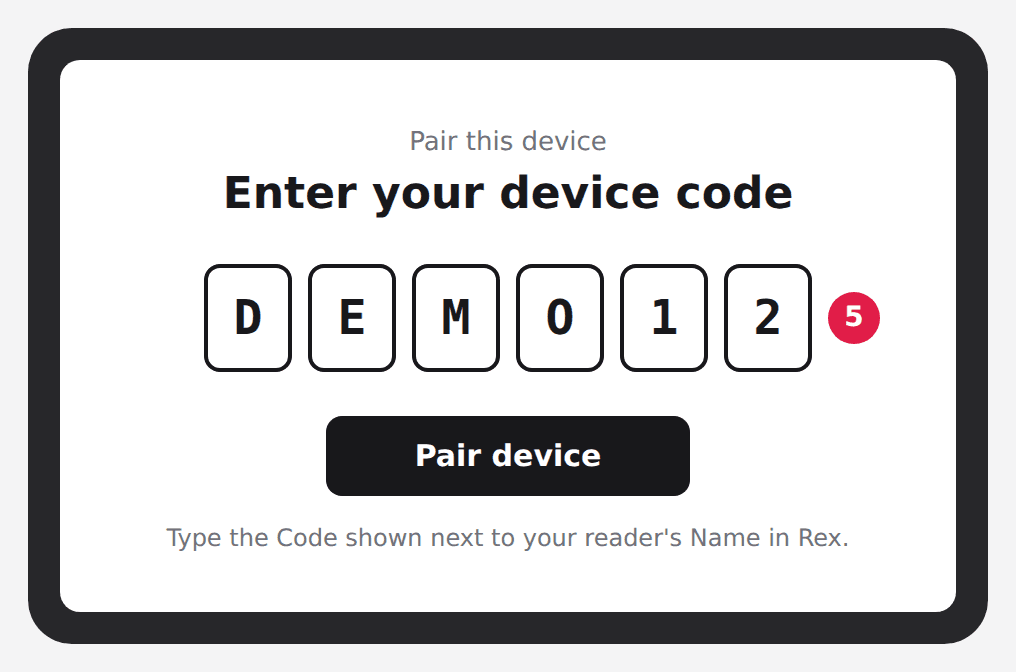
Enter the code on the device
On the Square Terminal or in the Square app, sign in to your Square account and enter the code when it asks to pair a device. Then click Save changes in Rex.
Paired readers stay listed with their Name and Code. In the same window, Square Invoice lets hosts send a Square invoice from the host app.
What syncs
- Card payments and paid invoices are recorded as transactions on the reservation.
- Payments taken on a paired reader are recorded on the reservation once the guest completes them on the device.
- A refund made in Square updates the reservation in Rex.
Disconnect Square
Click Settings on the Square card under Global Integrations, then click Disconnect. Rex asks what to do with your mappings:
Keep Mapped Items
Revokes the connection but keeps your locations and item mappings, so reconnecting is quicker.
Best for: Reconnecting the same Square account.
Clear Mapped Items
Also clears the mapped locations and items on every venue.
Best for: Moving to a different Square account.
Either way, Square is disconnected for the whole account and stops taking payments at every venue.
Troubleshooting
Square shows as Square (Unavailable) in the Payments dropdown
Possible causes
- •Square isn't connected for the account
- •Enable Square is off at the venue
Fix
Connect Square from the Square card under Global Integrations, then turn on Enable Square in the venue's Square window and save.
Square Card Reader is greyed out
Possible causes
- •Square isn't connected, or Enable Square is off at the venue
Fix
Finish connecting Square and turning it on for the venue, then reopen the Host tab's Payment Settings.
Payments stop working
Possible causes
- •The Square connection was revoked
Fix
Open the Square card's Settings. If it shows Disconnected, click Connect and approve the permissions again.
Updated Oct 8, 2026
Was this helpful?