
Create your first venue
A venue is one physical location in Rex. Its address, packages, resources and payment settings all live under it. Create your first venue once your branding and global settings are in place.
Your first venue is included in your subscription. Each venue after that adds to it: Rex shows how much your subscription goes up and the prorated amount charged today before the venue is created.
Create a venue
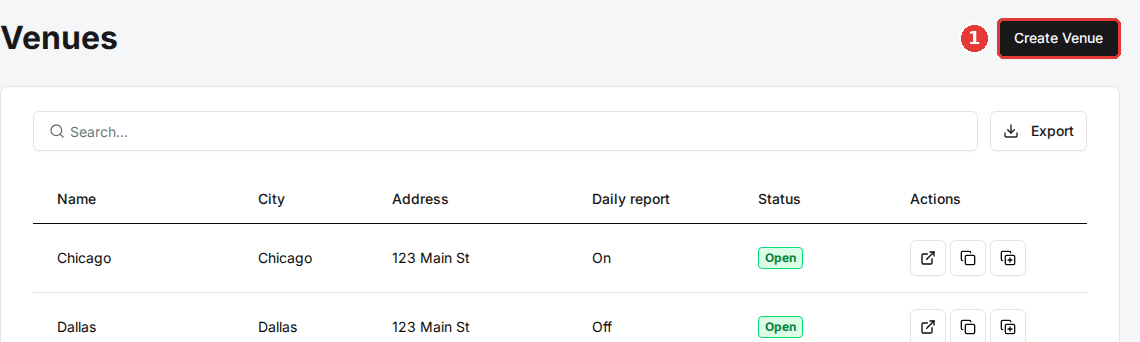
Click Create Venue
The button is at the top right of the Venues page.
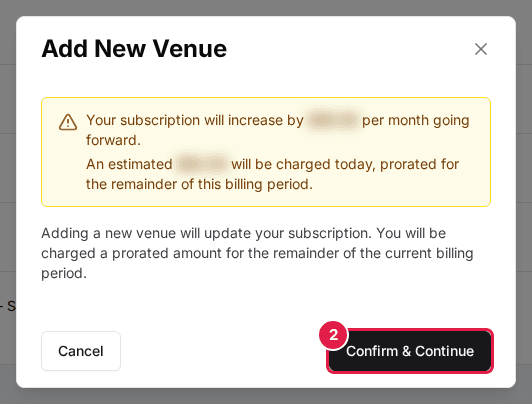
Click Confirm & Continue
The Add New Venue window tells you whether the venue is included in your plan or what it adds to your subscription. Confirm to open the venue form.
Enter the venue details
Fill in the Venue Info form. Address 2 and Map URL are optional; the form flags any other field you leave empty.
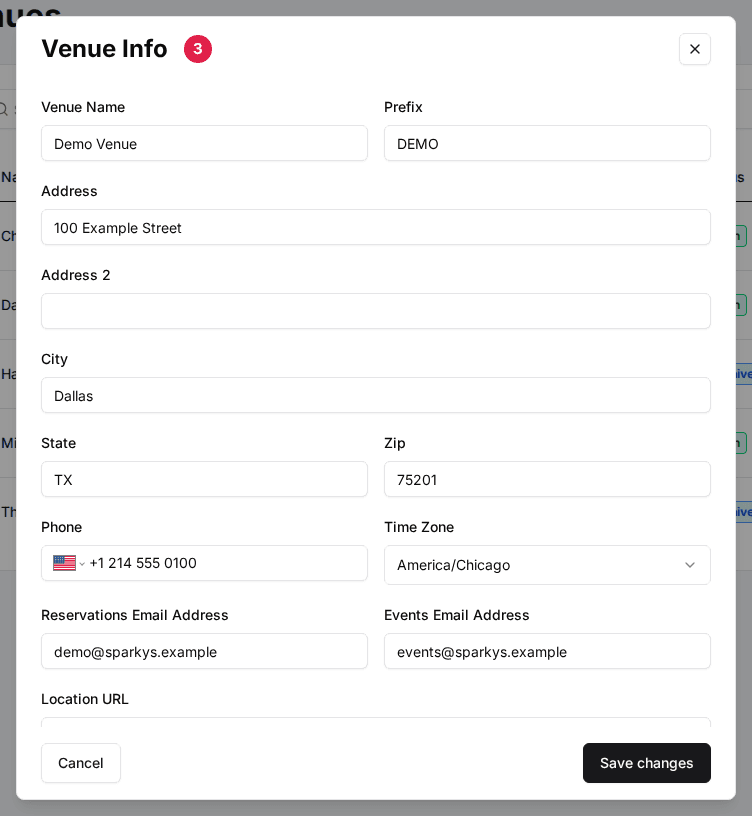
| Field | Description |
|---|---|
| Venue Name | The location's name, shown to guests on the booking page. |
| Prefix | A short code put in front of this venue's reservation numbers. A prefix of CHI gives numbers like CHI-1042. |
| Address | Street address, followed by Address 2, City, State and Zip. |
| Phone | The venue's contact number. |
| Time Zone | The venue's local time zone. Availability and reservation times use it. |
| Reservations Email Address | The address that receives this venue's reservation notifications. |
| Events Email Address | The address that receives event and party inquiries for this venue. |
| Location URL | A link to this location's page on your own website. |
| Map URL | A map link for the location, shown to guests on the booking page. |
| Minimum Age Policy | The minimum guest age (16 to 21) used in the venue's age restriction message to guests. |
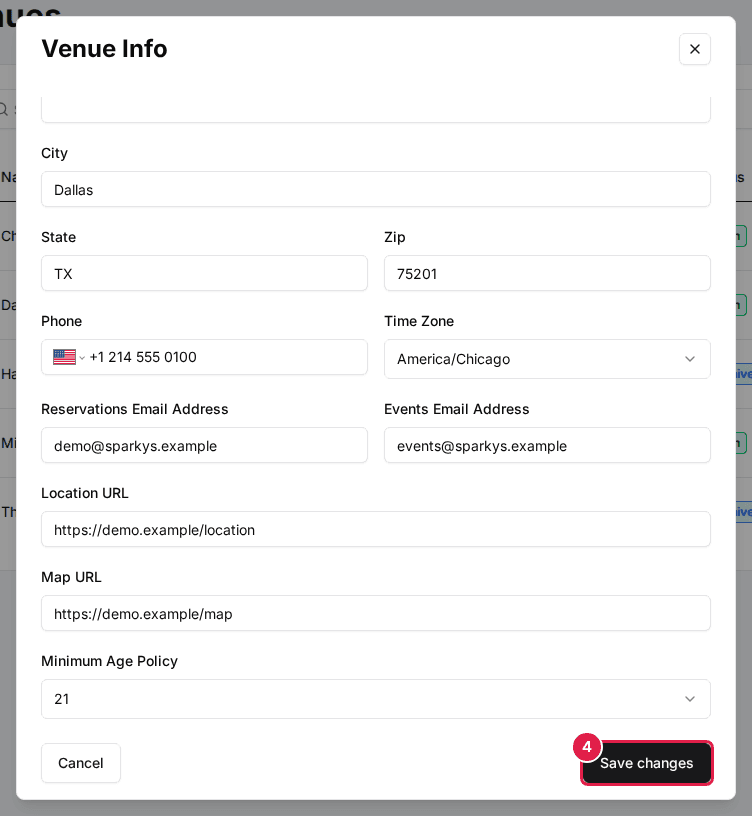
Click Save changes
Rex creates the venue and opens its page on the General tab.
Finish setting up the venue
The General tab lists the venue's settings as cards: Venue Info, Venue Settings, Taxes, Social Media Links, Sidebar Links, Feedback and Image Gallery. Click Edit on a card to change it. The Integrations section below the cards shows the integrations your account uses at this venue. The Packages, Host, Resources and Language tabs hold the rest of the venue's setup.
On the right, Venue Controls holds four switches that take effect as soon as you flip them, and the Payment card below it opens the venue's payment settings.
| Field | Description |
|---|---|
| Venue is Open | On lets guests book this venue online. Off shows guests a Venue Closed message instead of booking. |
| Venue Coming Soon | On hides the venue from the venue list on your booking site. Its own link (View page on the venue page) still opens it. |
| Discounts Enabled | Turns discounts on or off for this venue. |
| Always-On Loading | Skips date availability checks so the booking page loads faster. All packages and dates are shown without filtering. |
A new venue starts with Venue is Open on and payments in Sandbox mode, so guests who find it can book without being charged. Turn on Venue Coming Soon, or turn Venue is Open off, until payments are set up.
Clone an existing venue
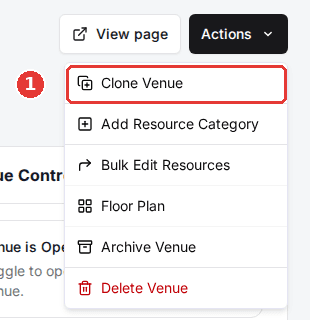
Cloning copies a venue you have already set up. You can also start it from the clone icon in the venue's row on the Venues page.
Click Clone Venue
On the venue you want to copy, open the Actions menu at the top right and choose Clone Venue.
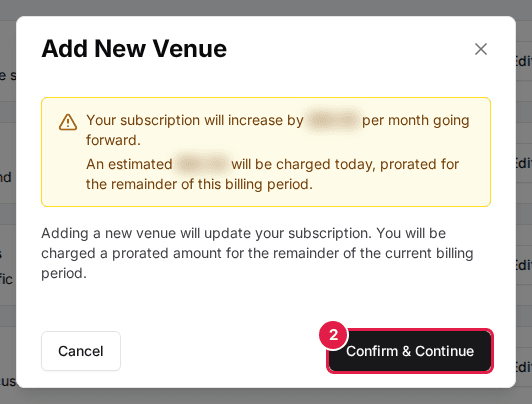
Click Confirm & Continue
A clone always adds a venue to your subscription. The Add New Venue window shows the increase and today's prorated charge.
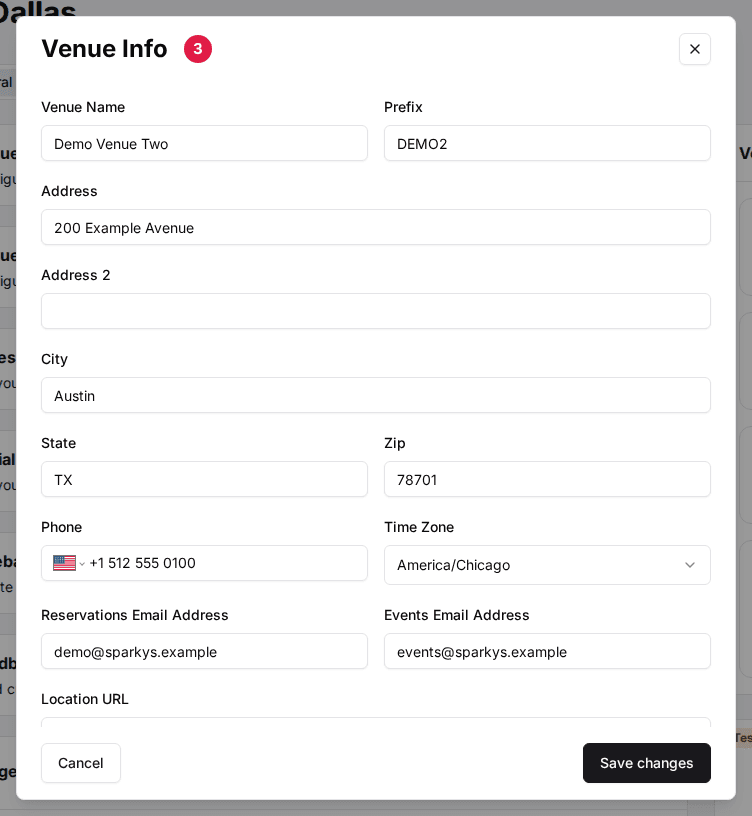
Enter the new venue's details
The Venue Info form opens with the original venue's details filled in and Venue Name left blank. Enter the new name, and change the prefix, address and contact details for the new location.
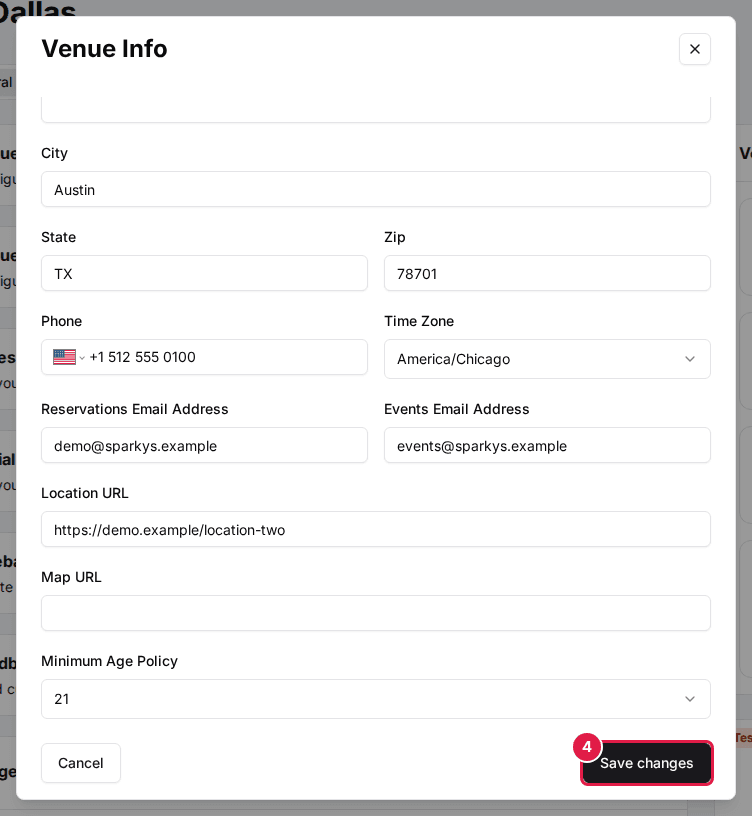
Click Save changes
Rex creates the copy and opens its page.
A clone copies the venue's settings, including its Payment Settings and integration settings, its taxes, and its packages with their schedules and time slots. Resources are not copied: create the new location's lanes, bays or tables on its Resources tab and assign them to its packages. The Viator Supplier ID is left empty.
Because Payment Settings are copied, the new venue takes payments through the same processor and account as the original. Check the Payment card on the new venue and change it if the location uses its own account. Next, set up payments and create the venue's resources.
Updated Oct 8, 2026
Was this helpful?