
Global settings
Global Settings holds the defaults every venue on your account shares. Set them once during onboarding and you'll rarely need them again. The account defaults are in the Global Settings panel on the right of the page.
Only account-level admins see Global Settings. Venue admins, regional admins and read-only users don't have it in their menu.
Account defaults
Every control in the panel saves as soon as you change it, except Time Slot Duration, which asks you to confirm first (see the next section).
| Field | Description |
|---|---|
| Currency | The currency for prices across every venue. If a venue takes payments through Square, the list only offers your Square locations' currencies. |
| Date Format | MM/DD/YYYY (the default) or DD/MM/YYYY. |
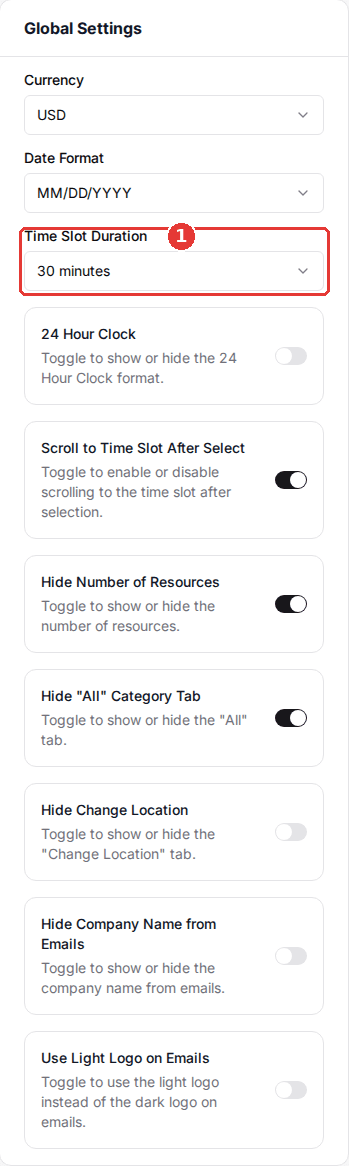
| Time Slot Duration | How long one time slot is, from 5 minutes to 4 hours. Start times on your booking page are spaced by it, and package durations are counted in slots. |
| 24 Hour Clock | On shows times as 13:00 instead of 1:00 PM. Off by default. |
| Scroll to Time Slot After Select | On desktop, scrolls the booking page down to the time slots once a guest selects a package. |
| Hide Number of Resources | Hides the number of resources (lanes, bays, courts) from guests on the booking page. |
| Hide "All" Category Tab | Removes the "All" tab from your package category tabs. |
| Hide Change Location | Hides the Change Location option guests use to switch to another of your locations. |
| Hide Company Name from Emails | Drops your company name from the sender name of guest emails, so they show only the venue name. |
| Use Light Logo on Emails | Sends emails with your Light Logo instead of your Dark Logo. See Branding and design. |
Change the time slot duration
Package durations, schedules and buffers are stored as a number of slots, so changing the slot length changes the real time they cover. Rex can rescale them for you so they keep the same real-world times.
Select a new Time Slot Duration
Pick the new length in the Global Settings panel. The Change Time Slot Duration? dialog opens and nothing is saved yet.
Choose what to rescale
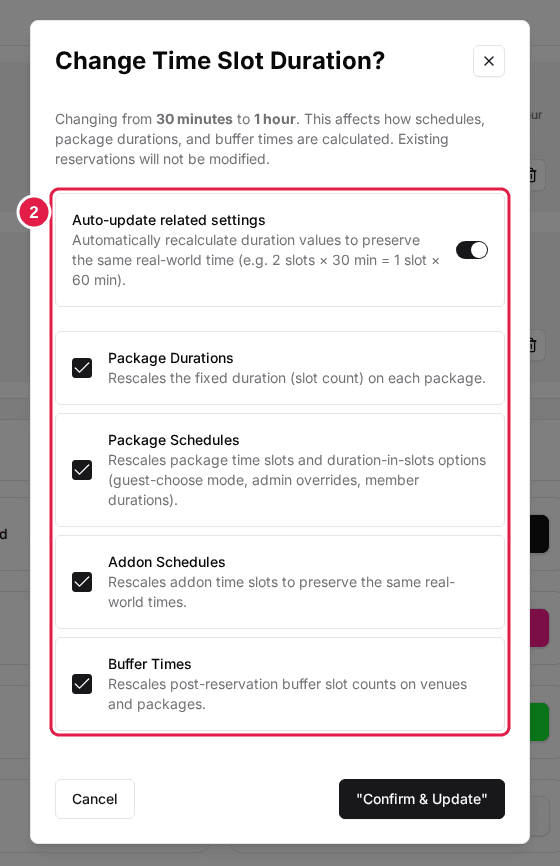
Leave Auto-update related settings on to keep the same real-world times, for example 2 slots of 30 minutes become 1 slot of 60 minutes. Untick anything you want left as it is.
| Field | Description |
|---|---|
| Package Durations | Rescales the fixed duration on each package. |
| Package Schedules | Rescales package time slots and duration options, including admin overrides and member durations. |
| Addon Schedules | Rescales add-on time slots. |
| Buffer Times | Rescales the buffer after a reservation on venues and packages. |
Click Confirm & Update
The new duration and the rescaled settings are saved together.
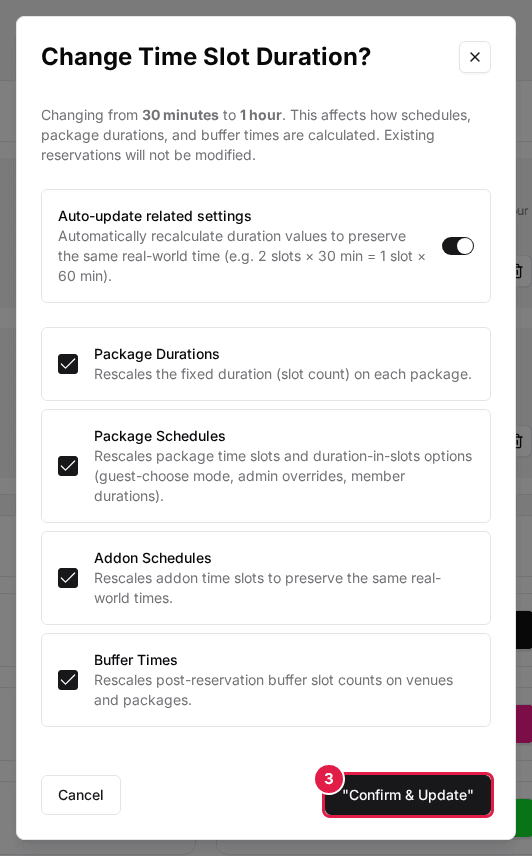
Existing reservations are not changed. If you turn Auto-update related settings off, every duration keeps its slot count, so a package set to 2 slots of 30 minutes becomes 2 hours long after a switch to 1-hour slots.
Other cards on this page
The cards on the left of the page cover your booking page and guest data:
- Brand Images, Page Colors, Page Settings and Reservation Page Settings: logos, colors and page text, covered in Branding and design.
- Customer Profile: which profile fields guests fill in, and the guest checkout and account options, covered in Customize your reservation page.
- Memberships Page: the text on your memberships page and in membership emails.
- Revenue Categories, Cancellation Reasons, Occasions and How did you hear about us: the lists staff and guests pick from.
- Event Calendar: turns on the public events calendar page, if your plan includes it.
- Privacy: HIPAA Mode, which keeps guest emails and phone numbers out of Rex server logs and signs staff out after 12 hours.
Refresh your booking page in another tab after a change to check that prices, dates and times display the way you want. Setting up a venue outside the US? See Configure international settings.
Updated Oct 8, 2026
Was this helpful?