Rex

Customize your reservation page

Guests arriving at your reservation page see your venue photos and headline at the top, your packages filtered by category tabs, an FAQ accordion below the packages, and a side panel with your venue details, custom links, and contact options. Almost all of it is customizable, and this guide walks through each piece.

Most of these settings are per-venue, under Manage → Venues. Account-wide branding — logos, colors, fonts of the page itself — lives in Global Settings and is covered in Branding and design.

Page headline and booking page copy

The headline and most of the text on the booking page are set per venue, on the venue's Language tab. Open your venue, click the Language tab, then click Edit on the Booking Page card.

FieldDescription
Page TitleThe headline at the top of your booking page. If you leave it empty, guests see "Plan your visit".
DescriptionOptional intro copy for the booking page, shown with the headline.
Choose your packageThe heading above the package list.
No packages available messageShown in place of the package list when nothing is bookable.
Checkout NoteA custom note guests see during checkout.

The same card also holds copy for add-ons, activities, and age-group pricing notes. The word used for your bookable resource itself — Bay, Lane, Court, and so on — is account-wide: it's the Action Text setting described in Branding and design.

Venue photos

Venue photos do a lot of work on the page: on desktop they appear on the venue summary card (with a gallery button when you've uploaded more than one), and on mobile the first photo becomes the full-width hero behind your venue name.

1

Navigate to your venue's General tab

Open Manage in the left menu, click Venues, select your venue, and stay on the General tab.

ManageVenuesYour VenueGeneral
2

Open the Image Gallery

Find the Image Gallery card and open it — the Venue Images dialog appears.

3

Upload and arrange your photos

Upload one or more images, then drag them into order. The first image is the main one — it's the mobile hero and the summary card photo.

4

Save

Save the dialog. The booking page updates immediately.

Package category tabs

Category tabs organize a long package list into a row of filter chips above the packages — guests click a tab to see just that group. The tabs come from categories: you create categories once, then assign each package to one or more of them. An All tab appears first by default.

1

Create your categories

Click Create Category. Give it a name (e.g. "VIP" or "Seasonal"), set a Priority to control the tab order, and leave Active on.

ManageCategories
2

Assign categories to each package

Open a package under your venue's Packages tab, open the Package Categories card, select the categories it belongs to, and click Save changes. Repeat for every package you want filtered.

ManageVenuesYour VenuePackages
3

Optionally hide the All tab

To show only your own tabs, open Settings → Global Settings and toggle on Hide "All" Category Tab in the right-side panel. Guests then land on your first category tab instead.

SettingsGlobal Settings
⚠️Warning

Packages without a category only appear under the All tab. If you hide the All tab, double-check that every bookable package has at least one category — otherwise it won't show anywhere.

FAQ accordion

The FAQ renders as an expandable accordion below the package list, under a heading that defaults to "What you should know". Your venue policies are automatically appended as the final accordion item, so even with no questions added guests still see a Venue Policies entry.

1

Open the FAQ card on the Language tab

Open your venue's Language tab and find the FAQ card.

ManageVenuesYour VenueLanguage
2

Add your questions

Click Add Question and fill in the Question and Answer fields. Repeat for each entry. Use the Section Title field to rename the accordion heading.

3

Save and verify

Save, then open your reservation page and scroll below the packages to confirm the accordion shows your questions.

Inquiry page (contact form)

The inquiry page gives guests a way to reach you for events and large parties. When enabled, a contact link appears in the booking page's side panel — labeled with your Tab Name (falling back to the Event Inquiry Title, then to "Contact"). Clicking it opens Rex's built-in inquiry form, or redirects to your own page if you set a Redirect URL.

Built-in inquiry form

Default

Guests submit their event inquiry without leaving your reservation page, and you're notified.

Best for: Venues that want inquiries collected inside Rex

Redirect URL

Clicking the contact link sends guests to a URL you choose, such as your website's events page.

Best for: Venues with an existing inquiry or events system

Configure it on the venue's Language tab — click Edit on the Inquiry Page card.

FieldDescription
Enable Inquiry PageTurns the inquiry page (and its side-panel link) on or off.
Event Inquiry TitleThe heading on the inquiry page itself.
Tab NameThe label of the contact link guests click. Falls back to the Event Inquiry Title, then to "Contact".
DescriptionIntro copy shown on the inquiry page.
Min guests for inquiry / Max guests for inquiryThe guest-count range the inquiry form accepts.
Redirect URLOptional. When set, the contact link sends guests to this URL instead of opening the built-in form.

Custom page (embed anything)

The custom page adds a second link to the booking page's side panel that opens a page of your own content — an embedded menu, reviews widget, video, or anything else that comes with an embed code.

It lives next to the inquiry settings: on the venue's Language tab, click Edit on the Custom Page card.

FieldDescription
Custom Page is EnabledTurns the custom page (and its side-panel link) on or off.
Page NameThe link label and page title. Defaults to "Custom Page".
DescriptionOptional copy shown above your embedded content.
Custom ScriptThe embed code for the content you want to display.

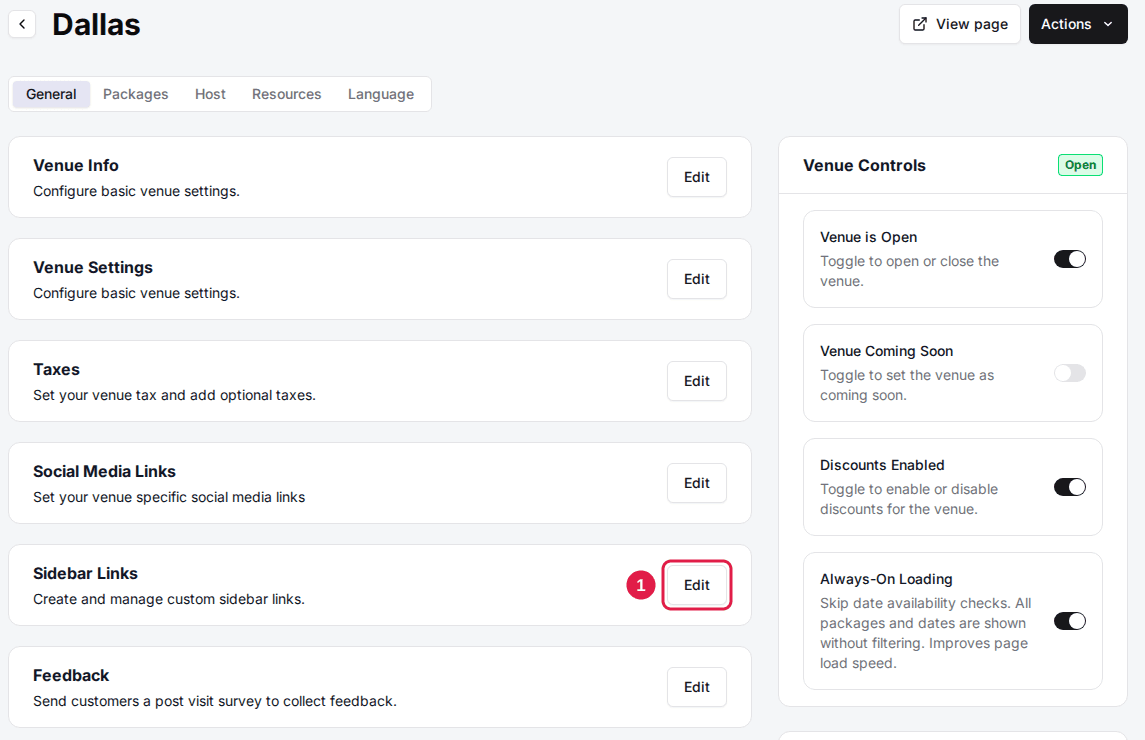
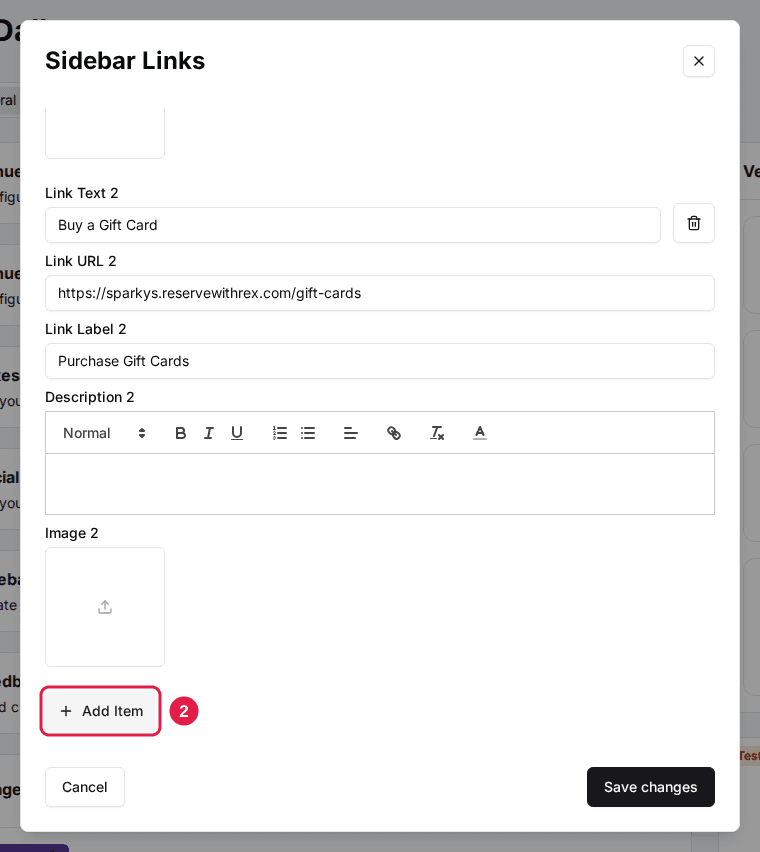
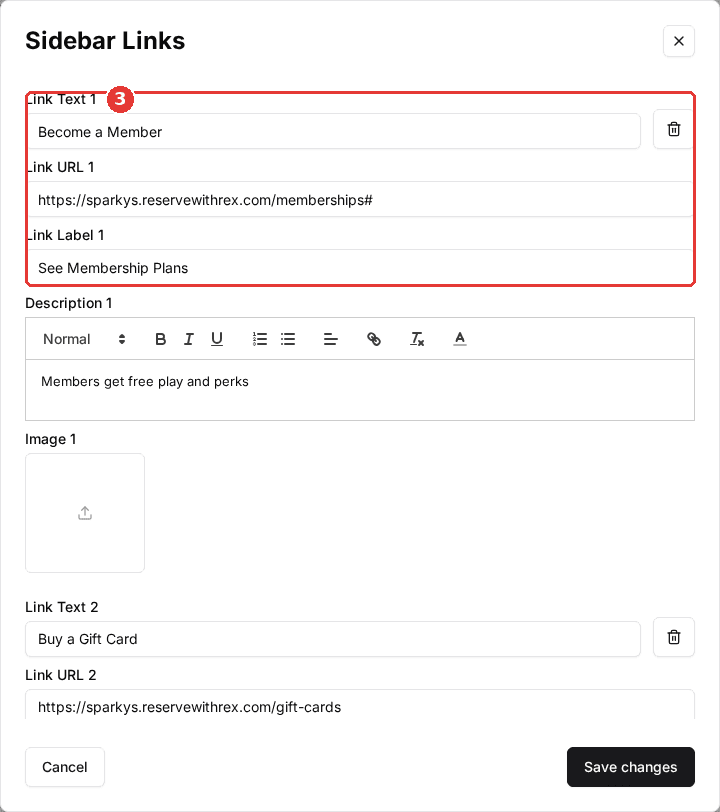
Sidebar links are promo-style cards that point guests to other pages — your menu, an events calendar, social media. On desktop they appear in the side panel next to the packages; on mobile they stack below the package list. Each card can have an icon or image, a title, a short description, and a link.

1

Open the Sidebar Links card

On your venue's General tab, find the Sidebar Links card and open it.

ManageVenuesYour VenueGeneral
2

Add your links

Click Add Link and fill in the label, destination URL, an icon or image, and an optional description. Drag links to set their order.

3

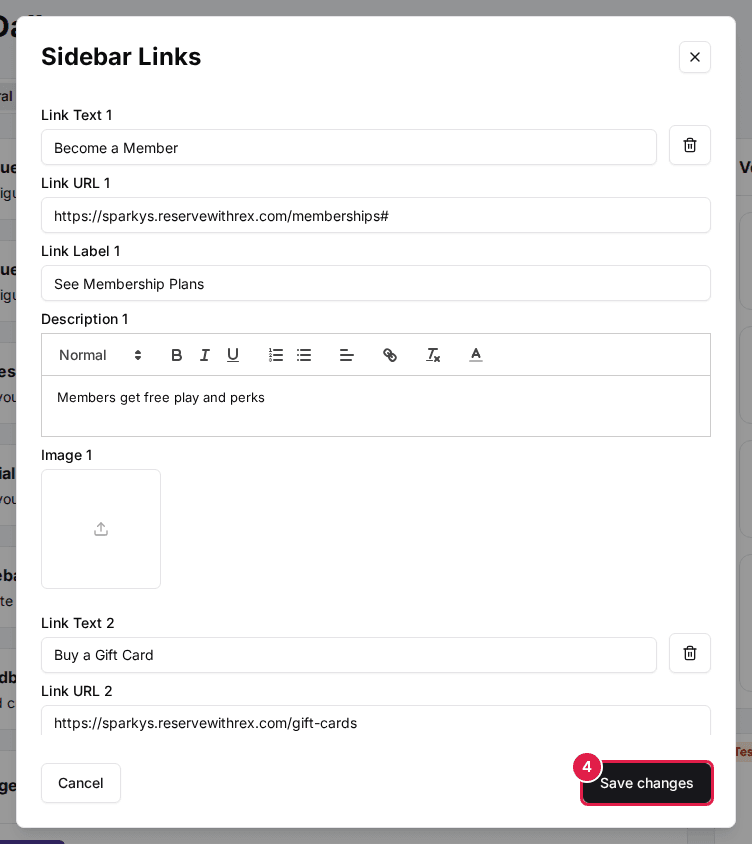
Save

Save the dialog, then refresh your reservation page to see the cards.

Streamline checkout

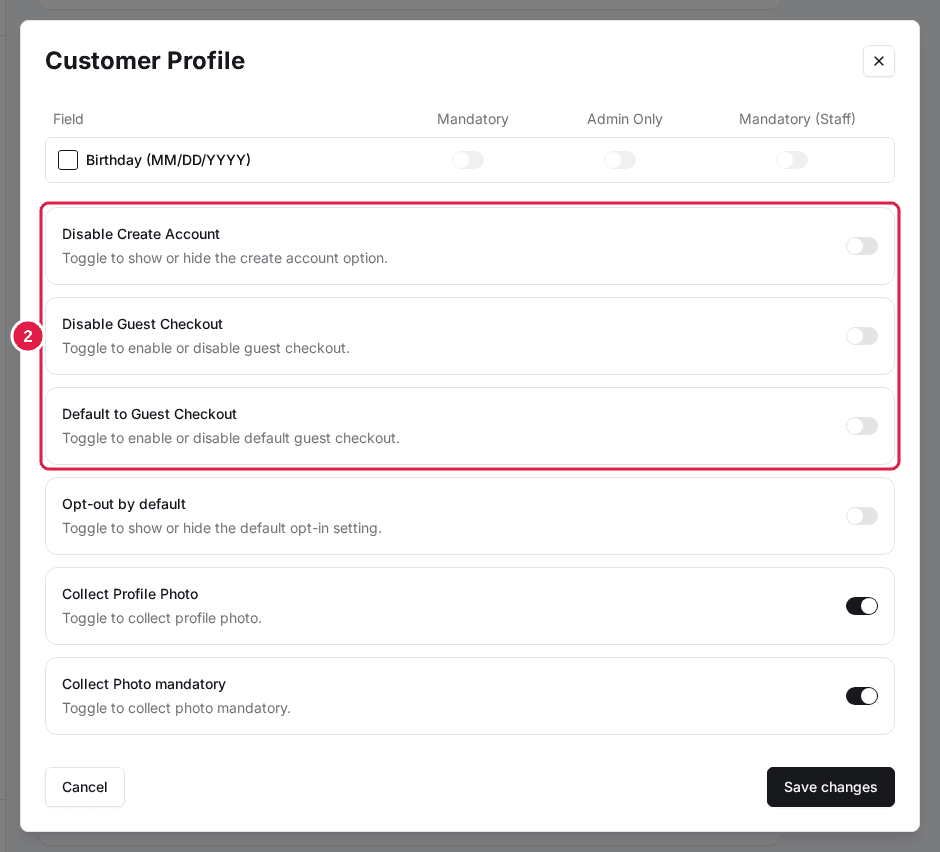
By default, the checkout's Guest Checkout step also offers "Create an account" and "Sign in" options. If you'd rather every guest check out without an account, turn on Disable Create Account: it removes the account options from checkout and the account button from the page header.

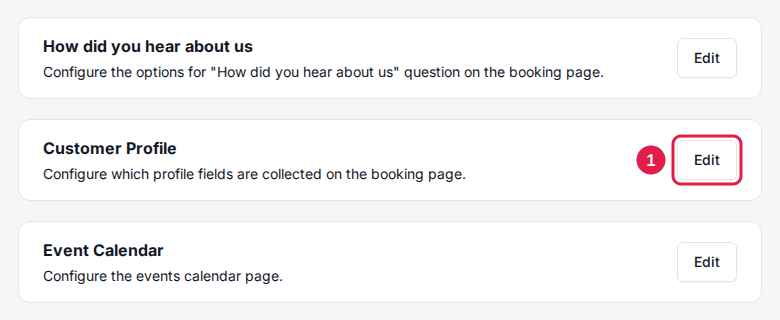
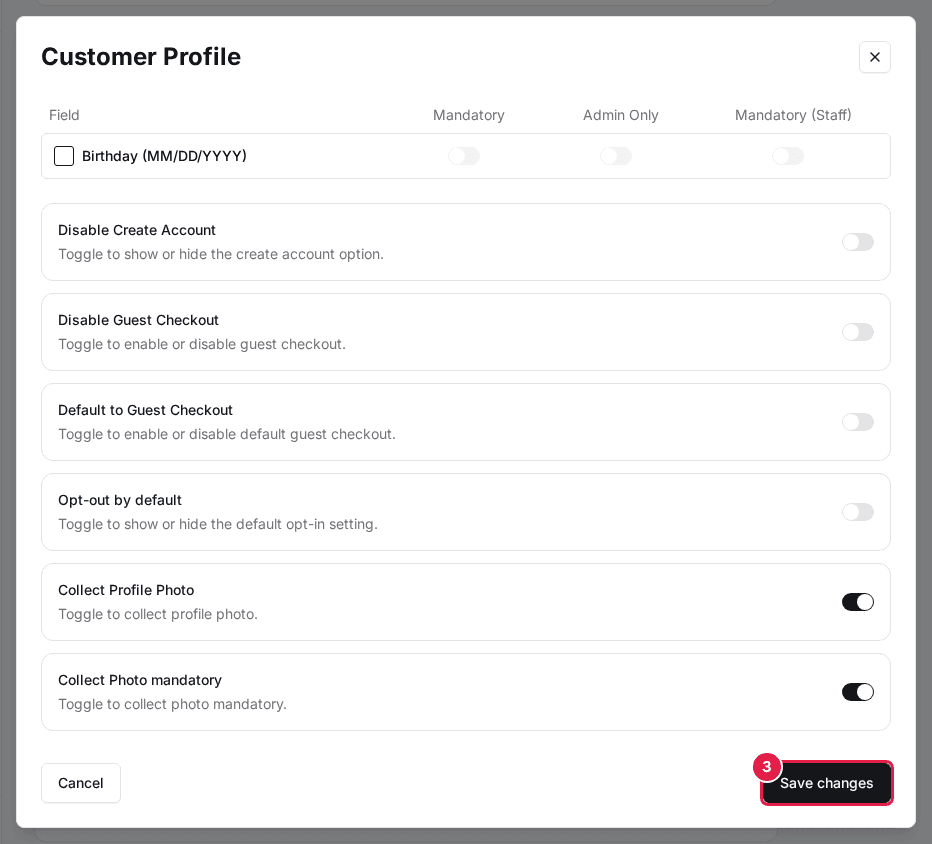
Open Settings → Global Settings, click the Customer Profile card, and toggle on Disable Create Account.

Changes apply to your live page as soon as they're saved — keep your reservation page open in another tab and refresh after each change to see exactly what guests will see.

Updated Jun 12, 2026

Was this helpful?