
Block time in the Host App
A block makes resources unavailable for the hours you choose, so they can't be booked during that time. Use one to close for a holiday, close early, take a lane out for maintenance or hold space for a private group. A block can cover several days, several time ranges and any mix of resources (lanes, bays, tables or rooms).
Create a block
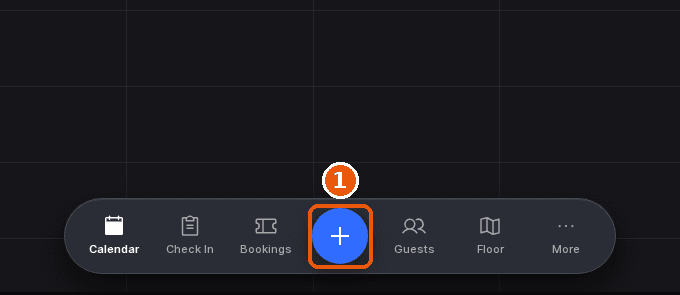
Click the + button
In the Host App, tap the blue + button in the middle of the bottom bar. The create screen opens.
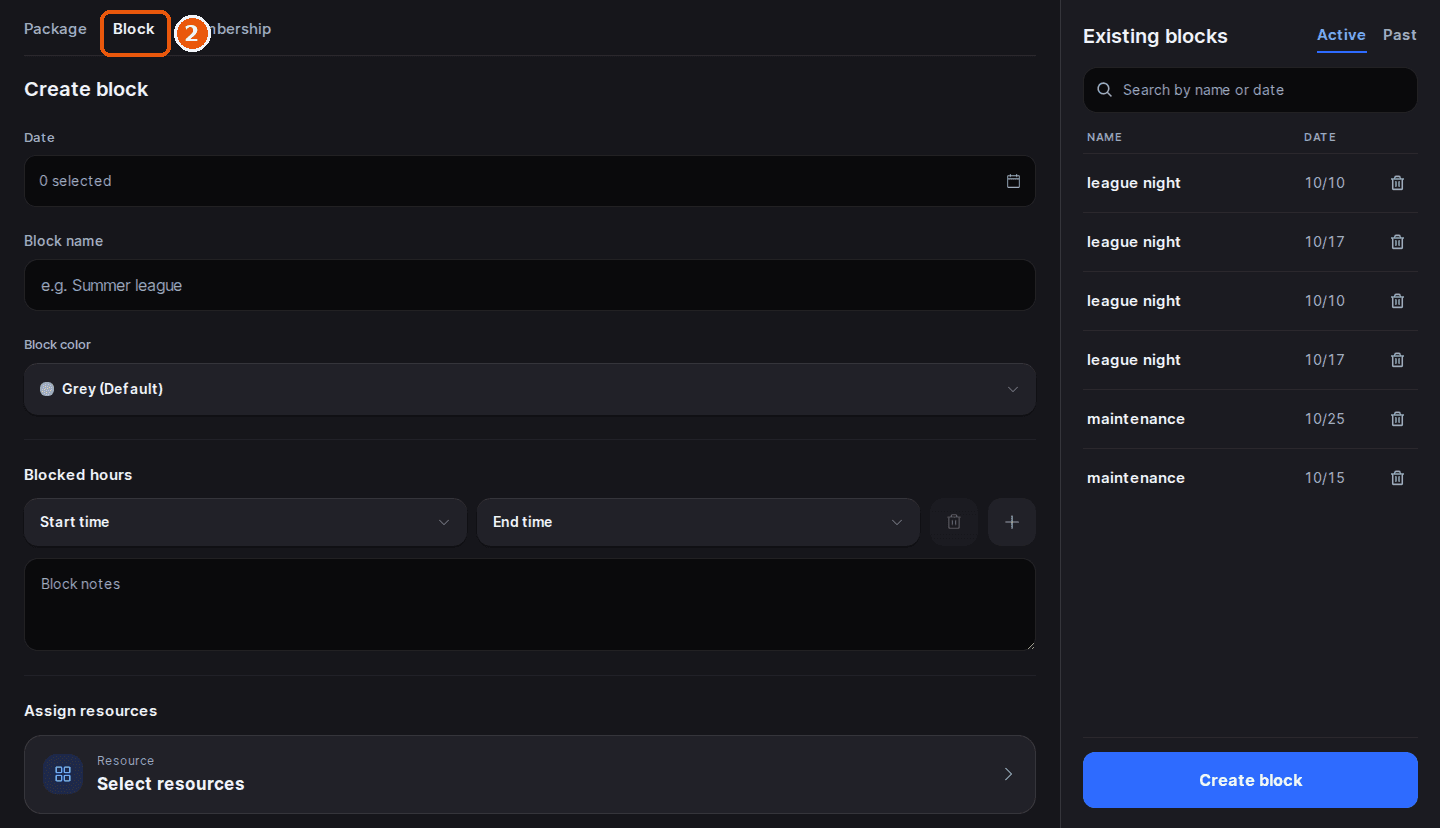
Select the Block tab
Tap Block at the top of the screen. The Create block form opens.
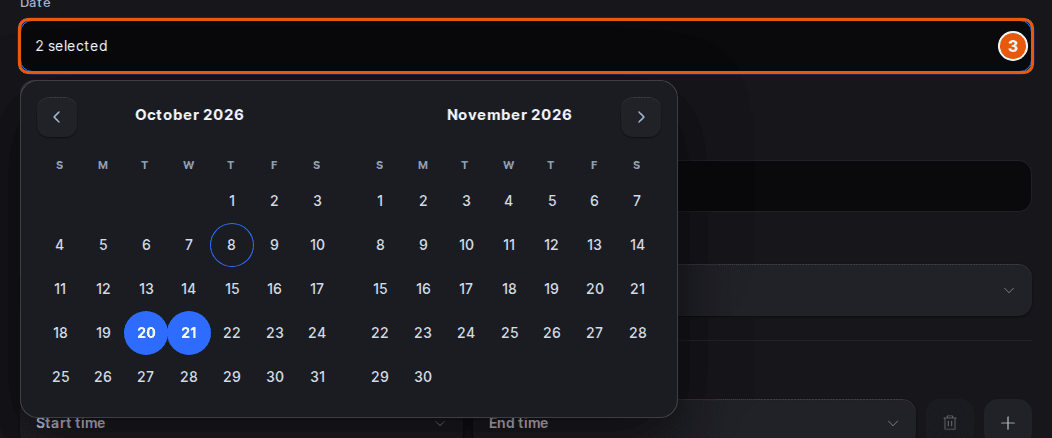
Select the dates
Tap the Date field and tap each day the block covers. The calendar stays open so you can pick several days in one go; tap a day again to remove it.
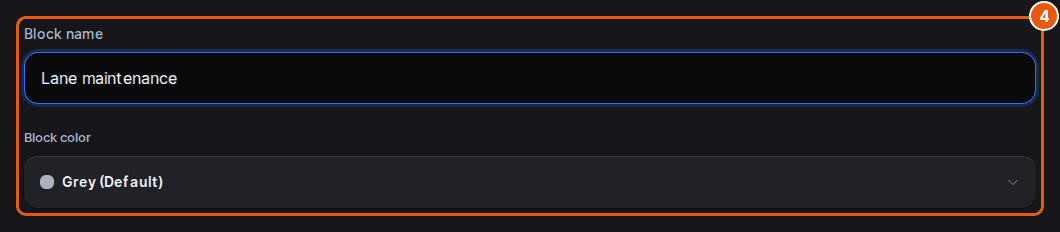
Enter a block name and color
Enter a Block name, such as Thanksgiving or Lane maintenance. Hosts see it on the calendar. Pick a Block color to make it stand out from reservations.
Set the blocked hours
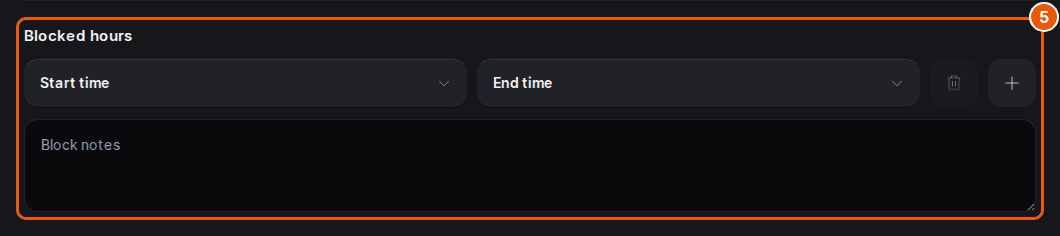
Under Blocked hours, choose a Start time and an End time. Tap the + beside them to add another time range on the same days, or the trash icon to remove one. Add Block notes if your team needs context.
Select the resources
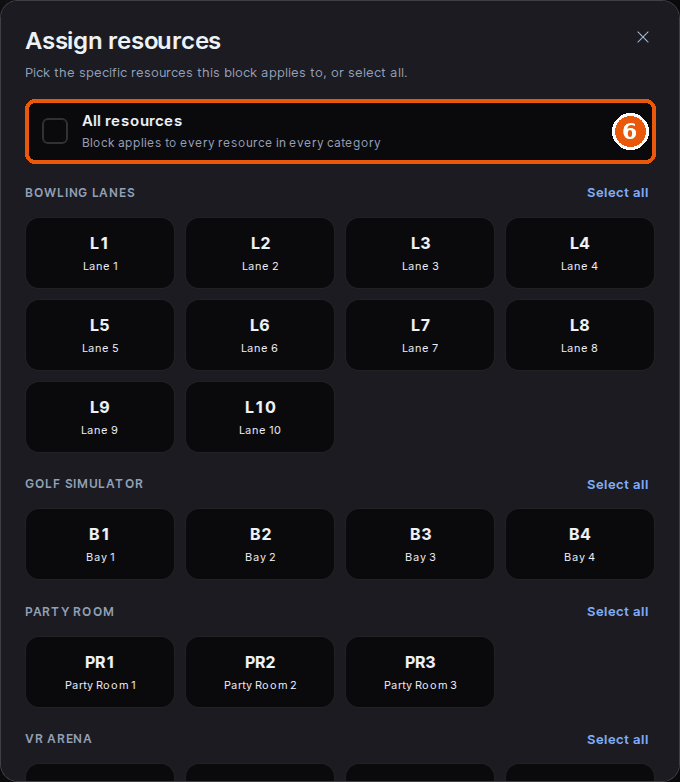
Under Assign resources, tap Select resources. Tick All resources to block everything, tap Select all next to a category to block that whole category, or tap individual resources. Resources that already have a booking or a block at that time are greyed out. Tap Done.
Click Create block
Tap Create block. The block appears on the calendar and those resources can no longer be booked for the blocked hours.
If a resource in the block already has a booking at that time (for example, you picked resources before changing the hours), Rex shows Some resources are already taken. Block anyway saves the block and leaves those bookings in place, so move or cancel them yourself if they shouldn't go ahead.
Close for a whole day or a holiday
Follow the steps above and pick every day you're closed under Date. Set Start time to the first time in the list and End time to the last, then tick All resources in Assign resources. To close early instead, start the block at your new closing time.
Blocks are for specific dates. If a lane should be closed at the same times every week, give it its own hours with resource schedules instead of blocking each date.
Block time from the calendar
On the Calendar, tap an empty slot, or drag across slots and lanes to select a longer range or several resources. In the menu that opens:
Block time opens the Block tab with the day, the hours and the resources already filled in. Add a Block name, pick a color if you want one, and tap Create block.
Quick block creates the block straight away, with no form. It only appears when Quick Block is turned on for the venue (see below). If the selection covers an existing booking, you get the same Block anyway prompt first.
You can't block a time that has already passed; pick a current or future slot.
Change or delete a block
Tap a block on the calendar to open it. The block card shows its date, time and resources, its Notes (tap Edit to change them) and its History.
Tap Modify to open the block in the Block tab, where you can change any field. Tap Update block to save.
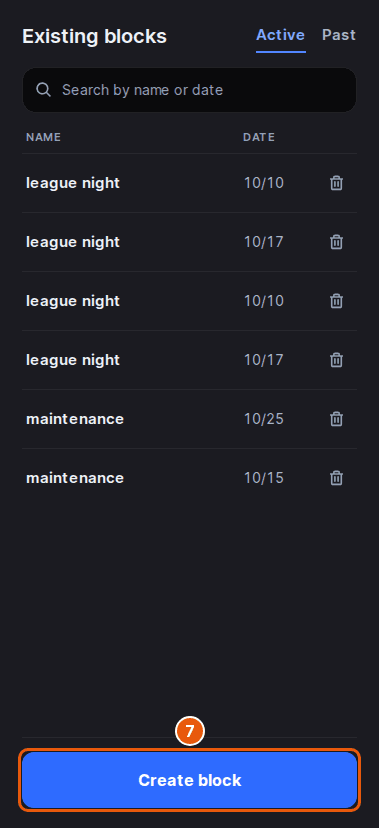
On a wide screen, the Block tab also lists your Existing blocks, split into Active and Past. Search by name or date, tap a name to open that block for editing, or tap its trash icon to delete it.
Delete removes the whole block straight away, with no confirmation: every day and every resource it covers, not just the slot you tapped. To free up one day or one lane, use Modify and take that day or resource out instead.
Set up Quick Block
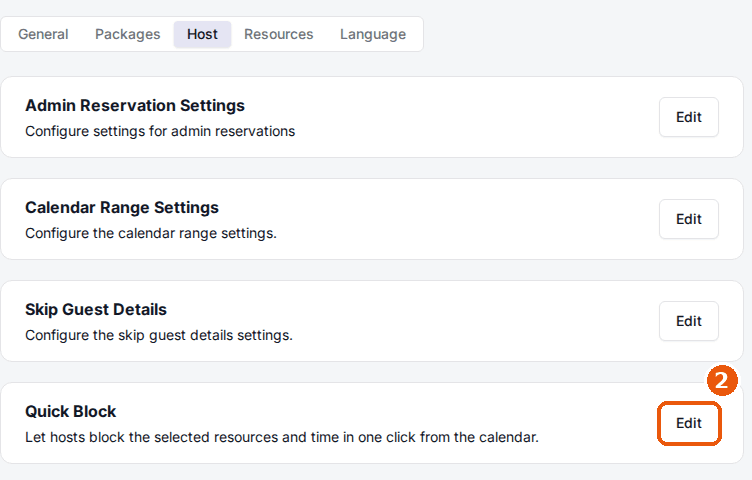
An admin turns Quick Block on for each venue in the admin dashboard. Hosts can then block a selected slot in one tap from the calendar.
Navigate to the venue's Host tab
Open your venue and select the Host tab.
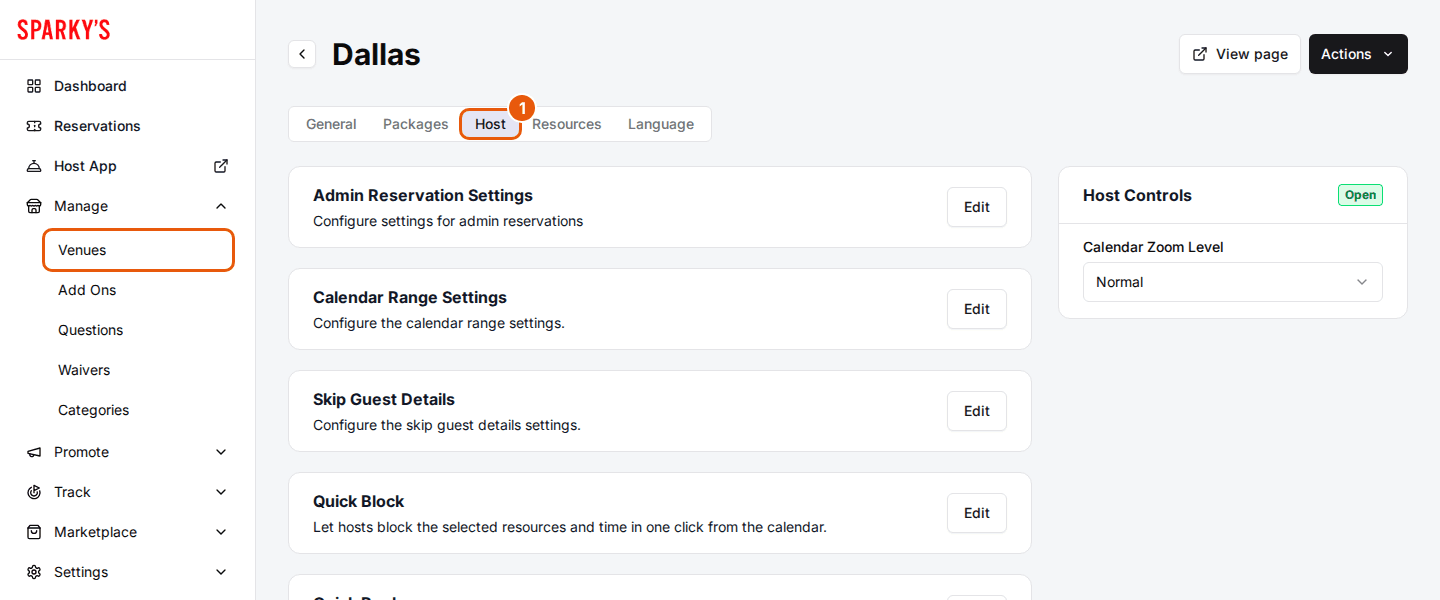
Click Edit on the Quick Block card
The Quick Block settings open.
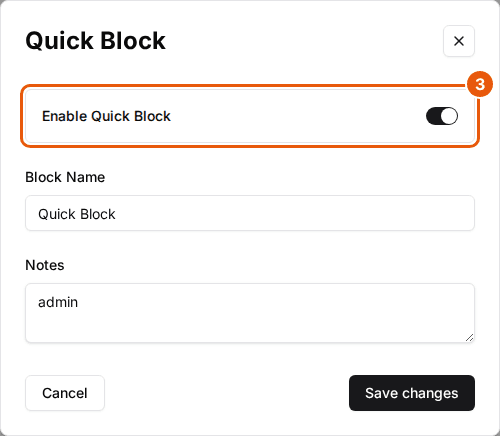
Toggle Enable Quick Block on
Enter the Block Name every quick block gets (Quick block if you leave it empty) and any Notes to attach to it.
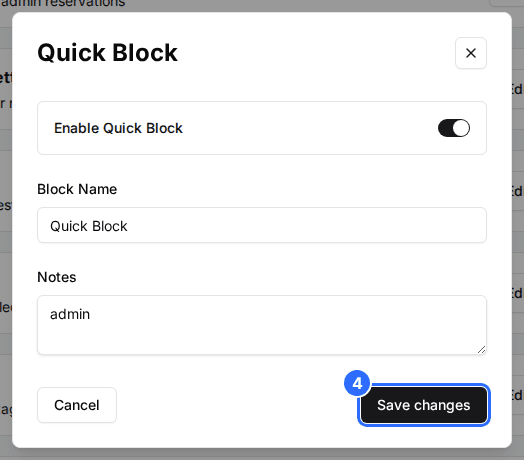
Save your changes
Click Save changes. The Quick block option appears in the calendar menu for that venue.
Updated Oct 8, 2026
Was this helpful?