
Set per-resource schedules and booking rules
By default, every resource in a package (a lane, bay, table, room, or whatever guests book) follows that package's open hours. If a package runs 10am to 10pm, all of its resources are bookable for that whole window. This article covers how to break a single resource out of that default: giving it its own schedule, plus its own rules for how far ahead and how close to the start time guests can book it.
Each resource has its own Schedule switch on the Resources tab. Leave it off and the resource keeps following its package's hours. Turn it on and the resource follows the weekly schedule you build for it instead.
Resource schedules are included in the Growth and Enterprise plans. If the Schedule column shows a lock icon, your current plan doesn't include them, and turning the switch on prompts you to upgrade.
How resource schedules work
A resource is only ever booked through a package or add-on, never on its own. So the times a resource is actually bookable are the package's hours combined with the resource's own schedule. Two things can happen:
Opens later than the package. A package runs 10am–10pm and you set Lane 5 to 2pm–10pm. Before 2pm, Lane 5 simply doesn't appear for bookings while the package's other lanes stay bookable; at 2pm it joins them. This is how you stagger when extra inventory opens up during the day.
Opens earlier than the package. You set Lane 6 to open at 8am while its package only opens at 10am. Lane 6 can be booked at 8am only if another package also covers those earlier hours, because a resource is always booked through a package: a 9am slot can only exist if some package is open at 9am.
A schedule limits when a resource can be booked; it doesn't take the resource offline. The resource stays active, and its schedule just hides it outside its open hours. To pull a resource out of service entirely, use its On/Off switch. To keep it bookable by staff but hidden from the online booking page, turn off its Online switch.
Example: drip inventory out across the day
Say you run a 12-lane venue and you don't want the whole floor bookable the moment you open. You'd rather release lanes in waves, so midday and evening guests still find availability instead of everything selling out in the first hour. Staggering each lane's schedule does exactly that.
Leave your package on its full open hours, 10am to 10pm, then give groups of lanes their own narrower schedules:
| Field | Description |
|---|---|
| Lanes 1–4 | Schedule 10am–10pm: open as soon as you do. |
| Lanes 5–8 | Schedule 2pm–10pm: these join the floor in the afternoon. |
| Lanes 9–12 | Schedule 6pm–10pm: held back for the evening rush. |
Now a 10am booking can only land on Lanes 1–4. At 2pm, Lanes 5–8 open up; at 6pm the full floor is available. Because the package still runs 10am–10pm, every lane stays bookable within those hours; each lane's schedule just decides when it joins.
Set a resource's cut-off time and advance window
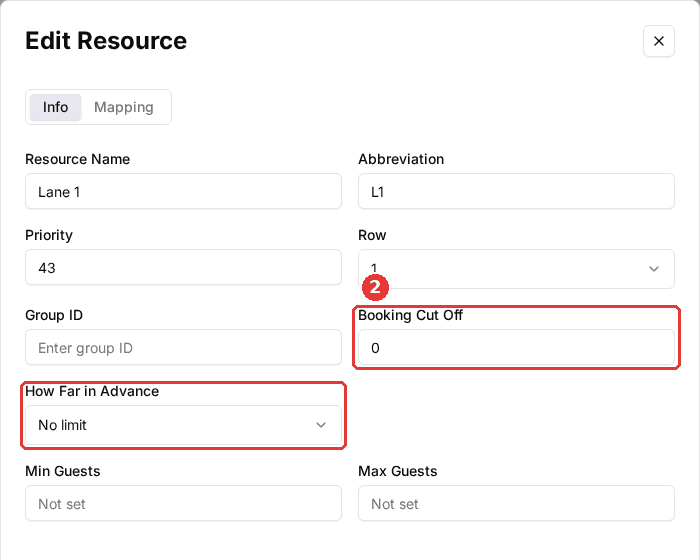
Beyond its schedule, a resource has two settings that control its booking window: how close to the start time guests can still book, and how far ahead they can book. Both override the equivalent settings on its package, so you can give one resource a longer (or shorter) leash than the rest. They carry the same plan requirement as schedules: if one shows a lock icon, your plan doesn't include it yet.
Open the resource's edit form
On the Resources tab, click the three-dot menu on the resource's row and choose Edit. Both settings are on the Info tab.
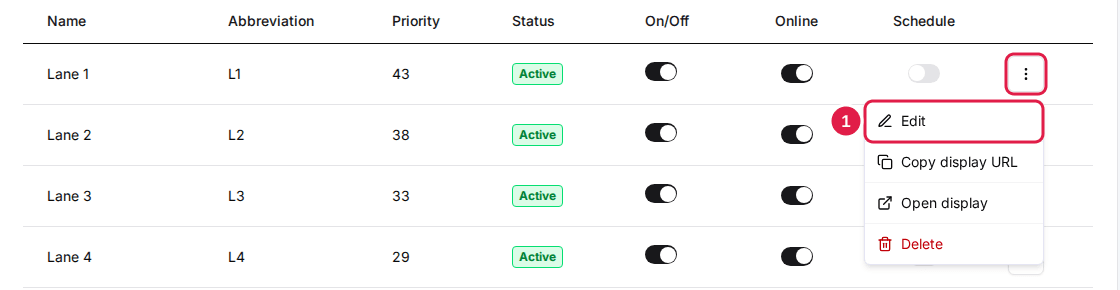
Set Booking Cut Off and How Far in Advance
Booking Cut Off is how much notice the resource needs, in minutes: bookings close this long before the start time. Enter 0 to allow booking right up to the slot. How Far in Advance is the furthest ahead a guest can book this resource, from Same day up to 2 years, or No limit. Click Save to apply.
You can also use these limits to hold inventory back for last-minute guests: give a few resources a short How Far in Advance window, say 2 days, so they only become bookable close to the date, while the rest can be booked weeks out.
Turn on a schedule for a resource
Open the Resources tab
Find the resource you want to give its own hours.
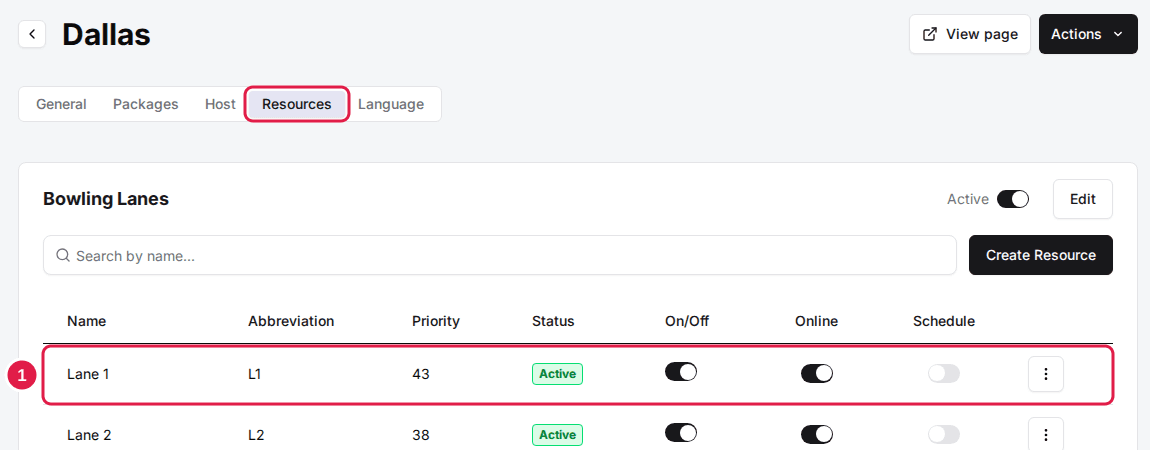
Turn the Schedule switch on
In the resource's row, switch Schedule on. This moves the resource off its package's hours and onto its own, and adds Schedule and Copy schedule to the row's three-dot menu. It takes effect straight away, before you have built anything: until the resource has a schedule with hours on it, it is bookable zero hours. Finish the next three steps in the same sitting.
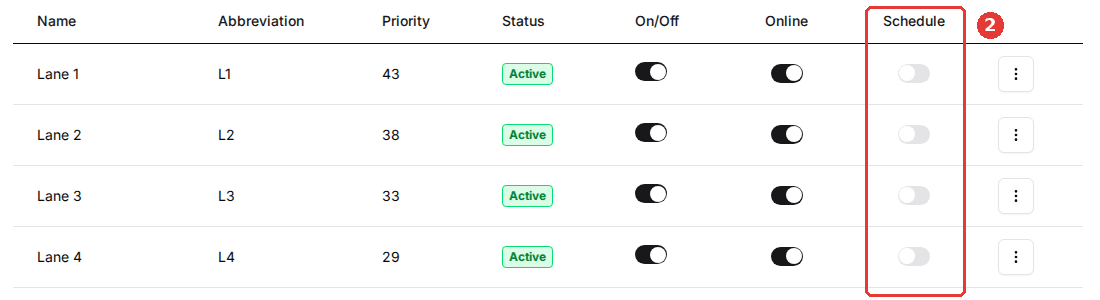
Add a schedule
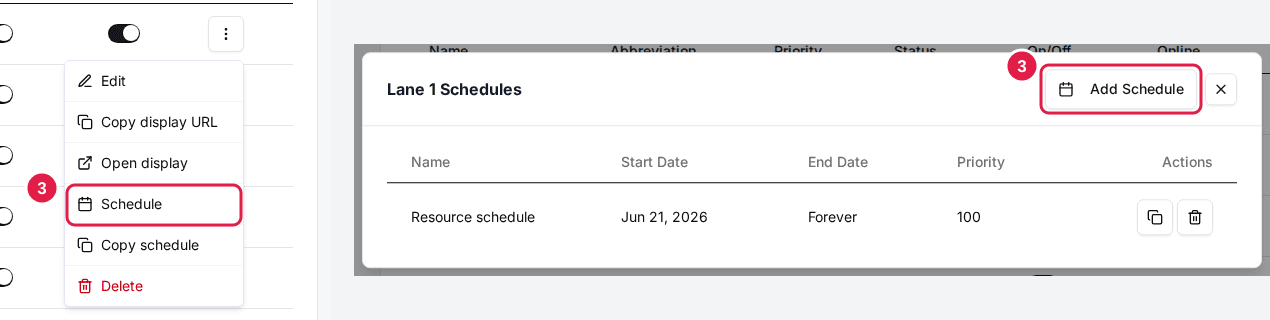
Click the three-dot menu on the resource's row and choose Schedule. The resource's Schedules window opens; click Add Schedule to create one.
Set the days and hours
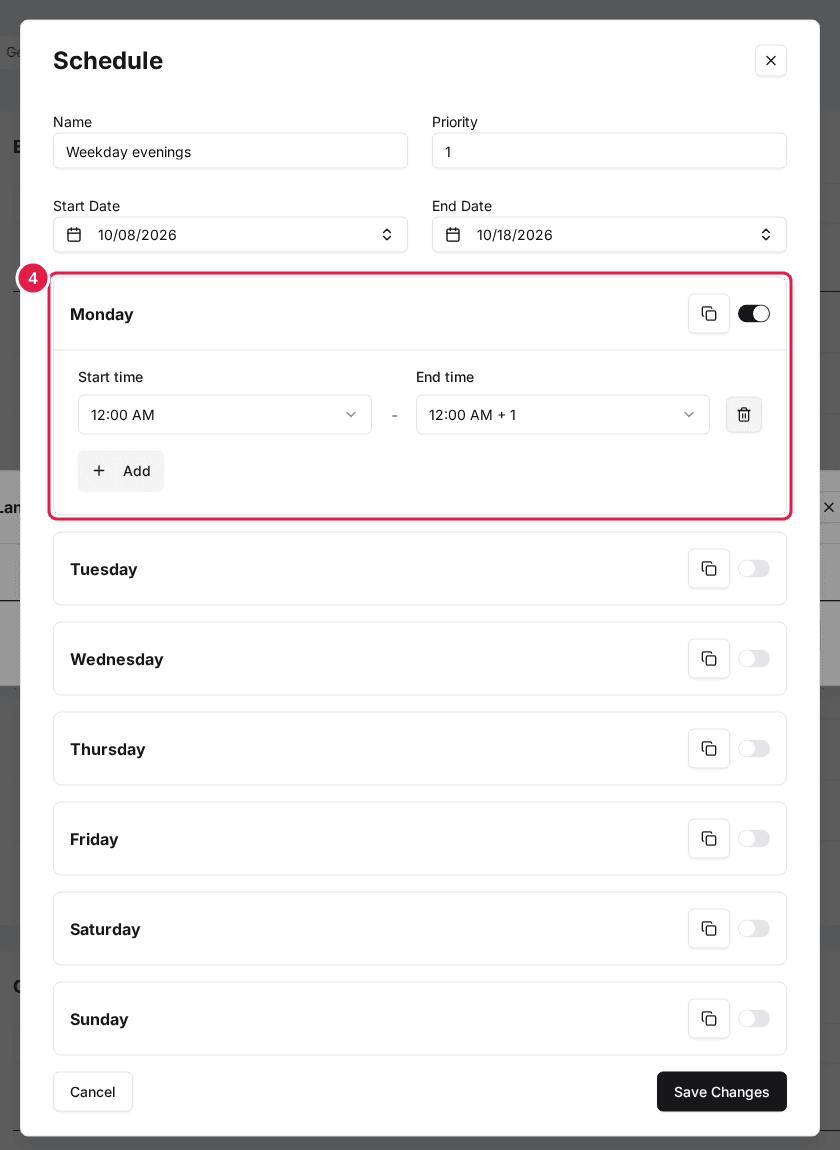
Give the schedule a Name and a Priority, and set its Start Date and End Date. For a schedule that never expires, open End Date and click Set to Forever. Then switch on each day the resource is open and enter its Start time and End time; use Add for more than one block in a day. Leave a day switched off to close the resource that day. For a temporary or holiday schedule, set the Start Date and End Date to cover just that period.
Save the schedule
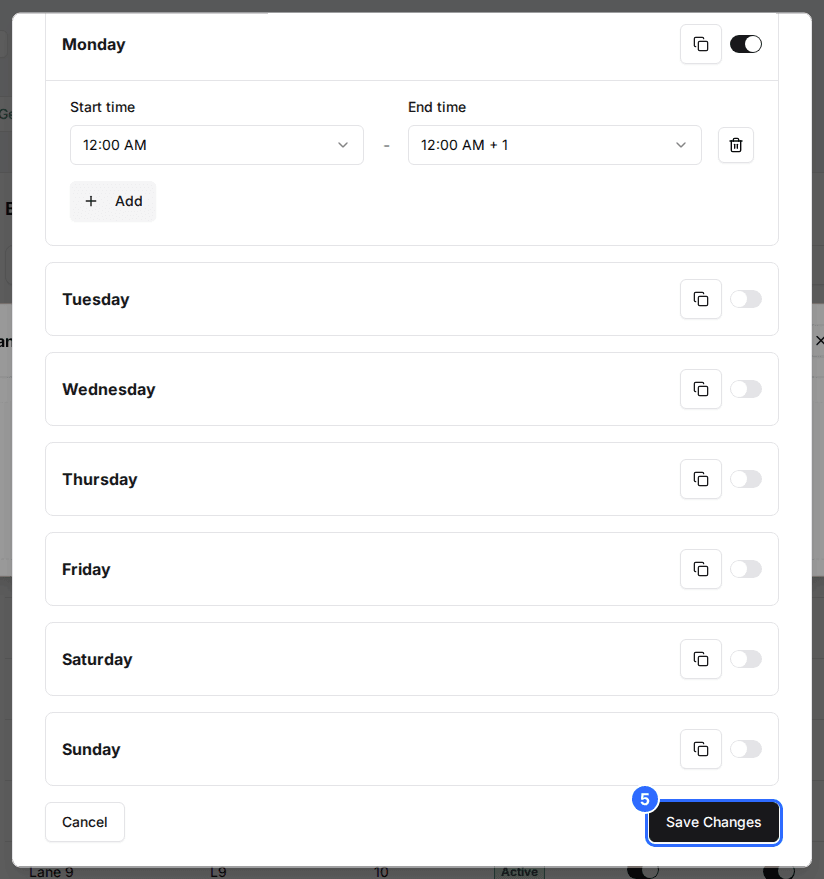
Click Save Changes. The resource now only takes bookings during the hours you set, within its package's open hours.
You can add more than one schedule to a resource, such as different summer and winter hours, each with its own date range. When two schedules overlap a date, the one with the higher Priority wins, exactly the way package schedules behave. A short dated schedule with a higher Priority wins over your everyday one for as long as it runs, which is how you handle holiday hours.
When an incomplete schedule closes a resource
An incomplete schedule does not fall back to the package's hours: it closes the resource. There is no "no hours means use the package" behaviour anywhere in Rex. This is the most common way a resource silently stops taking bookings, so check this list first when one disappears.
| Field | Description |
|---|---|
| Schedule switched on, no schedule added | The resource is bookable zero hours from the moment you switch it on. It does not keep the package's hours in the meantime. |
| A schedule with no hours for that weekday | The resource is closed for that whole day. Leaving a day switched off is how you close it deliberately, but an unfinished schedule looks identical. |
| A schedule whose dates don't cover the booking date | A Start Date after the date, or an End Date before it, means the schedule does not apply at all. If it is the resource's only schedule, the resource is closed for that date. |
| Two schedules covering the same date | Only the higher-Priority one supplies hours; they are never combined. A high-priority schedule with no hours for that weekday closes the resource even when a lower-priority one has hours that day. |
In every case the result is the same as the resource being closed. Its times drop out of the grid on your booking page, and a host trying to book it in the Host App sees "Time slot is not available". Nothing flags the schedule itself as incomplete.
There is no back-office override. Resource schedules apply the same way to bookings your team creates in the Host App or the dashboard as they do to the public booking page: an admin cannot book a resource outside its schedule. To get the resource back, switch Schedule off, add the missing hours, or add a higher-Priority schedule that covers the date.
Reuse a schedule across resources
If several resources share the same hours, set one up, then open the three-dot menu on its row and choose Copy schedule. In the Copy Schedule To window, open each category, tick the resources that should get the same hours and click Copy. Each ticked resource gets a copy of every schedule on the original, added alongside any schedules it already has, and its Schedule switch is turned on.
Resource settings sit on top of what you set at the package level. To review or change those, see Set a package schedule.
Updated Oct 8, 2026
Was this helpful?