
Set up your schedule and pricing
A schedule is the engine behind a package: it decides when the package can be booked, how many spots open at each time, and what each booking costs. Every package carries its own schedule, so you set this up one package at a time.
This guide builds a schedule from scratch, shows how several schedules layer together for exceptions like holidays and seasonal hours, and finishes with pricing, because the rates you charge live right inside the schedule. You need a venue with at least one package; if you haven't built one yet, start with Create and configure a package.
Add a schedule
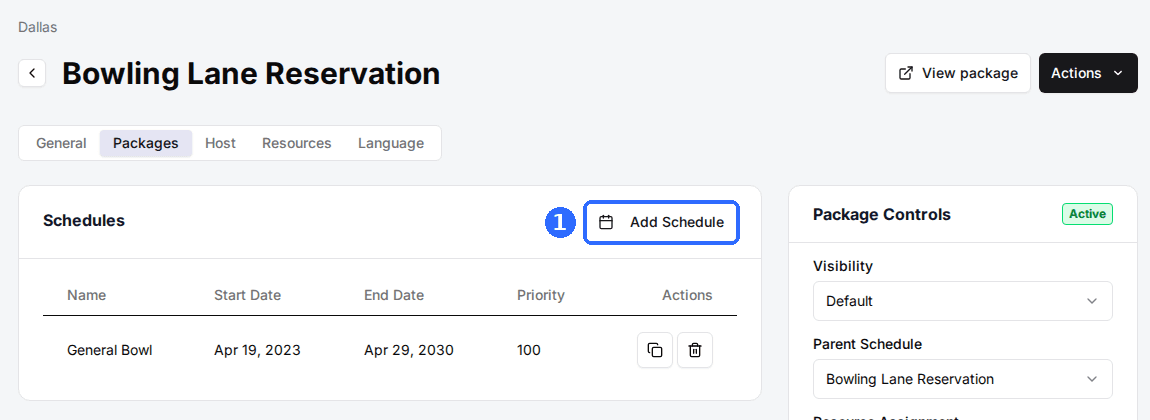
Click Add Schedule
Open the package you're configuring and click Add Schedule in its Schedules card. The Schedule window opens: a few basic fields at the top, then a section for each day of the week.
Fill in the basics
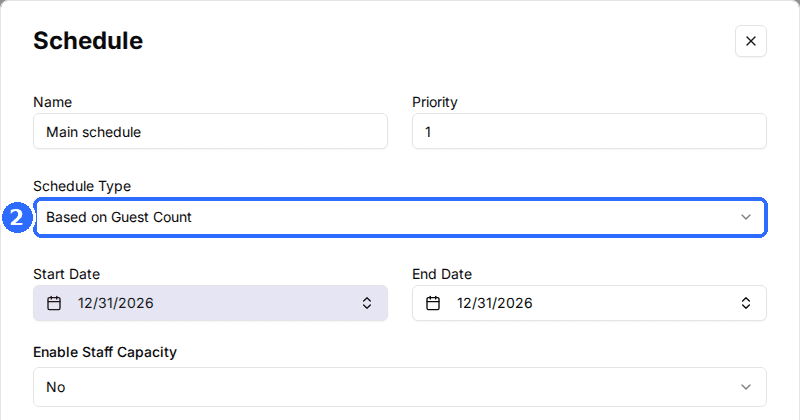
Enter a Name and Priority, pick a Schedule Type, and set the Start Date and End Date.
| Field | Description |
|---|---|
| Name | A label for this schedule, like Summer hours. Only you and your staff see it. |
| Priority | A number. If two schedules cover the same date, the higher number wins. Start with 1. |
| Schedule Type | How open spots are counted at each time (see below). |
| Start Date / End Date | The date range this schedule runs. Choose Forever if it has no end date. |
| Enable Staff Capacity | Set to Yes to also cap how many bookings can start at the same time, on top of resource or guest limits. |
Schedule Type controls how open spots are counted:
Based on Resource Manager
RecommendedAvailability comes from the resource manager, so bookings respect real resource conflicts across packages.
Best for: Most venues. It keeps availability accurate when several packages share the same lanes, courts, or tables.
Custom Availability
You decide how many lanes or resources are open at each time.
Based on Guest Count
You cap by number of guests.
Custom Availability + Guest Count
You cap by both lanes/resources and guests.
You'll also see Feature Discount Price and Slot-Based Pricing in this window; they're covered under Set your pricing below. Depending on your plan, you may also see Allow Inventory Drip and Dynamic Pricing, or an upgrade button in their place.
Build the days and times
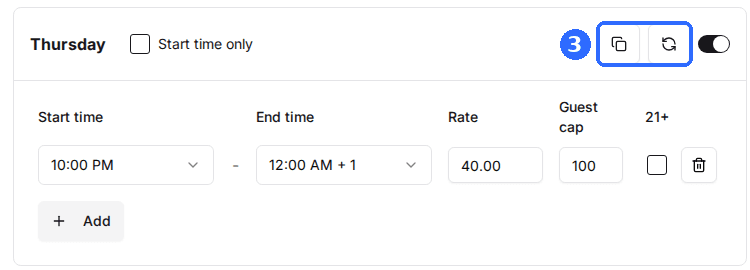
Switch on each day you're open, then fill it with time slots. Click Add for one blank slot you fill in by hand, or click the refresh icon on the day's header to open Start time settings and generate many slots at once.
Add
Creates one blank slot that you fill in by hand. Good for a day with just a few specific times.
Start time settings
Creates many slots at once. Set the Start time, End time, Rate, availability, Intervals (the gap between start times), and Duration (how long each slot lasts), then click Generate.
Each slot is a row with these columns. Some only appear for certain Schedule Types, or when Enable Staff Capacity is Yes:
| Field | Description |
|---|---|
| Start time / End time | When the slot runs. |
| Rate | The price for the slot. How it's applied depends on your pricing method; see Set your pricing below. |
| Avail | Lanes or resources open for the slot. |
| Staff cap | How many bookings can start at this time. |
| Guest cap | Guest limit for the slot. |
| 21+ | Restricts the slot to guests 21 and over. |
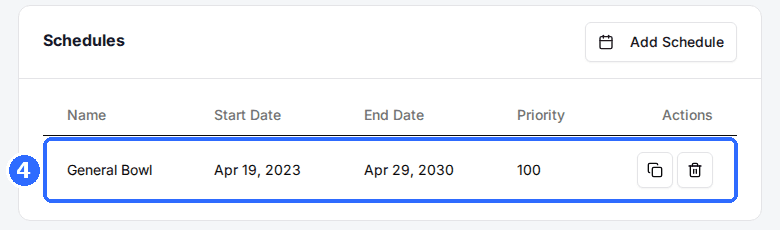
Click Save Changes
The schedule appears in the Schedules list, where you can click it to edit, or use the icons to clone or delete it later.
Per-day shortcuts
Most venues keep similar hours across the week, so building each day by hand is rarely necessary. Two controls on each day's header save the repetition.
- Copy — build one day completely, then click the copy icon on that day. A Copy times to... list opens with a checkbox for every other day. Check the days that should match, click Apply, and the slots are copied across. Build Monday once, copy it to Tuesday–Friday, then tweak the exceptions.
- Start time only — a checkbox on each day. Turn it on and guests can only start a booking at the start time of one of that day's slots, instead of at any time inside the slots. See Set custom start times.
How multiple schedules work together
A package can carry several schedules at once — your regular hours plus overrides for holidays or seasons. Two settings decide how they behave:
- Parent Schedule — set in Package Controls. A new package points at itself (its own name), so it uses the schedules you build on it. This is the setup you'll use almost every time.
- Priority — set on each schedule. When two schedules overlap on the same date, the one with the highest Priority wins. Give a higher Priority to the schedule that should override your regular hours — like a holiday or seasonal schedule.
Example: a holiday schedule
Say your venue opens earlier and charges more on the 4th of July. Leave your regular schedule exactly as it is and add a second schedule that covers only that day:
- Click Add Schedule and give it a clear Name, like 4th of July.
- Set Priority higher than your regular schedule — if your regular hours are Priority 1, give this one 2 (or higher). The higher number wins on any date both schedules cover, so the holiday schedule takes over for that day.
- Set Start Date and End Date to the same day — July 4 to July 4. Outside that range this schedule does nothing, so your regular hours pick back up automatically.
- Build the slots with the holiday's hours and rates — turn on the day, then add slots starting at the earlier opening time and enter the holiday prices. Because the Rate lives on each slot, this schedule's pricing is independent of your regular hours.
On July 4 the package follows the holiday schedule; every other day it falls back to your regular hours. Nothing about your normal schedule changes.
Use this same pattern for any exception — seasonal hours, a special event, or a one-off closure (add a schedule with no open slots for that date). Build a focused schedule, give it a higher Priority than your regular one, and date-bound it to the period it should cover.
Reuse another package's schedule (optional)
If two packages should always share the same days, times, and availability, set one package's Parent Schedule to the other package instead of itself. It then follows that package's schedule, so editing the source updates both. Sharing a schedule also shares availability, which is how packages avoid double-booking the same resources.
Set your pricing
Pricing has two parts: how you charge (the pricing method), and the actual rates (which you entered on each time slot above).
Choose how you charge
Open Package Settings and set the Pricing Method. This decides what the Rate on each slot actually means:
| Field | Description |
|---|---|
| Per Lane per hour | Rate × lanes × hours. |
| Per Person per hour | Rate × guests × hours. |
| Flat Rate | One fixed price, regardless of party size or length. |
| Flat Rate per lane | Fixed price × number of lanes. |
| Flat Rate per person | Fixed price × number of guests. |
| Flat Rate per hour | Fixed price charged for each hour booked. |
| Age Groups (per hour) | A per-hour rate for each age group. |
| Age Groups (flat rate) | A flat rate for each age group. |
For a deeper look at each method and how it shows up at checkout, see Configure package pricing.
Enter your rates
Rates live in the Rate column of each time slot, set when you built the schedule. The same rate is charged differently depending on the Pricing Method above, so set the method first.
Price by age group
If you chose an Age Groups method, add your groups in the Age Groups section of Package Settings (for example Child, Adult, Senior). Back in the schedule, the slot's Rate shows Edit; click it to enter a rate for each group and switch groups on or off for that slot.
For the full setup, including how guests pick quantities per group, see Set different prices by guest type.
Show a discounted price
In the Schedule window, turn on Feature Discount Price. Enter the Strikethrough Price (the original price, shown crossed out) and an optional Featured Note. Guests see the lower rate next to the struck-through original.
More on when and how to use it in Strikethrough pricing.
Price multi-hour bookings by the hour
By default, a multi-hour booking uses the rate from its start time. Turn on Slot-Based Pricing in the Schedule window to charge each hour at its own slot's rate instead — useful when, say, evenings cost more than afternoons.
What your guests see
On the booking site, the package card shows the price with a label that matches your pricing method — for example /person, /hour, or /lane. Flat rates show a single price.
- Guests pick a date, then a time slot. Each slot reflects its own rate, so prices can differ by time.
- If you turned on Feature Discount Price, guests see the new price next to the struck-through original, with your Featured Note.
- For age-group pricing, guests see a See Prices link and a per-group selector; the total updates as they adjust quantities.
- Depending on package settings, guests may also choose a Duration and the number of lanes.
- A 21+ slot asks guests to confirm everyone in the party meets the age requirement before continuing.
- When nothing is open for the chosen date, guests see a no-availability message — and, if enabled, an Other dates with availability section pointing to the nearest open times.
If something looks wrong
- No times show — check that a schedule's Start Date / End Date covers the date and that the day is switched on.
- The wrong schedule's rate shows — two schedules cover the date; give the one that should win a higher Priority.
- Multi-hour bookings all use the first hour's price — turn on Slot-Based Pricing in the schedule.
- A slot has no Avail or Guest cap column — the Schedule Type doesn't use that field; pick one that counts availability or guests.
For other reasons a package shows no times, see Reservation page showing no availability.
Updated Oct 8, 2026
Was this helpful?