
Assign resource categories to a package
Assigning resources to a package tells Rex which physical things to reserve when a guest books it: the lanes, bays, courts, rooms or simulators behind the package. You set it on the package itself, in the Assign Resource Category card, by linking one or more resource categories and choosing how many get reserved.
A few examples of what a package might reserve:
- A bowling package reserves a variable number of lanes based on the group's guest count.
- A birthday party reserves multiple resources at once, like a lane and a party room together.
- A group event reserves a fixed number of resources for every booking.
Resources are different from availability. A package's schedule sets its inventory method (how Rex counts availability: by guests, by lanes, by resources, and so on). If a package's schedule uses the Based on Resource Manager method, you must assign at least one resource category here, or the package won't be bookable. Rex shows a reminder on the package until you do.
Assign a resource category
Most packages need one kind of resource: a bowling package needs a lane, a sim package needs a bay. That is the Primary Resource, the first row in the card and the one every booking always gets.
Setting up the Primary Resource takes two places, and this is the part people miss: the Assign Resource Category card only picks which category it comes from. The rule for how many are assigned lives in the Resource Allocation dropdown under Package Settings.
Open the Assign Resource Category card
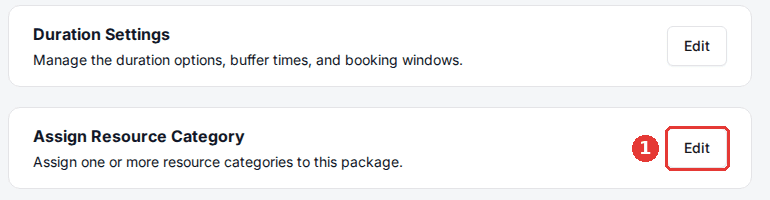
Click the package, scroll to the Assign Resource Category card and click Edit to open the dialog.
Pick the Primary resource category
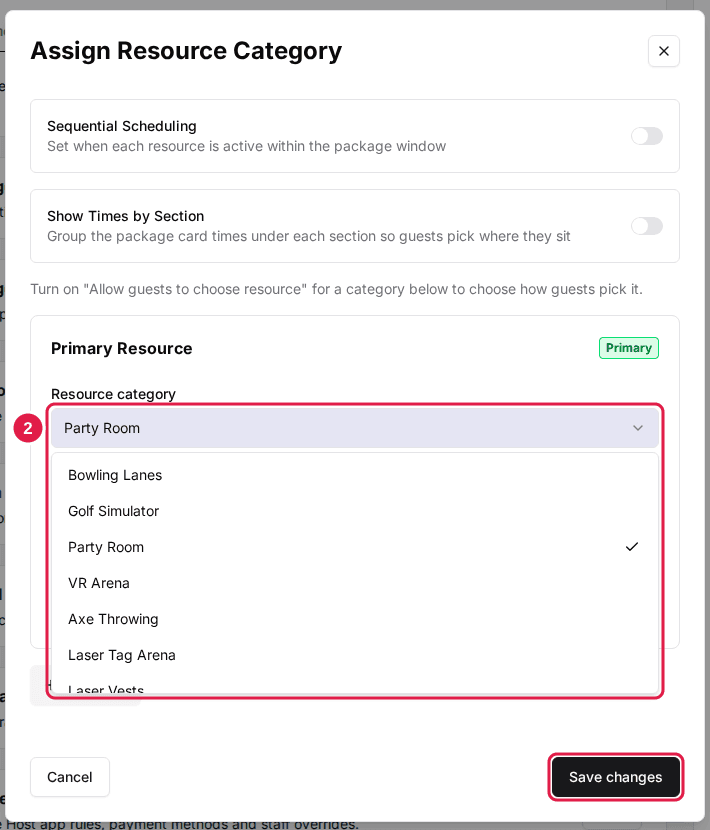
On the Primary Resource row, pick the Resource category from the dropdown (for example "Lanes") and click Save changes. That's all the card sets for the Primary Resource: which category it pulls from. It has no Assigning Method or Count of its own.
Set the assigning rule in Package Settings
On the same package, click Edit on the Package Settings card and choose a Resource Allocation option (described below). Fill in the field it uses and click Save changes.
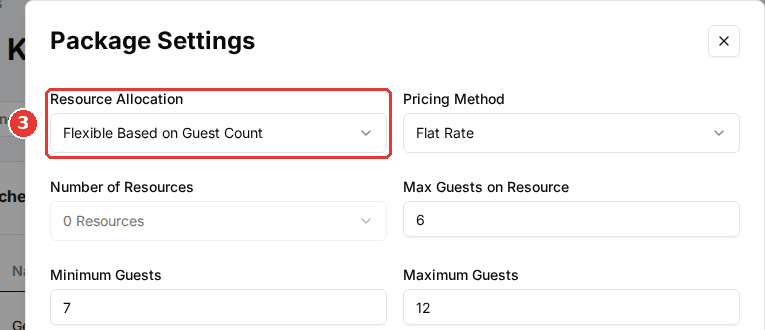
Resource Allocation has four options:
- Fixed Number: every booking reserves the same count, which you set under Number of Resources.
- Flexible Based on Guest Count: Rex scales the count to the group, using the Max Guests on Resource you set (for example 6 guests per lane).
- Guest Chooses: the guest picks how many resources at checkout.
- Flexible Based on Resource Capacity: Rex picks the resource that fits the party, using each resource's own Min Guests and Max Guests (set on the resource's Info tab). Use it when your resources seat different numbers of guests, such as tables for 2, 4 and 6.
Book multiple resources at once
Some packages tie up more than one kind of resource per booking: a birthday party might need a bowling lane and a party room at the same time. Beyond the Primary Resource, add an Additional Resource row for each extra category the package needs, and every reservation books them together for the whole booking.
Add an additional resource category
Reopen the Assign Resource Category dialog from its card and click Add Item to add an Additional Resource row. Pick its Resource category, then choose an Assigning Method (below) and, for most methods, a Count. You can't assign the same category to two rows: Rex blocks the save and asks you to remove the duplicate. Click Save changes when done.
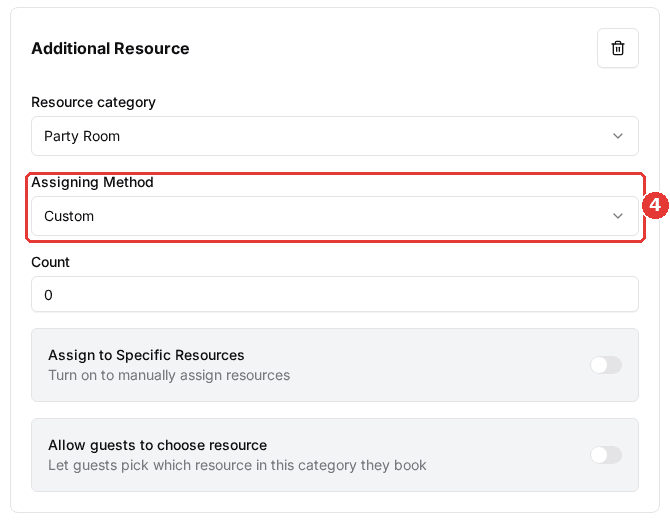
Each Additional Resource row has an Assigning Method that controls how many resources each booking pulls from that category. The Primary row doesn't have one; its count comes from Package Settings.
Custom
Most commonYou set an exact number in the Count field, and every booking reserves that many, no matter the group size.
Best for: A fixed requirement, the same for every booking
Flexible Based on Guests
Rex reserves as many resources as the group needs, based on the Max guests on one resource you set here.
Best for: Letting resources be allocated based on group size
Match Guest Count
Reserves one resource per guest, a 1:1 match, so there's no count to set.
Best for: One resource per guest
Restrict a package to specific resources
By default a package can use any resource in its assigned category. To limit it to a hand-picked set, such as only your two premium lanes, restrict the row to specific resources. This works on any row, including the Primary.
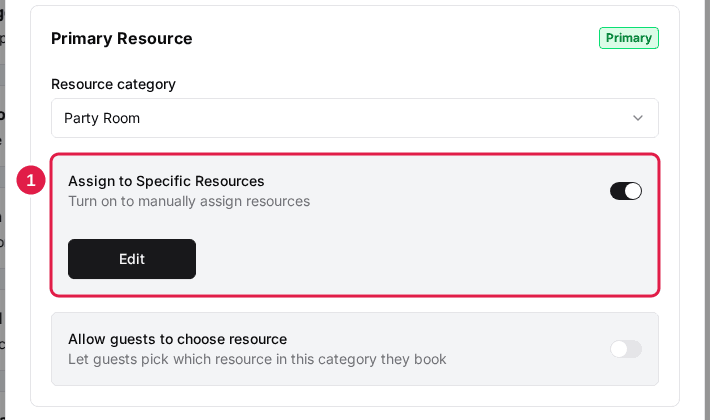
Turn on Assign to Specific Resources
In the Assign Resource Category dialog, on the resource row, switch on Assign to Specific Resources ("Turn on to manually assign resources"), then click Edit to open the Select Custom Resources picker.
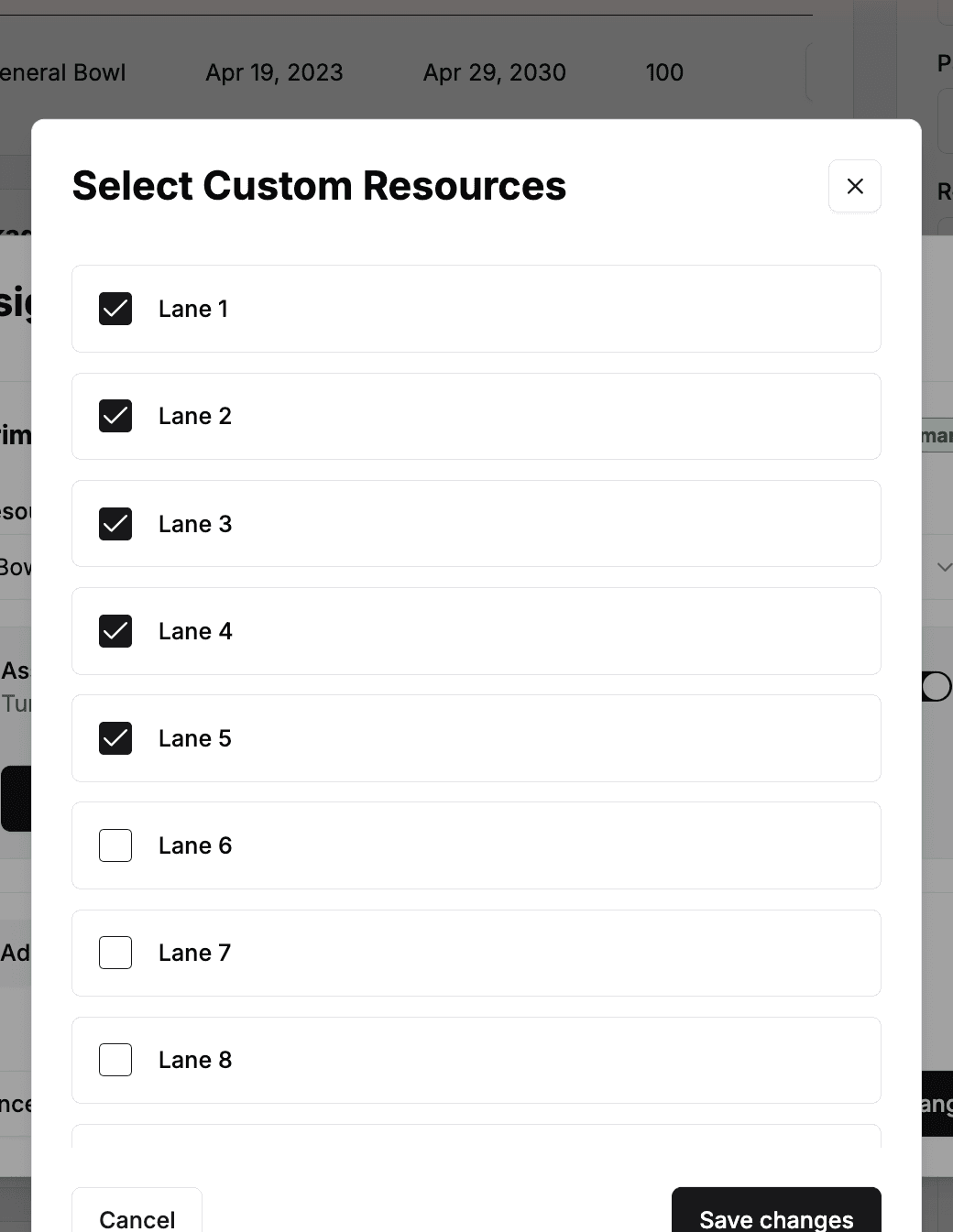
Pick the resources and save
Check only the resources this package should use, and click Save changes. The package now books against just those resources and ignores the rest of the category.
Let guests choose a specific resource
By default Rex picks which resource a booking gets, and the guest never sees resource names. You can hand that choice over, so a guest books Lane 3 rather than whichever lane is free. This is a different setting from the Guest Chooses option under Resource Allocation: that one only lets the guest pick how many resources, not which ones.
Open the Assign Resource Category dialog on the package. Each resource-category row has its own Allow guests to choose resource switch ("Let guests pick which resource in this category they book"). It is off by default, which is what makes Rex assign a resource automatically. Switch it on and that category's resources become selectable by name. The setting is stored per category per package, so turning it on for one package leaves every other package alone.
Guest resource selection is a plan feature. Without it the switch is replaced by a locked row offering Upgrade or Contact Admin, depending on whether you can change the plan. The gate also applies to the booking page itself: if a plan later drops the feature, the picker stops appearing for guests even on packages where the switch was already turned on.
Choose how the picker appears
A second control in the same dialog, How guests choose their resource, decides which form the picker takes. It applies to every category on the package that guests are allowed to choose, and on the current booking flow the two forms are mutually exclusive: you get one or the other, never both.
Dropdown on the package card
DefaultThe picker sits on the package card itself. It is labelled with the category's guest-facing term (whatever you set as its Language) and lists Any first, then each resource by name.
Best for: Most packages, where guests just want a particular lane or table
Floor plan step after the time
The picker moves to its own step in the booking flow, after the guest has picked a time, and the dropdown disappears from the package card.
Best for: Venues where a resource's position on the floor is part of the choice
When a category needs more than one resource per booking, the dropdown label gains a count, such as "Lane (Choose 2)", and the guest picks that many.
How schedules affect the choices
A resource's own schedule still decides when it can be booked, so it also decides when a guest can choose it. A resource is only bookable on dates its schedule covers, and one with its Schedule switch on but no hours behind it is never bookable on any date. It is not hidden from the picker, though: once the guest picks a time, resources that cannot take that time are shown greyed out as unavailable rather than removed. A resource that is permanently greyed out usually means an incomplete schedule, not a busy one. See Set per-resource schedules and booking rules.
Stagger resources with Sequential Scheduling
By default, every resource on the package is held for the entire booking. Sequential Scheduling lets you say when each one is active inside that window instead, so a resource is only tied up for the part of the booking it's actually needed.
Turn on Sequential Scheduling
In the Assign Resource Category dialog, switch on Sequential Scheduling at the top. A Resource Allocation timeline appears showing the package's full duration.
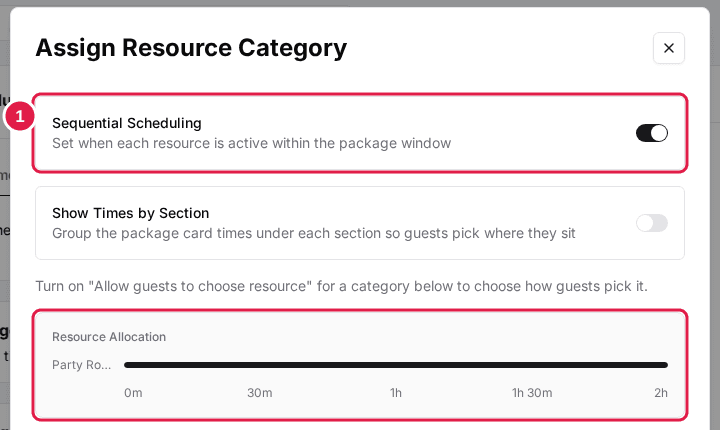
Set when each resource is active
For each resource, drag the slider to set when it Starts and Ends within the booking. Use Split to give a resource more than one window. If part of the package isn't covered, Rex shows how much time is still unallocated.
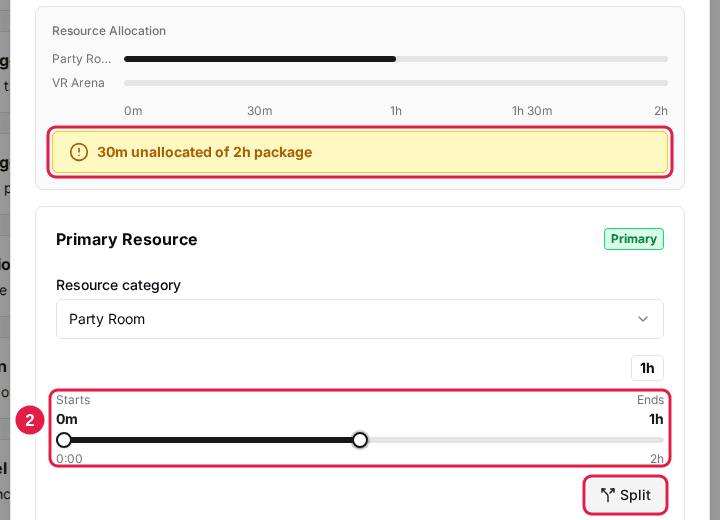
Example: a 2-hour birthday party uses the bowling lane for the first hour and the party room for the second. Sequential Scheduling frees each one up for other bookings during the half it isn't in use. It's only available on fixed-duration packages, and in this mode the Flexible Based on Guests method isn't offered: use Custom or Match Guest Count.
After saving, run a test booking on your reservation page to confirm the right resources are reserved and, if you set up Sequential Scheduling, that each one is held only for its window.
Updated Oct 8, 2026
Was this helpful?