
Edit your venue's booking page text, FAQs, and emails
Every venue has its own Language tab — the home of all the guest-facing copy for that venue: the booking page headline and labels, the inquiry form, the custom page, FAQs, checkout notes, and the wording of your reservation emails.
Everything here is per-venue. Account-wide wording — the term for your bookable resource (Bay, Lane, Court…) and the booking page's shared theme — lives in Global Settings and is covered in Branding and design.
Edit your language settings
Open the venue's Language tab
Go to Manage → Venues, click a venue, then open the Language tab. You'll see a set of cards, each covering one part of the guest experience.
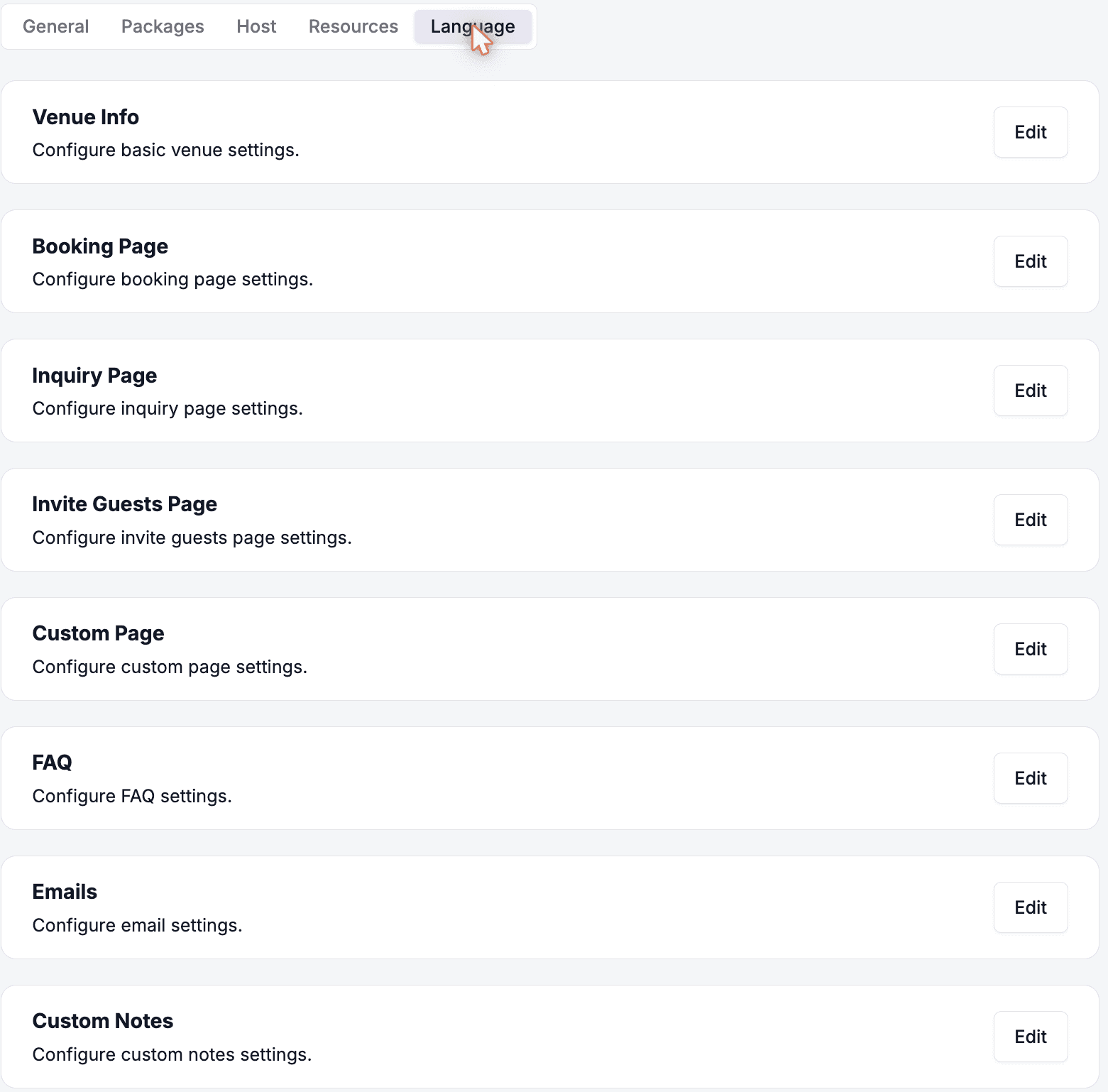
Open a section
Click Edit on any card to open its editor. FAQ and Emails open dedicated editors instead of the standard fields form.
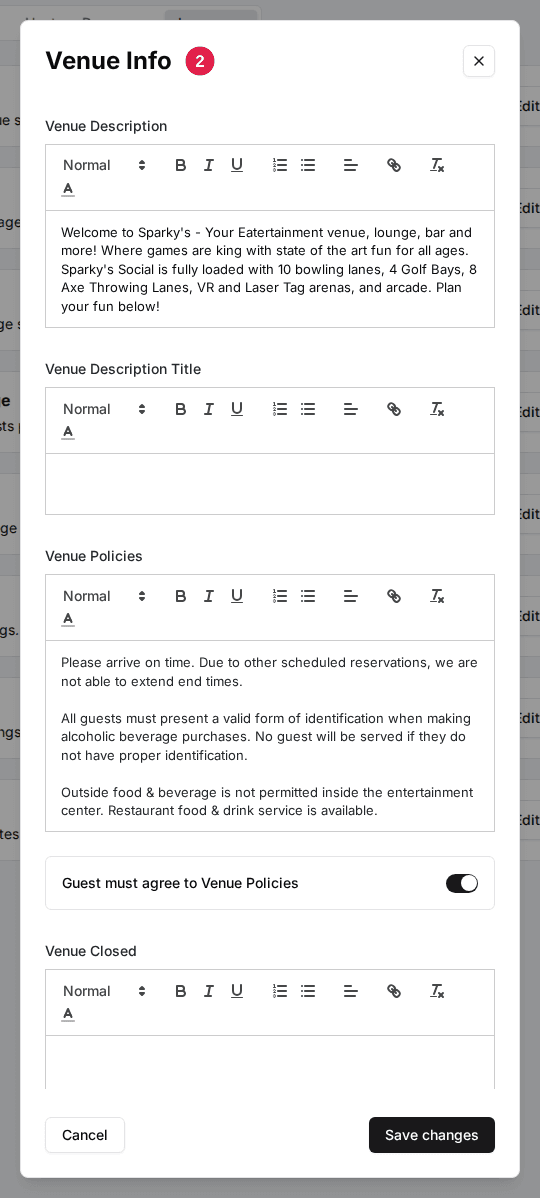
Edit and save
Update the fields and click Save changes. Changes apply to the live booking page immediately.
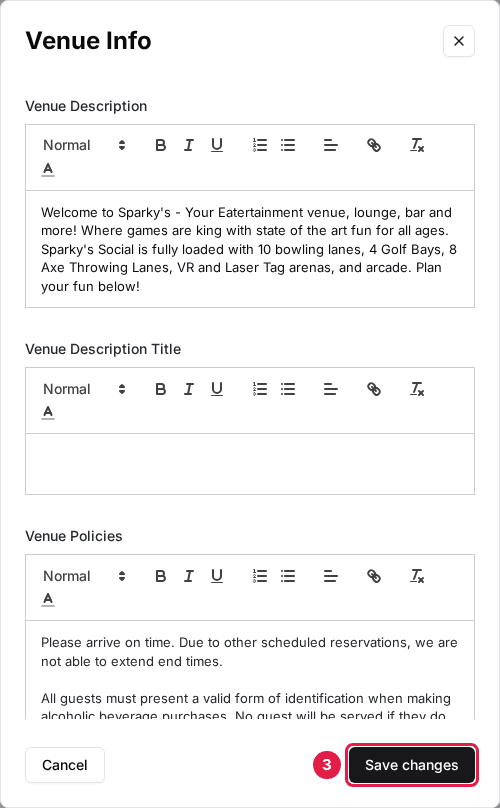
Most long-text fields support rich text — bold, lists, and links — so you can format policies and descriptions instead of writing one long paragraph.
Settings reference
Venue Info
The venue description guests see on the booking page, plus your venue policies. Policies do double duty: they're automatically added as the final item of the booking page's FAQ accordion, and they can be required reading at checkout.
| Field | Description |
|---|---|
| Venue Description | Main description displayed on the booking page. Supports rich text. |
| Venue Description Title | Heading shown above the venue description. |
| Venue Policies | Your house rules. Shown as the last item of the FAQ accordion under "Venue Policies". |
| Guest must agree to Venue Policies | When on, guests must accept the policies before completing checkout. |
| Venue Closed | The message guests see when the venue is closed for online bookings. |
| Keep Me Updated Text | Copy for the email-updates opt-in. |
Booking Page
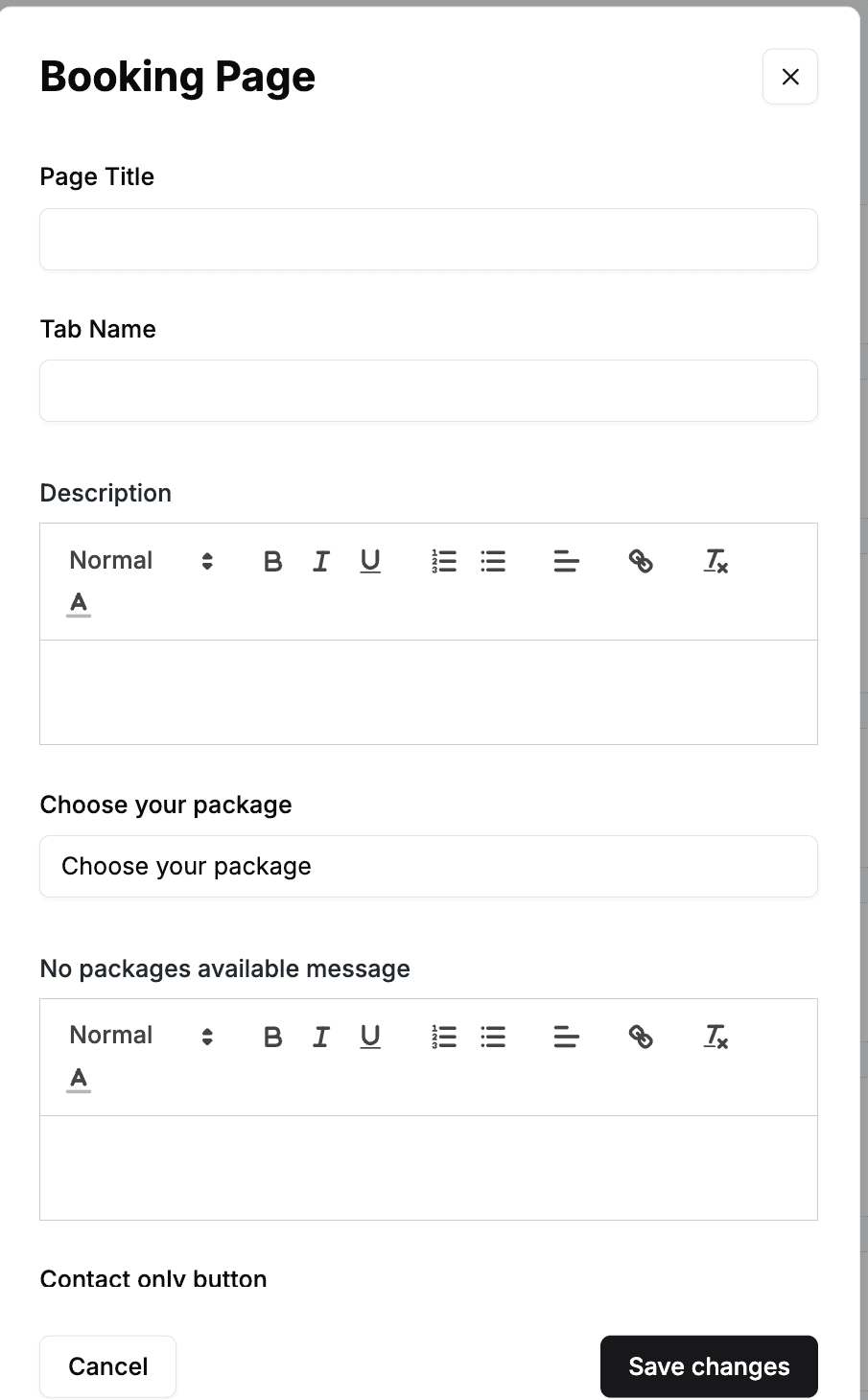
The copy on the main booking page, from the headline down to the checkout step.
| Field | Description |
|---|---|
| Page Title | The headline at the top of the booking page. If left empty, guests see "Plan your visit". |
| Tab Name | Label for the booking tab when multiple tabs are visible. |
| Description | Intro copy shown with the headline. Supports rich text. |
| Choose your package | The heading above the package list. |
| No packages available message | Shown when no packages are active for the selected date. Supports rich text. |
| Contact only button | Label for the contact-only CTA button when no bookable packages are available. |
| Checkout Note | Note displayed at the bottom of the checkout step. Supports rich text. |
| Add Ons Title | Heading shown above the add-ons selection step. |
| Add Ons Description | Subtext shown below the add-ons heading. |
| Age Groups Pricing Note | Small note displayed near age-group pricing selectors. |
| Activities Title | Heading for the additional activities section. Defaults to "Additional Activities". |
| Activities Description | Text shown below the activities heading. Defaults to "Add additional activities or continue to skip". |
Inquiry Page
The event inquiry form for large parties and private events. When enabled, a contact link appears in the booking page's side panel — labeled with your Tab Name, falling back to the Event Inquiry Title, then to "Contact". Setting a Redirect URL sends guests to your own events page instead of the built-in form. See Customize your reservation page for the full inquiry-page walkthrough.
| Field | Description |
|---|---|
| Enable Inquiry Page | Turns the inquiry page (and its link on the booking page) on or off. |
| Event Inquiry Title | Heading at the top of the inquiry page. |
| Tab Name | Label of the contact link guests click to reach the inquiry page. |
| Description | Introductory text shown on the inquiry page. |
| Events Note | Note shown on the inquiry form. |
| Min guests for inquiry / Max guests for inquiry | The guest-count range the inquiry form accepts. |
| Confirmation Page Title | Heading guests see after submitting an inquiry. |
| Confirmation Page Copy | Body text of the inquiry confirmation screen. |
| Redirect URL | Optional. When set, the contact link sends guests to this URL instead of opening the built-in form. |
Invite Guests Page
A single field — Invite Guests Paragraph — sets the copy on the invite-guests page, where a booker shares the reservation with the rest of their group. Supports rich text.
Custom Page
An extra page of your own content — an embedded menu, reviews widget, or video. When enabled, a link appears in the booking page's side panel labeled with your Page Name (default "Custom Page").
| Field | Description |
|---|---|
| Custom Page is Enabled | Turns the custom page (and its side-panel link) on or off. |
| Page Name | The link label and the page's title. |
| Description | Optional copy shown above your embedded content. |
| Custom Script | The embed code for the content you want to display. |
FAQ
The FAQ card opens a dedicated editor. Questions render as an expandable accordion below the package list, under a heading that defaults to "What you should know" — use Section Title to rename it. Your venue policies are appended automatically as the final accordion item.
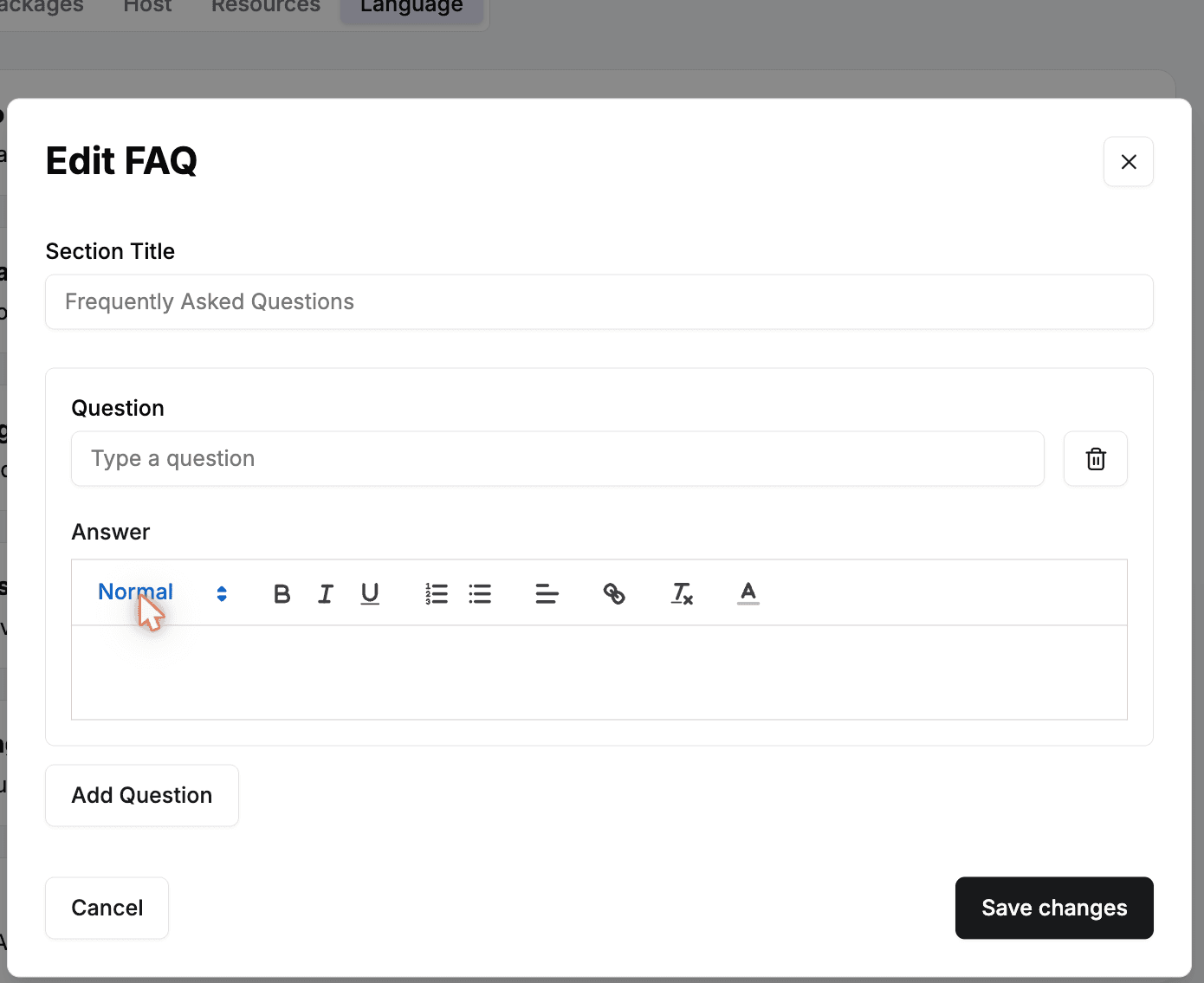
Click Add Question for each entry, fill in the Question and Answer fields, and click Save changes.
Emails
The Emails card opens a dedicated editor covering the four guest emails this venue sends. Subjects and copy support mention variables (like the reservation date), so each message can reference the booking.
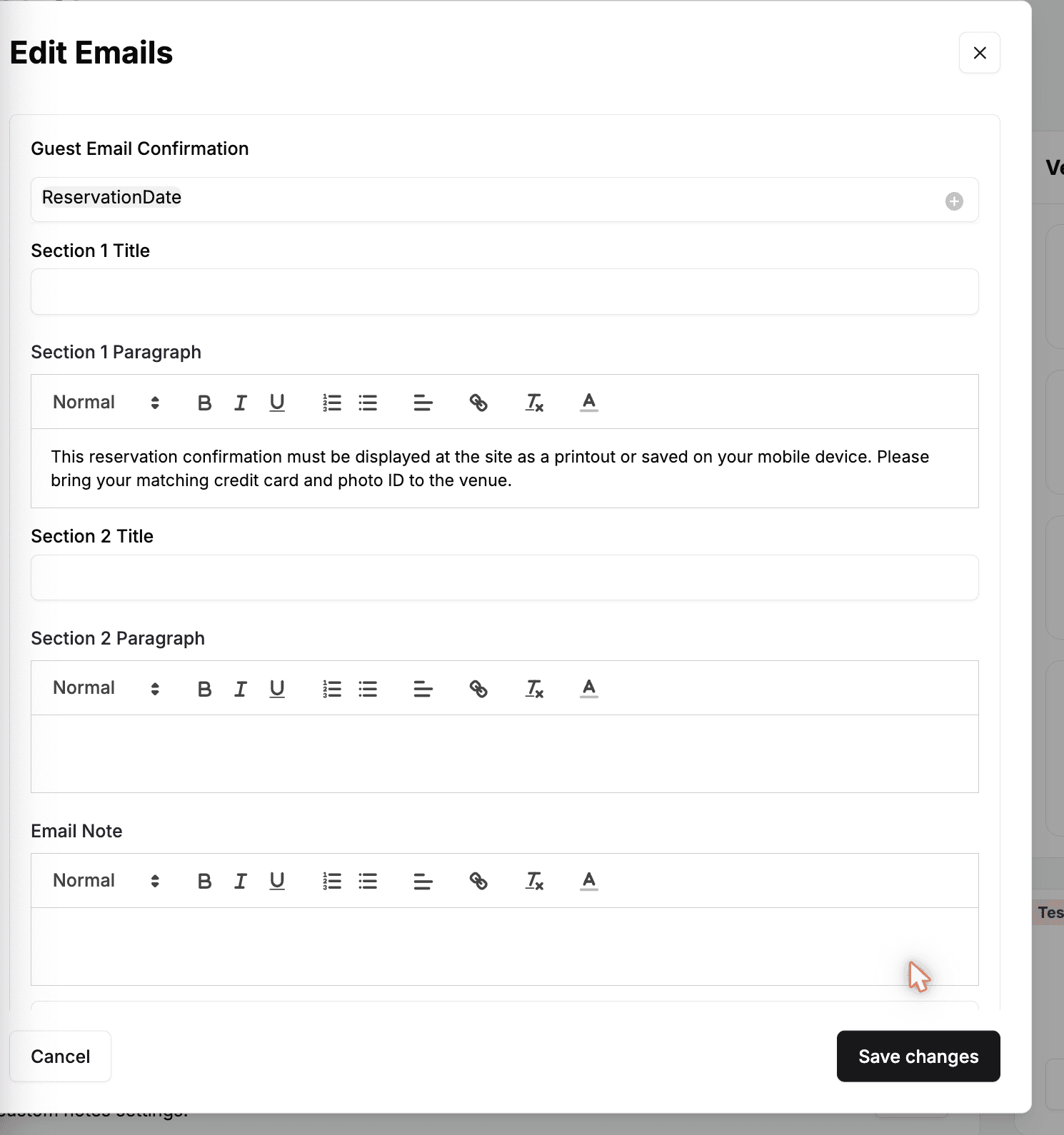
| Field | Description |
|---|---|
| Guest Email Confirmation | The booking confirmation email: subject, two title-plus-paragraph sections, an email note, and a toggle to show your venue policies. |
| Inquiry Email | The reply guests receive after submitting an event inquiry — title and copy. |
| Thank You Email | A follow-up sent after the visit. Set how many minutes after the reservation it sends, plus its subject, header, and body. |
| Reminder Email | A reminder before the visit. Set how many hours ahead it sends, plus its subject and copy. |
Custom Notes
Collect a free-text note from guests during checkout — special requests, occasion details, seating preferences.
| Field | Description |
|---|---|
| Custom Notes | Turns the checkout note field on or off. |
| Notes Required | When on, guests must fill in the note to complete checkout. |
| Notes Title | Label shown above the note field. |
| Notes Explanation | Helper text explaining what to write. |
| Notes Prefill | Text the note field starts with. |
For a task-oriented tour of the booking page these fields feed — category tabs, photos, sidebar links, and checkout options — see Customize your reservation page.
Updated Oct 8, 2026
Was this helpful?