
Set up categories
Categories let you group your packages and memberships under labels like VIP or Seasonal. Once a category is assigned, guests can use it as a filter to quickly narrow down what they're booking or subscribing to. This guide covers creating categories, assigning them to packages and memberships, and what guests see once everything is live.
Categories are managed by admins — account admin, venue admin, or regional admin. If your account is in read-only mode, the buttons and toggles described below will be greyed out.
How categories are scoped
Categories are account-wide, which means a category you create once covers all of your venues. The master list lives at the account level, and every venue draws from that same list — you never have to recreate VIP or Seasonal venue by venue. Assign it to packages and memberships at any location and they all share the same set of labels.
Managing categories in one place also keeps them consistent. When you rename a category or change its priority on the account-level list, that update flows through to every venue and every item the category is assigned to — so a guest filtering for VIP sees the same label and the same ordering no matter which venue's page they're on.
| Field | Description |
|---|---|
| Account level | Where you create and manage the master list of categories — their name, priority, and active status. |
| Per package or membership | Where you choose which categories each individual package or membership belongs to. |
A guest only sees a category as a filter option when at least one active package, membership, or add-on that's visible to them has that category assigned.
Create your categories
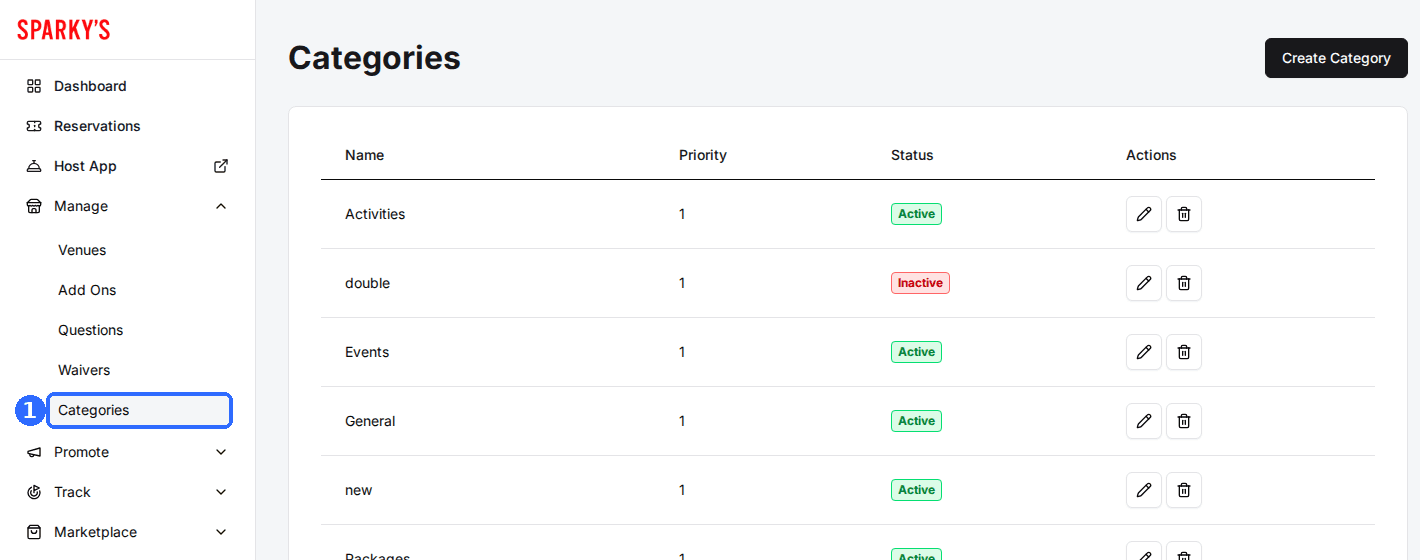
Navigate to Categories
Open the Manage group in the admin sidebar and click Categories. If you have no categories yet, the page prompts you to add your first one.
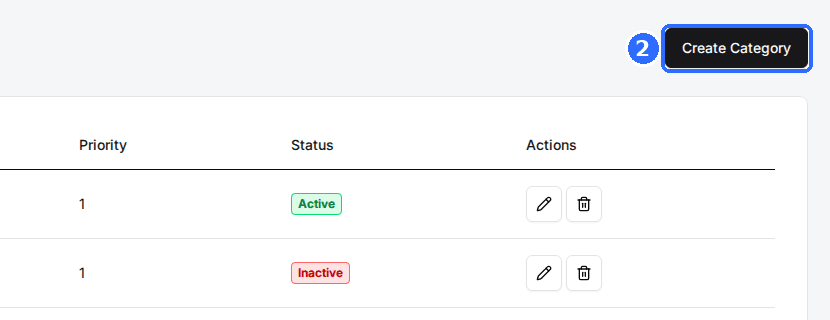
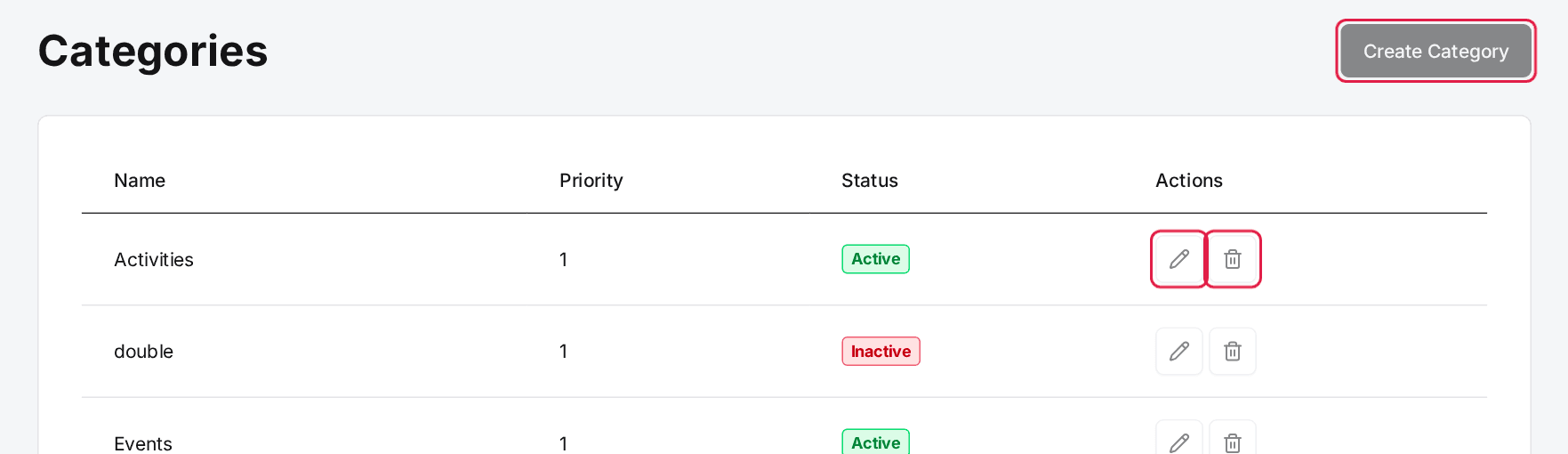
Click Create Category
In the top-right of the Categories page, click Create Category to open the Create Category window.
Enter the category details
Fill in the fields below, then move on to save.
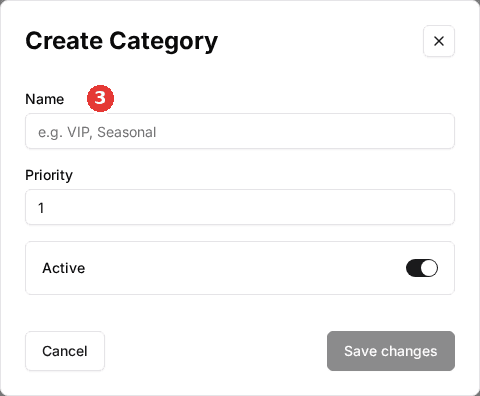
| Field | Description |
|---|---|
| Name | The label guests will see, such as VIP or Seasonal. |
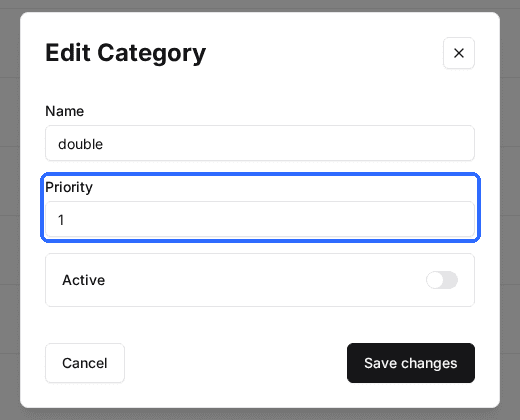
| Priority | A number that controls ordering — higher-priority categories appear first in the guest filter. Defaults to 1. |
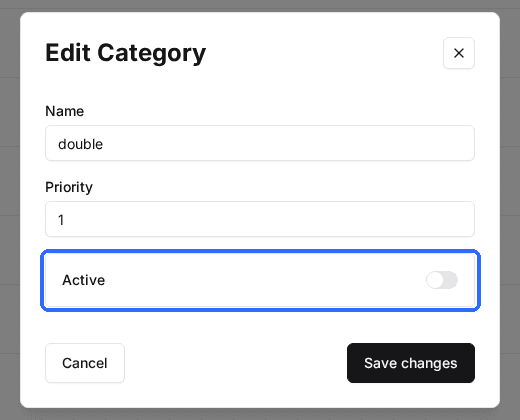
| Active | Leave this toggle on so the category can be assigned to items and shown to guests. |
Save the category
Click Save changes. Your new category appears in the list, which shows its Name, Priority, Status (an Active or Inactive badge), and Actions.
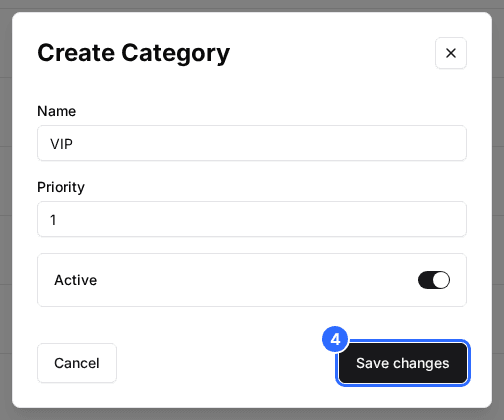
To edit a category later, click the pencil icon on its row, make your changes, and click Save changes. To remove one, click the trash icon and confirm with Delete Category.
Assign categories to packages
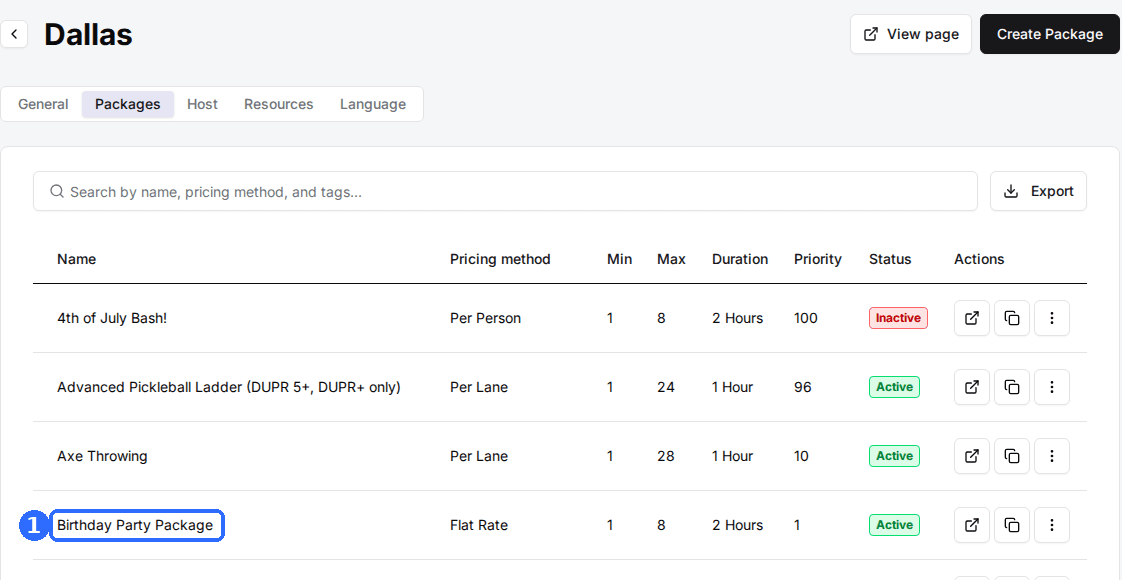
Open the package
Open the venue that owns the package, then open the package you want to categorize.
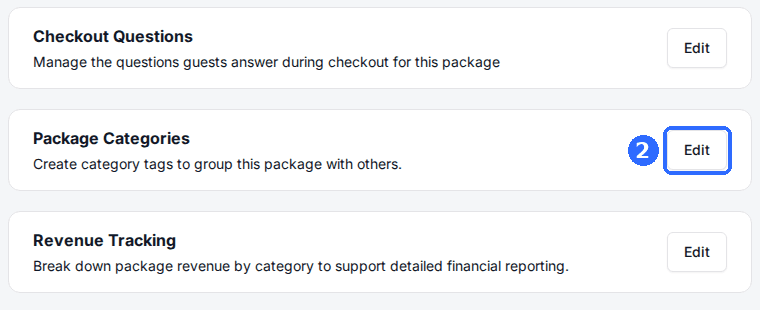
Open Package Categories
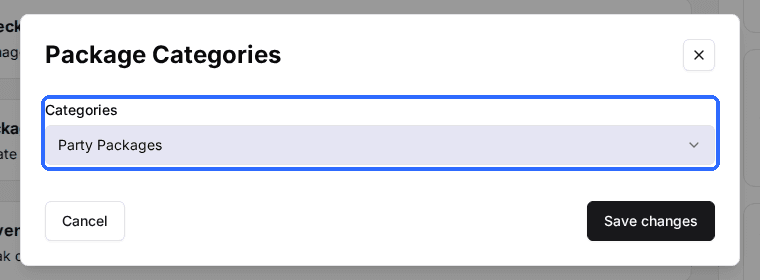
Find the Package Categories section — it's where you create category tags to group this package with others — and open it.
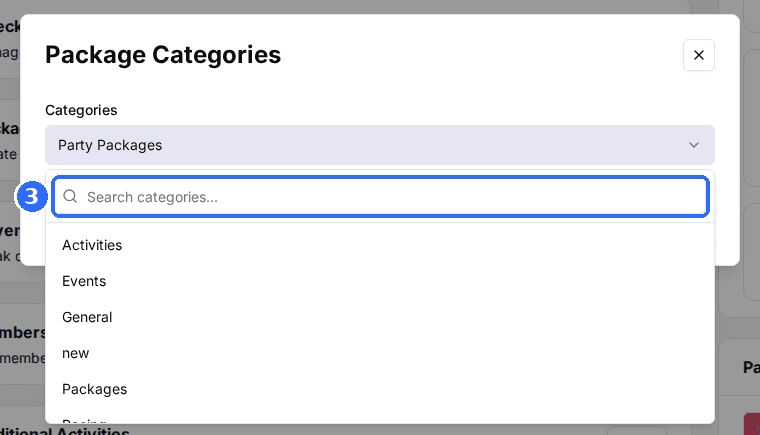
Select the categories
In the Categories selector, use the Search categories box to filter the list, then tick one or more categories. A package can belong to several categories at once.
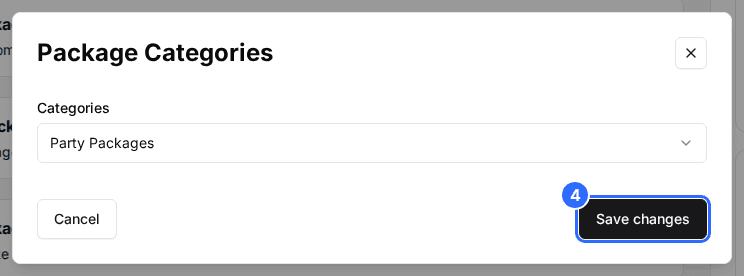
Save changes
Click Save changes to apply. Only active categories appear in this selector.
Assign categories to memberships
Open the membership plan
Open the membership plan you want to categorize.
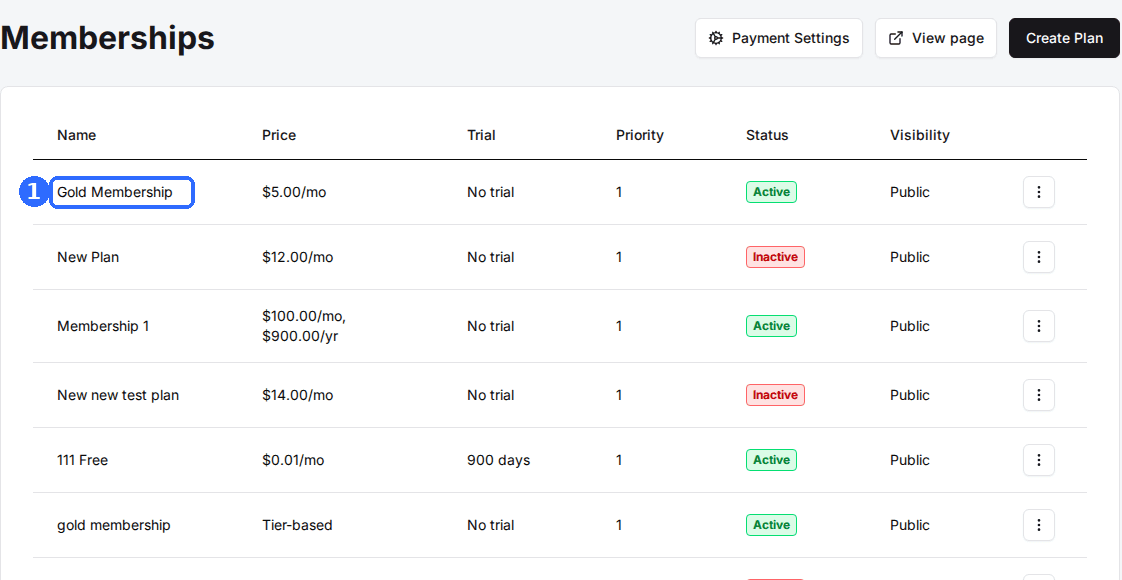
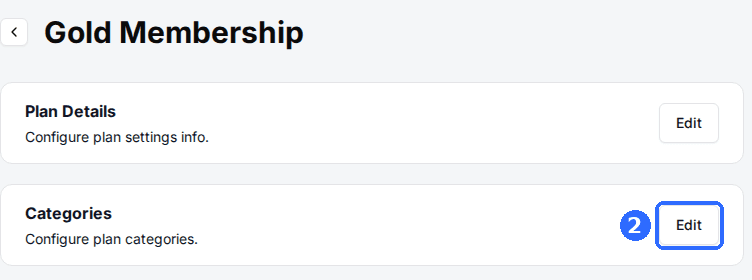
Open the Categories card
On the plan, open the Categories card, described as Configure plan categories.
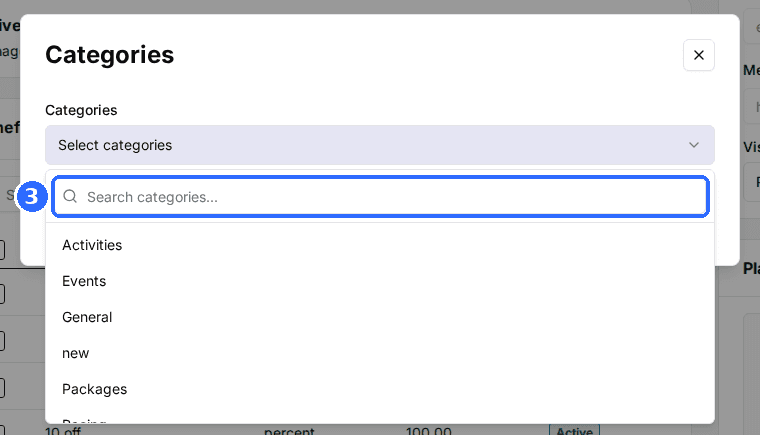
Select the categories
Use the same Select categories and Search categories selector to pick one or more categories.
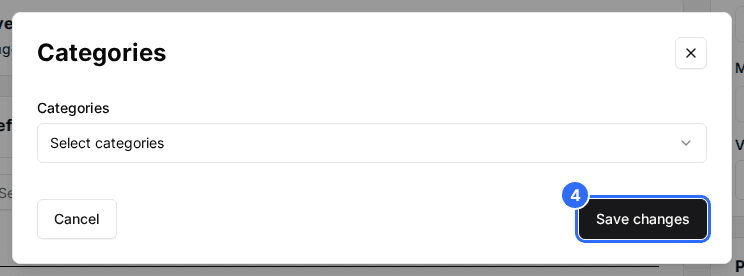
Save changes
Click Save changes to apply.
You can also set categories while editing the plan — scroll to the Categories section near the bottom of the edit form, select the categories you want, and save the plan as usual.
Assign categories to add-ons
The same category list also powers add-on grouping. When editing an add-on, open its Categories window and pick categories the same way. Guests then get a category filter on the add-ons step during booking.
What guests see once it's live
When packages, memberships, or add-ons have categories assigned, guests get a filter so they can jump straight to what they want. For packages and memberships the filter is ordered by priority, highest first. The add-ons filter lists categories in the order your add-ons appear. A filter only appears when at least one active item has a category assigned.
| Field | Description |
|---|---|
| Packages (booking flow) | After choosing a date, guests see a row of filter buttons — an All button followed by your category names. Tapping a category narrows the package list to just that category. |
| Memberships | On the memberships page, guests see filter chips — an All chip plus your category names, styled in your brand colors. Selecting one filters the plans shown. |
| Add-ons | During checkout, the add-ons step shows the same kind of category filter buttons. |
Hiding the All option
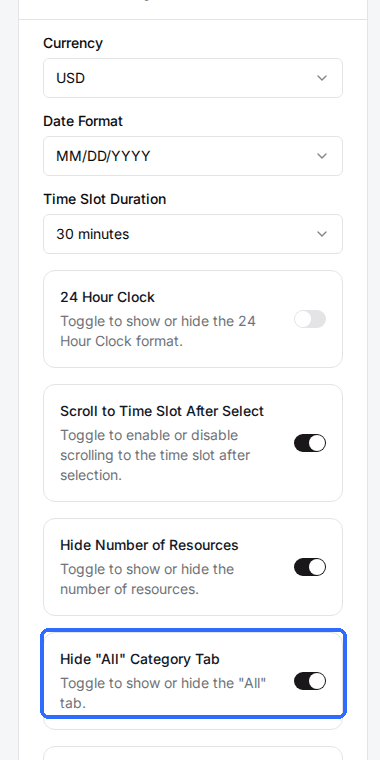
By default each filter starts with an All option. If you'd rather guests land on a specific category instead of seeing everything at once, go to Settings → Global Settings and turn on Hide "All" Category Tab. Guests then open straight onto your first category.
Troubleshooting
A category I created isn't showing in the assign list
Possible causes
- •The category is marked Inactive.
Fix
Open the category, turn its Active toggle on, and save. Only active categories appear in the package, membership, and add-on selectors.
A category isn't appearing as a guest filter
Possible causes
- •No active, guest-visible item has that category assigned.
- •The only items assigned to it are hidden or deleted.
Fix
Assign the category to at least one active package, membership, or add-on that guests can see. The filter only appears once a visible item uses the category.
Categories appear in the wrong order for guests
Possible causes
- •Ordering is driven by Priority, and a higher number shows first.
Fix
Edit the categories and adjust their Priority values so the ones you want first have the highest numbers.
Guests don't see an All option
Possible causes
- •The Hide "All" Category Tab setting is turned on.
Fix
Turn off Hide "All" Category Tab to bring the All option back to the start of the filter.
Buttons and toggles are greyed out
Possible causes
- •Your account or login is in read-only mode.
Fix
Sign in with an admin login that has edit permissions, or contact your account owner to grant access.
Updated Oct 8, 2026
Was this helpful?