
Use the Host App calendar
The Calendar is the Host App's home screen. It shows every reservation and block for one venue and one day. Each resource (lane, bay, court or table) has its own row down the left, grouped by resource type, and the day's hours run across the top.
Get around with the dock
The dock at the bottom of the screen takes you to every page. It hides while a reservation or the Create screen is open.
| Field | Description |
|---|---|
| Calendar | This screen: the day's reservations and blocks on every resource. |
| Check In | The day's reservations grouped by status, where you check parties in. |
| Bookings | A searchable list of reservations across a date range. |
| + (Create reservation) | Opens the Create screen, with tabs for a Package reservation, a Block or a Membership. |
| Guests | Every guest who has booked, with their visit history, waivers and notes. |
| Floor | Shows a Floor plan is coming soon page for now. Use the Calendar to see and change your resources. |
| More | Waivers (only when your venue collects waivers), Settings, Help and Switch User. |
Help under More opens a sheet with two tabs: Help links to the most-used help articles, and Legend explains the colors and icons on reservation cards.
Pick the venue, day and resources
Select your venue
Tap the location picker in the top-left corner and choose a venue. It lists every venue your account can access.

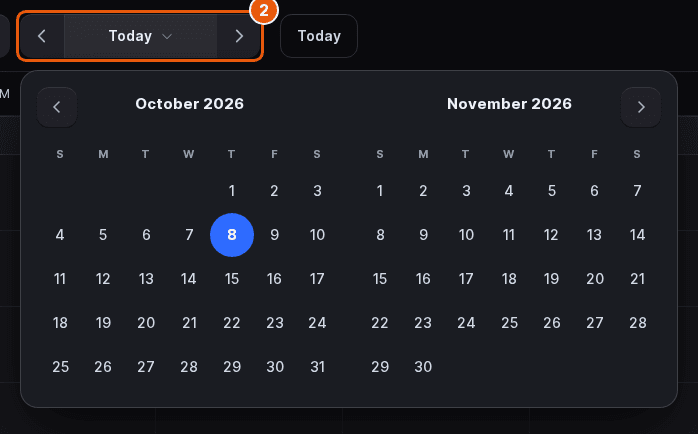
Set the day
Use the arrows on either side of the date to go back or forward one day, or tap the date to pick from a two-month calendar. Today jumps back to the current day.
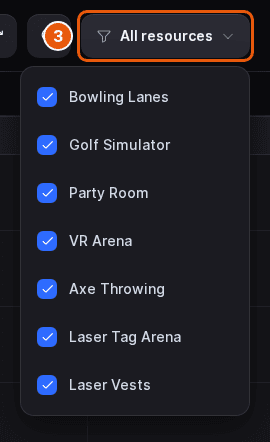
Filter the resource types
Tap All resources in the top-right corner and untick any resource type you don't want to see. The button then shows how many types are on, for example 2 of 3.
The other controls in the top bar:
| Field | Description |
|---|---|
| Refresh | Reloads the day's reservations without reloading the app. |
| Search | Searches reservations and guests. Use the arrow keys and Enter to open a result. |
| Optimize | Reassigns resources to fit the day's bookings better. Only shown when resource re-optimization is turned on for the venue. |
In the bottom-right corner, the arrow buttons scroll the day an hour earlier or later, and Zoom out and Zoom in make each resource row shorter or taller. On a tablet-sized screen only the zoom buttons appear. To set a zoom level that sticks, see Set your Host App preferences.
Create from an empty slot
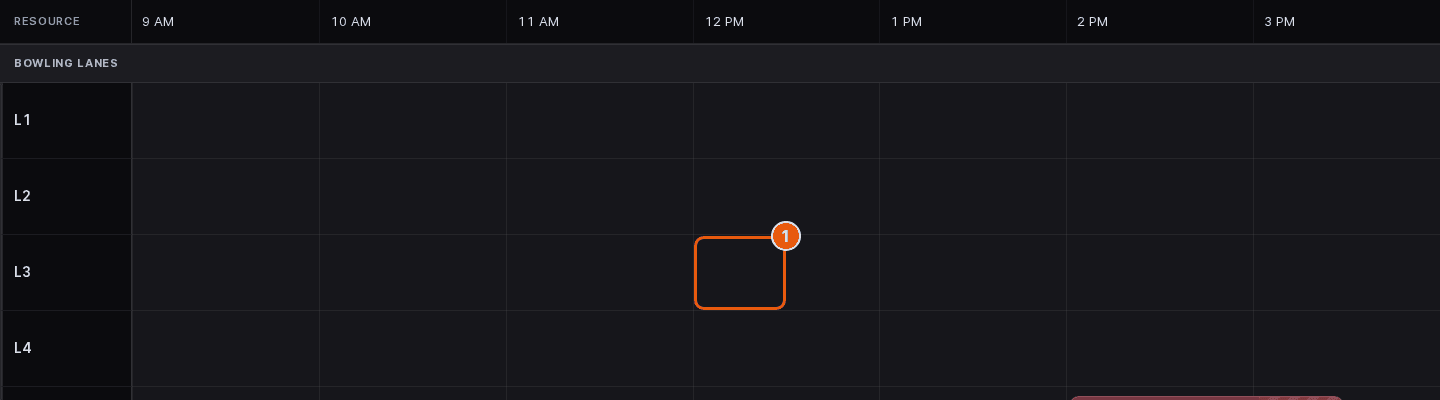
Tap an empty slot
Tap a free slot on a resource's row to start there. To cover a longer time or several resources, drag across the slots instead. On a touchscreen, press and hold first, then drag, so a normal swipe still scrolls. A selection stays within one resource type.
Select what to create
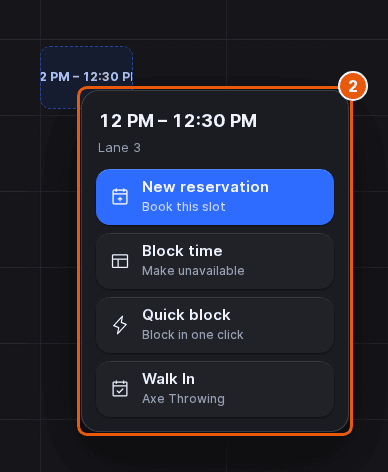
A menu opens showing the time and resources you picked. Choose one of the options described below. A slot that has already passed shows a message instead, because you can't create in the past.
| Field | Description |
|---|---|
| New reservation | Opens the Create screen with the time and resources already filled in. |
| Block time | Opens the block form for the selected time so you can make it unavailable. |
| Quick block | Blocks the selected time in one tap, using the block name and notes set for the venue. Only shown when Enable Quick Block is on in the venue's Host settings. |
If your venue has Quick Book presets, each one also appears in the menu under its own name. Tapping a preset books the selected slot in one go with that preset's package and guest details. Presets and Quick Block are set up in the admin dashboard on the venue's Host tab; see Configure host settings for a venue. For more on blocks, see Block time in the Host App.
Open a reservation
Tap a reservation card to open it. The card shows the guest and their phone number, the package, Time, Duration, Guests, Resource and any balance due. From here, Check in checks the party in, Actions lists everything else you can do to the reservation, and View details opens it on the Check In page. See Check in guests and Modify or reschedule a reservation.
Change a resource's status
Resource status used to live on the Floor page. It is now set from the calendar.
Tap the resource's name
In the left column, tap the name of the resource you want to change, for example L1. Its status menu opens.
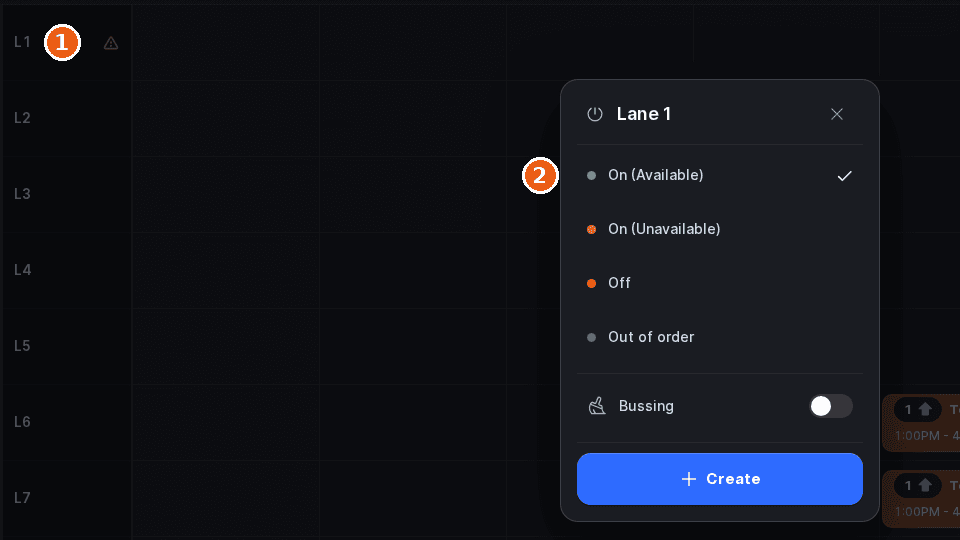
Select a status
The current status has a check mark. Your choice applies straight away.
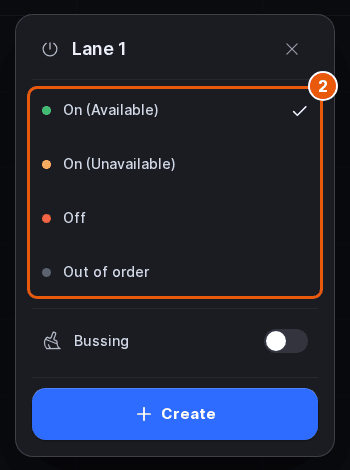
| Field | Description |
|---|---|
| On (Available) | The resource is on and guests can book it online. |
| On (Unavailable) | The resource is on for your staff, but guests can't book it online. |
| Off | The resource is turned off and can't be booked. |
| Out of order | The resource is broken or closed for repair until you change it back. |
Under the statuses, Bussing is a switch that marks the resource as being cleared or reset between groups. It doesn't change the status. Create opens the Create screen with this resource already selected.
A status belongs to the resource, not to the day on screen. Setting a lane to Off or Out of order affects every day, including online booking, until someone sets it back.
Updated Oct 8, 2026
Was this helpful?