
Check in guests
The Check In page is where hosts mark parties as arrived. The day's reservations are listed on the left, grouped by status, and the reservation you pick opens on the right. You can also check a party in from the Calendar: tap the booking and use the same Check in and Actions buttons.
Check a party in
Navigate to the Check In page
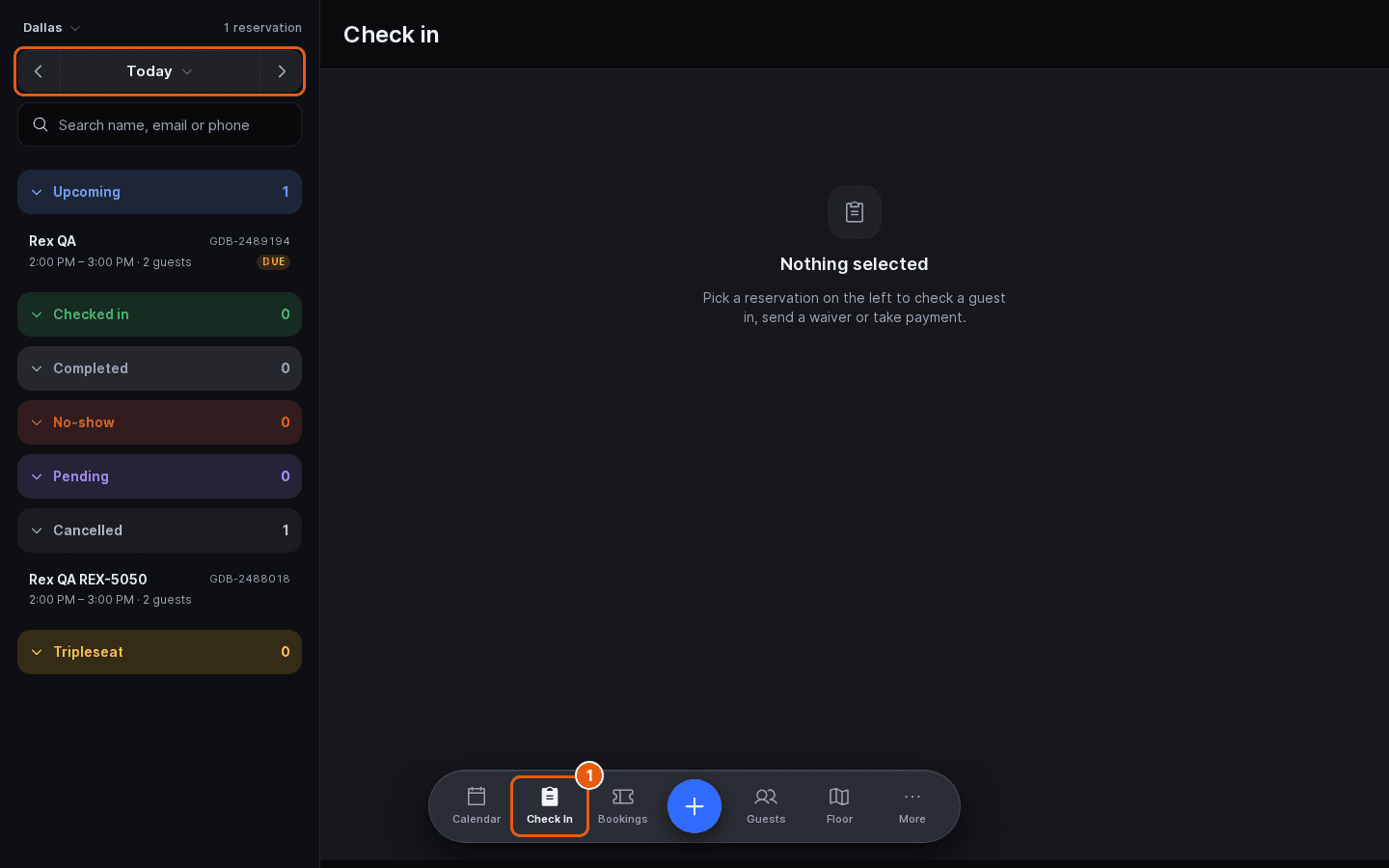
Tap Check In in the dock at the bottom of the screen. The page opens on today. Use the arrows either side of the date to go a day back or forward, or tap the date to pick one from a calendar.
Find the reservation
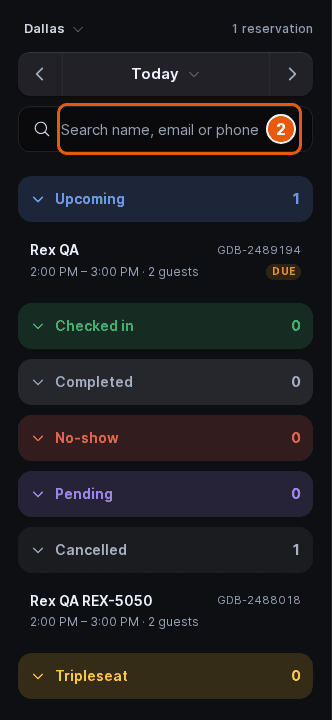
Type a name, email or phone number into the search box. Reservations are grouped by status (Upcoming, Checked in, Completed, No-show, Pending, Cancelled and Tripleseat, depending on your venue) and sorted by start time within each group. A DUE tag marks a reservation that still has a balance owed.
Select the reservation
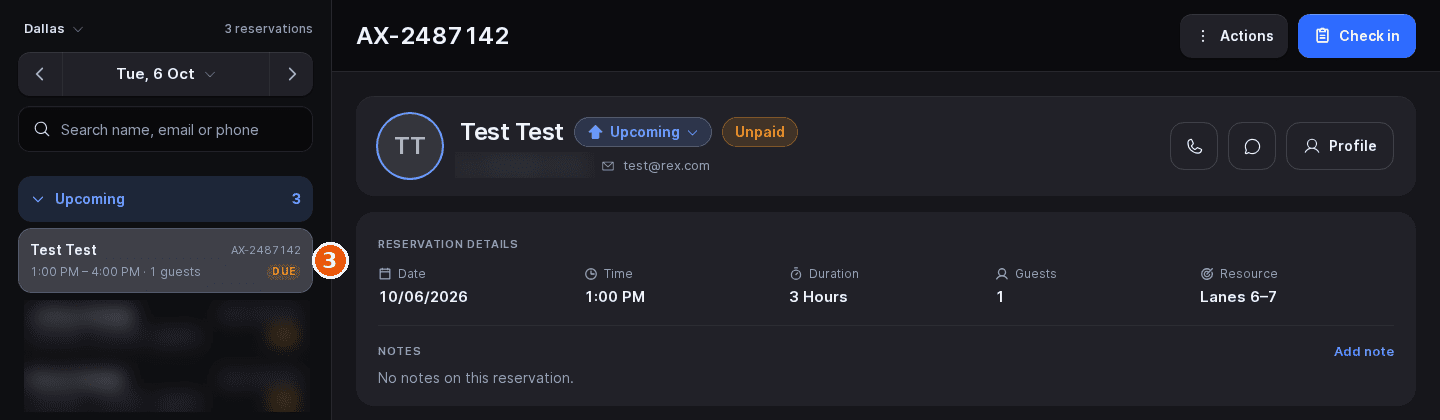
Tap its row. The right side shows the guest, the reservation details (date, time, duration, guests and resources), notes, the reservation summary, guests and waivers, the timeline and the payment.
Click Check in
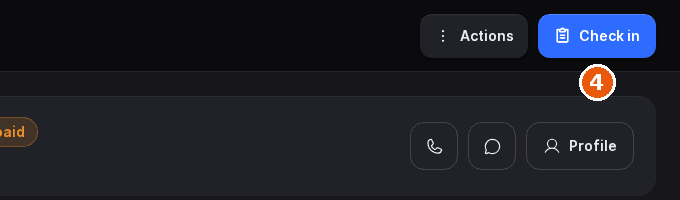
Check in is the blue button at the top right. Once the party is checked in, the reservation moves to the Checked in group and the button changes to Undo check in, which reverses it.
Depending on your venue's settings, a dialog can appear before the check-in goes through:
| Field | Description |
|---|---|
| Check in early? | The party is checking in before its start time and early check-in is on for the venue. Move the start time to now, keep the original time, or tap Not yet. |
| Missing waivers | The venue requires waivers at check-in and not every guest has signed, or fewer guests are on the reservation than were booked. Tap Check in anyway, or Go back and send the waivers first. |
| Balance due | Prompt for payment at check-in is on for the venue and money is still owed. Tap Collect payment to take it from the Payment actions, Check in anyway, or Not yet. |
| Complete or undo? | On some GoTab venues, undoing a check-in while the guest has an open tab asks whether to Complete and close tab or just Undo check in. |
See Enable and use early check-in for the early check-in choices and Collect signed waivers from guests for waivers.
Change the status
The status pill next to the guest's name (for example Upcoming) is a menu. Tap it to move the reservation to Upcoming, Checked in, Completed or No-show. Choosing Checked in runs the same dialogs as the Check in button.
Choosing No-show asks what to do with the resources: No-show and release all resources frees them for walk-ins, and No-show without releasing keeps them held. If the package charges a no-show fee, you can then pick the guest's saved card to charge it, or choose Mark no-show without the fee.
More on the reservation
- The phone and chat buttons beside the guest's name call or text the guest. The chat button only shows when texting is set up for the venue.
- Profile opens the guest's profile and visit history.
- Add note under Notes adds a note the whole team sees.
- The Guests and waivers card lists each guest's waiver. Use Add guest to add a guest, and Send waiver or Remind to email a waiver link.
- The printer icon next to the day's reservation count prints a kitchen sheet for the day.
The Actions menu
Tap Actions at the top right for everything else you can do to a reservation. An action that doesn't apply is greyed out with the reason underneath, for example Nothing has been paid yet on Refund reservation.
| Field | Description |
|---|---|
| Modify reservation | Change the date, time, duration, guests, resources, package or add-ons. |
| Add time | Extend the reservation by one to four time slots, when extensions are set up for the venue. |
| Assign resources | Change or swap the lanes the party is on. |
| Edit buffer time | Set the buffer before and after the reservation. |
| View on calendar | Jump to the reservation on the Calendar. |
| Print BEO sheet | Print the event sheet for this reservation. |
| Cancel reservation | Cancel with refund, without refund, or with a coupon instead (the coupon option shows when discounts are enabled for the venue). |
| Manual charge | Charge a saved card, a new card or a card reader, depending on what the venue allows. |
| Mark as paid | Record money taken outside Rex, such as cash at the desk. It doesn't charge anything. |
| Send payment link | Email or text the guest a link to pay an amount you choose. |
| Refund reservation | Refund to the guest's card, or issue a coupon instead. |
| View invoice | Open the GoTab, Square or Stripe invoice, when the reservation has one. |
| Resend email | Send the confirmation email again, to the guest's address or another one. |
| Manual sync | Send the reservation to your connected integrations again. |
| Confirm reservation | Confirm a Pending reservation. Only shows while the reservation is pending. |
Step-by-step guides: Modify or reschedule a reservation, Refund a reservation and Send a payment link.
Updated Oct 8, 2026
Was this helpful?