
Set up Quick Texts
Quick Texts are short, pre-written messages your hosts can keep on hand instead of typing the same thing over and over — for example a "Running Late" note or a "Your lane is ready" heads-up. You write them once per venue in the venue's Host settings, and your hosts pick from them when messaging guests.
Quick Texts requires the Texting integration. Quick texts are delivered to guests as text messages, so a venue can only use them once texting is connected. If you haven't set that up yet, start with Texting — Integration Set up, then come back here.
Any admin who can edit a venue's settings can set up Quick Texts — it lives in every venue's Host settings. If the fields are greyed out, your login is in read-only mode; sign in with an account that has edit permissions or ask your account owner.
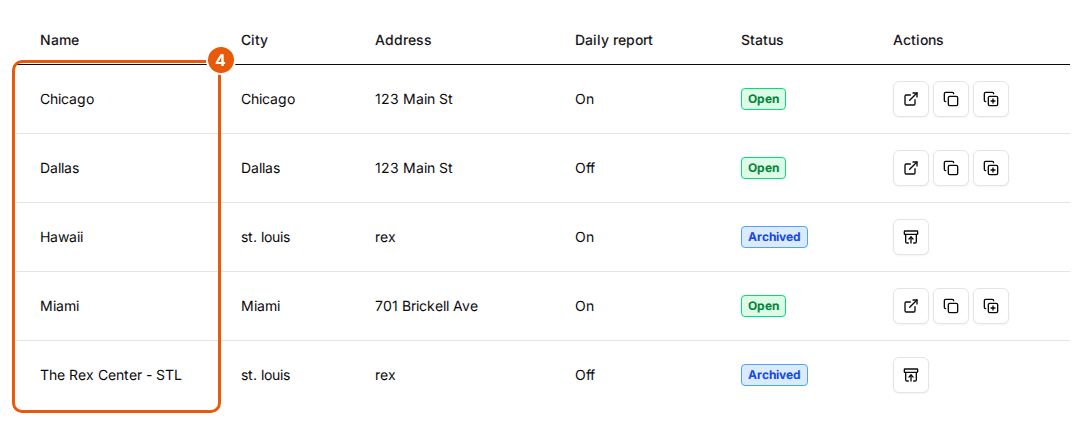
Quick Texts are a per-venue setting. They're saved on the individual venue, not shared across your whole account. If you run multiple venues and want the same quick texts everywhere, add them to each venue separately.
Set up Quick Texts
Open the venue's Host tab
In the admin dashboard, open the venue you want to set up, then open its Host tab.

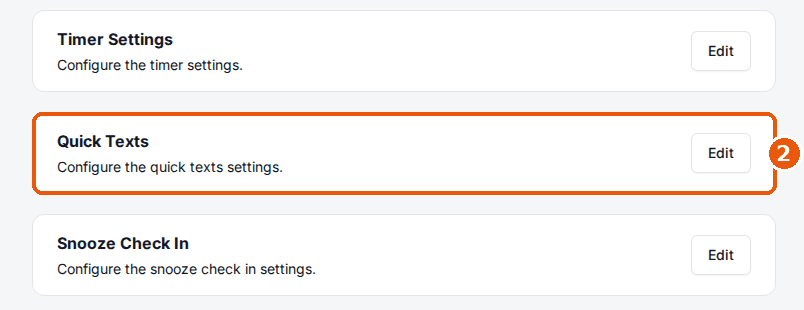
Edit the Quick Texts card
Find the Quick Texts card — described as Configure the quick texts settings — and click Edit to open the Quick Texts window.
Add an entry
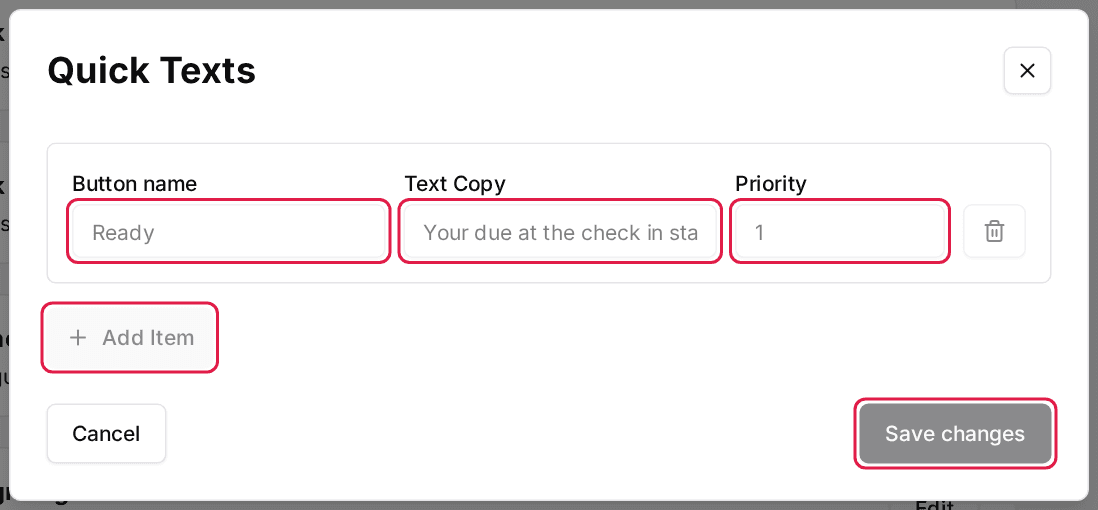
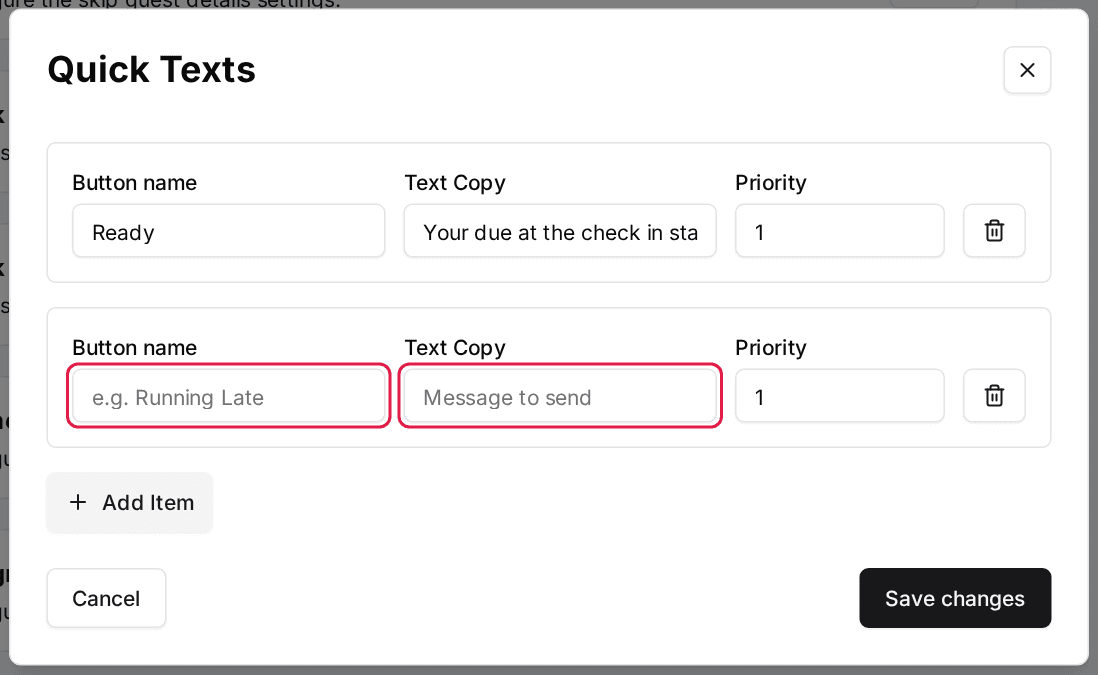
Click Add Item to create a new quick text. Each entry has three fields, described below.
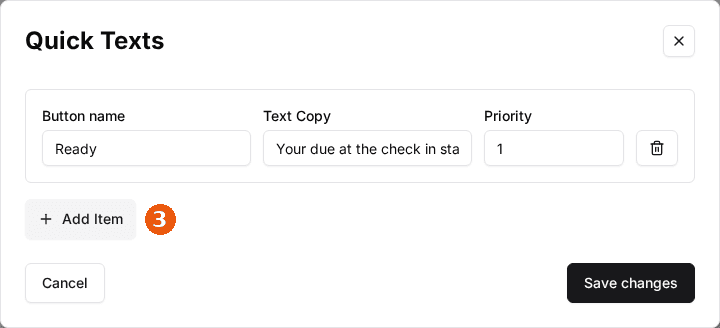
| Field | Description |
|---|---|
| Button name | The short label your hosts see and tap, such as "Running Late". Keep it brief so it's easy to scan. |
| Text Copy | The message itself. Tapping the quick text puts this wording in the message box, where the host can edit it before sending. |
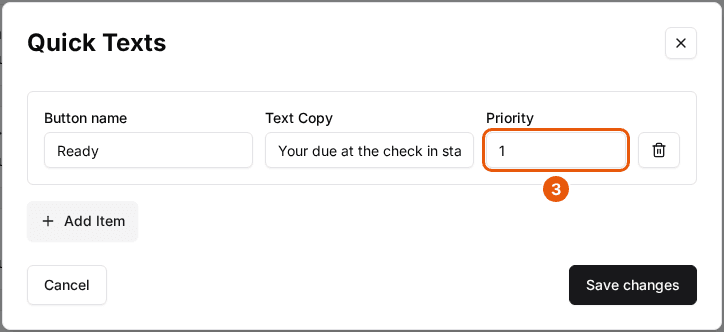
| Priority | A number that controls the order quick texts appear in. Higher-priority entries surface first. |
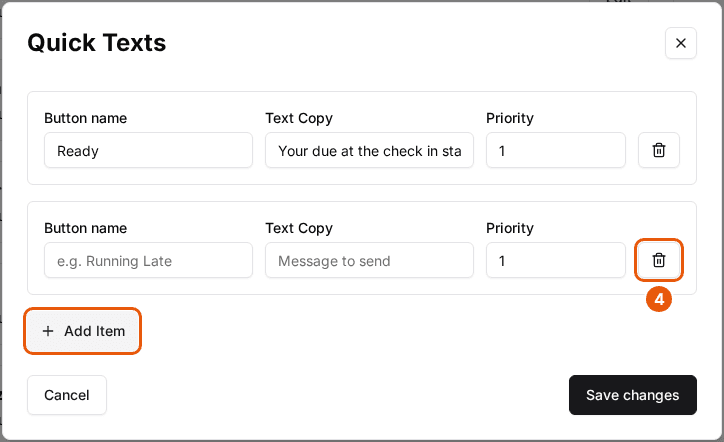
Add as many as you need
Click Add Item again for each additional quick text. To remove an entry, click the trash icon on its row.
Save changes
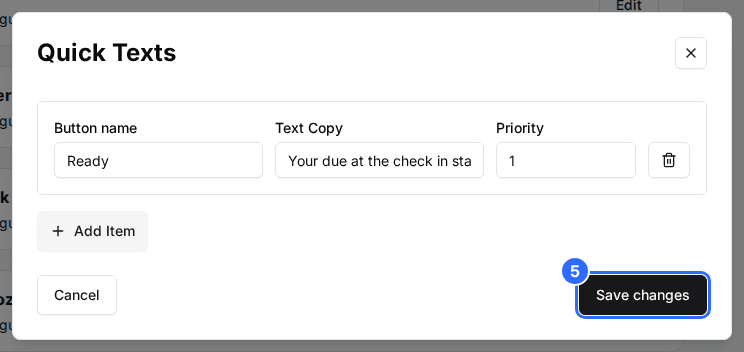
Click Save changes when you're done. Empty entries — no button name and no text — are dropped automatically on save.
Keep the button name short and put the full wording in Text Copy. For example — Button name: "Running Late", Text Copy: "Hi! Your host is running a few minutes behind — thanks for your patience."
What hosts experience once it's live
Once Quick Texts are saved for a venue, they appear in the Host App under Quick texts whenever a host texts a guest, highest Priority first. Tapping one fills the message box with its Text Copy. The host can change the wording, then sends it as usual.
Troubleshooting
The Quick Texts card fields are greyed out
Possible causes
- •Your login is in read-only mode.
Fix
Sign in with an admin account that has edit permissions, or ask your account owner to grant access.
A quick text I added wasn't saved
Possible causes
- •The entry was left with both Button name and Text Copy empty, so it was dropped on save.
Fix
Re-add the entry and fill in at least the Text Copy, then click Save changes.
Quick texts appear in the wrong order for hosts
Possible causes
- •Ordering is driven by the Priority number on each entry.
Fix
Edit the entries and adjust their Priority values so the ones you want first have the higher priority.
A venue has no quick texts even though another venue does
Possible causes
- •Quick Texts are saved per venue, not account-wide.
Fix
Open the other venue's Host tab and add the quick texts there too. Each venue keeps its own list.
Updated Oct 8, 2026
Was this helpful?