
Set up email notifications
Rex sends transactional emails to your guests and your team automatically — you don't have to build them. What you control is who receives them, which optional ones are switched on, how they're worded, and (if you like) the domain they send from.
There's no single “Email Notifications” page. Recipients live in each venue's Venue Settings; the optional guest emails and their wording live in the venue's Language › Emails screen; and account-wide options are in Global Settings. Each is covered below.
Emails Rex sends to guests
These go out on their own as guests book and as their reservations change:
| Field | Description |
|---|---|
| Booking confirmation | Sent the moment a guest books. Confirms the reservation details and, when you collect payment, doubles as the receipt. |
| Reservation changed | Sent when a booking's date, time, or party size is modified. |
| Reservation canceled | Sent when a booking is canceled. |
| Refund | Sent when you refund a booking. |
| Payment request | Sent when a reservation has a balance due — includes a link for the guest to pay. |
| Guest invitation | Sent to the people a booker invites to join their reservation, when Invite Guests is enabled on the package. |
| Waitlist opening | Sent to a waitlisted guest when a spot opens up for the date they wanted. |
Emails Rex sends to your team
| Field | Description |
|---|---|
| Booking notification | A copy of every booking confirmation, sent to your Reservations Email. |
| Event inquiry | Sent to your Events Email when a guest submits the event or party inquiry form. |
| Daily report | A summary of the day's bookings, sent to your Daily Report Emails at the time you choose. |
Choose who gets team notifications
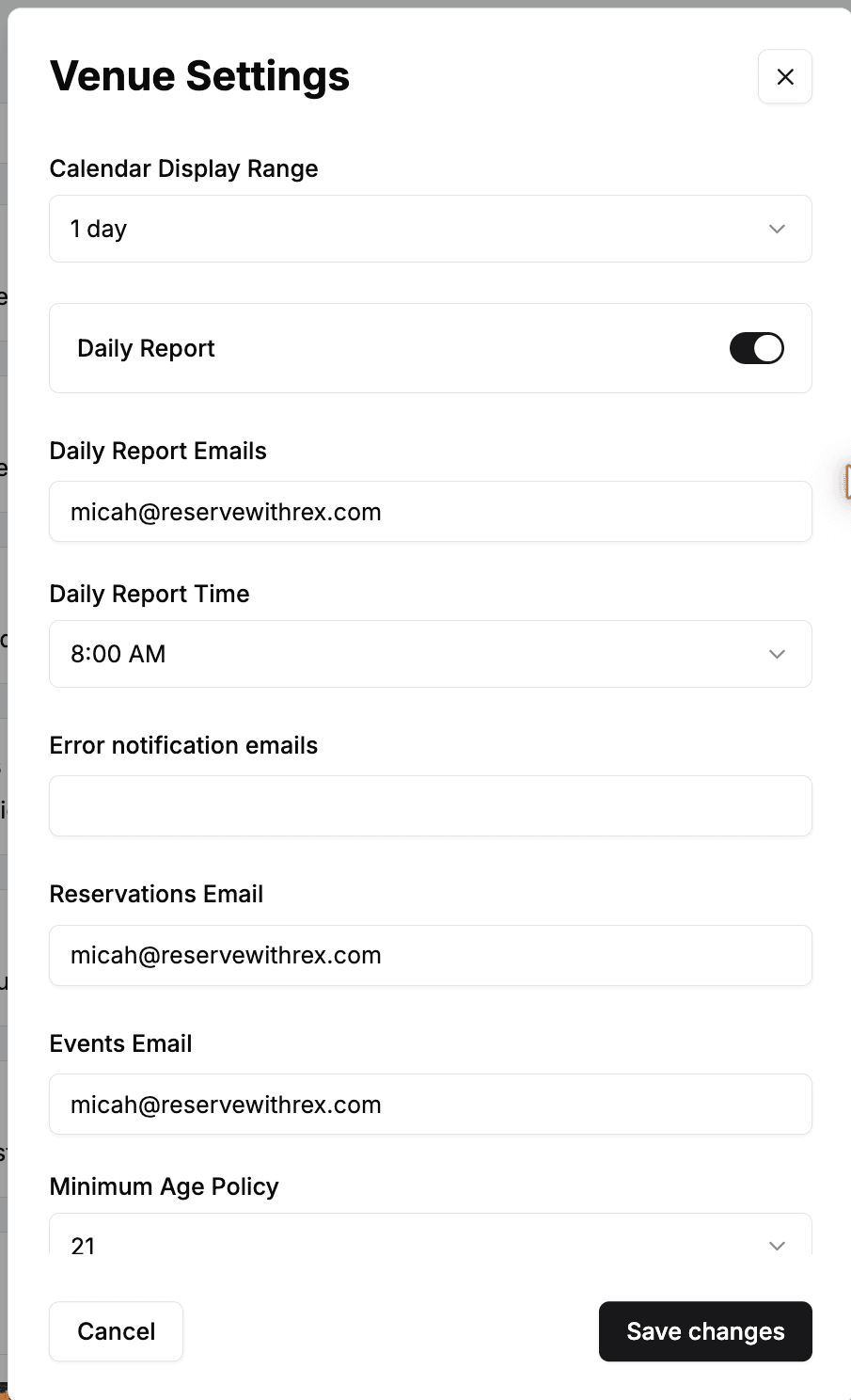
Recipients are set per venue. Open the venue, stay on the General tab, find the Venue Settings card, and click Edit.
| Field | Description |
|---|---|
| Reservations Email | Receives a copy of every booking confirmation for this venue. Use a shared inbox your front-of-house team can watch. |
| Events Email | Receives event and party inquiry form submissions. |
| Daily Report Emails | Receives the daily booking summary. Turn on Daily Report and set the Daily Report Time in the same window. |
| Error notification emails | Receives an alert if one of this venue's emails fails to send. |
Turn on optional guest emails
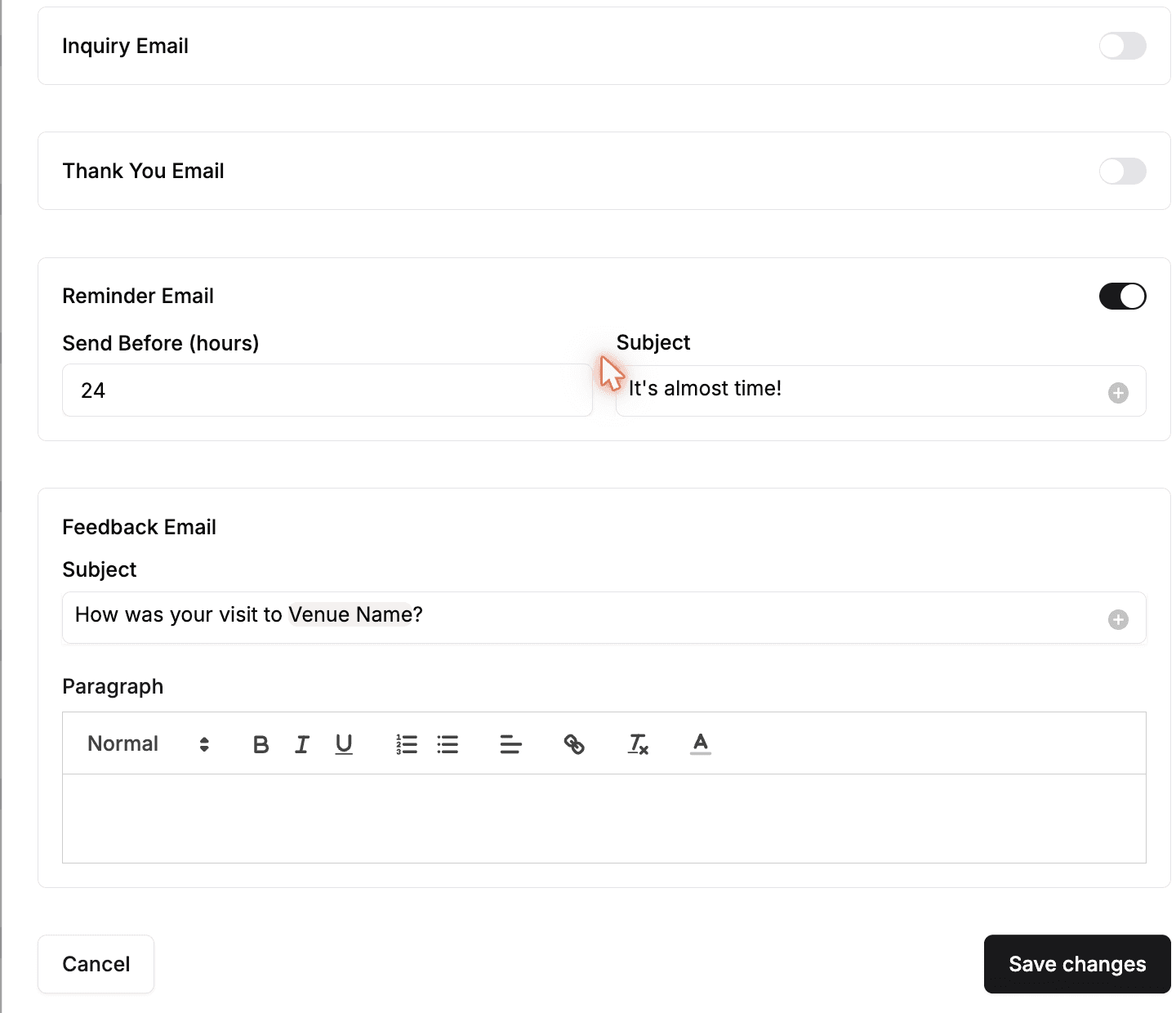
Open the venue, go to the Language tab, find the Emails card, and click Edit. The Edit Emails window holds a few extra guest emails you can switch on:
| Field | Description |
|---|---|
| Reminder Email | Reminds guests before their visit. Turn it on, then set Send Before (hours) and a Subject. |
| Thank You Email | A follow-up sent to guests after their visit. |
| Feedback Email | A post-visit survey that collects guest feedback. Set its Subject and message here; switch it on and choose the timing on the Feedback card under the venue's General tab. |
| Inquiry Email | A confirmation sent to guests who submit your event inquiry form. |
At the top of the same window, the Guest Email Confirmation section controls your booking confirmation's wording — its subject line plus the Section 1, Section 2, and Email Note blocks. Use the + button on a field to drop in dynamic details like the reservation date.
Book a quick test reservation for your own email address to preview the confirmation before you go live.
Other email settings
Find these under Global Settings (Settings › Global Settings):
Hide Company Name from Emails — a toggle in the Global Settings panel that removes your company name from the footer of outgoing emails.
Membership emails — if you sell memberships, set the member email's wording and notification recipients in the Memberships Page card (Membership Email Title, Membership Email Description, and the membership notification emails).
Send from your own domain (advanced) — to route all outgoing email through your own verified domain instead of Rex's, connect Mailgun under Settings › Integrations and enter your Key and Domain. Your branding carries further when your logo and colors are set too — see Design and modify your theme.
Updated Oct 8, 2026
Was this helpful?